Activating a License on a USB Security Key
You can bind a GENESIS license to a USB security key so that the license runs on whichever computer the key is plugged into. Learn more about how USB security key licensing works.
Before you begin, make sure you have:
-
A YubiKey that supports Smart Card (PIV).
-
GENESIS installed with the YubiKey Utilities component. This component is selected in the component list of the GENESIS installer, and it allows GENESIS to validate the license against the key.

-
An available license on the Web Licensing site, along with your product registration number (P Number) and customer key.
Any license purchased for GENESIS can be bound to a USB security key. The only difference from activating a software license is that the license is tied to the key instead of to the computer's site code.
To activate a license on a USB security key:
-
Plug the YubiKey into the computer where the license will reside.
-
Enter license utility in the Windows search box and open the License Utility with administrator privileges. If a Windows dialog appears, click Yes.
-
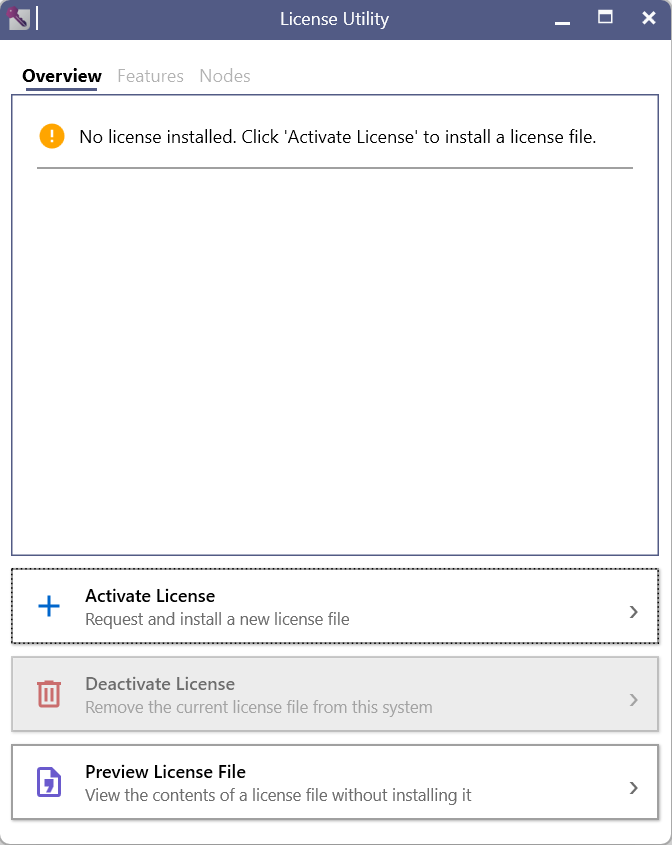
On the Overview tab, click Activate License.
-
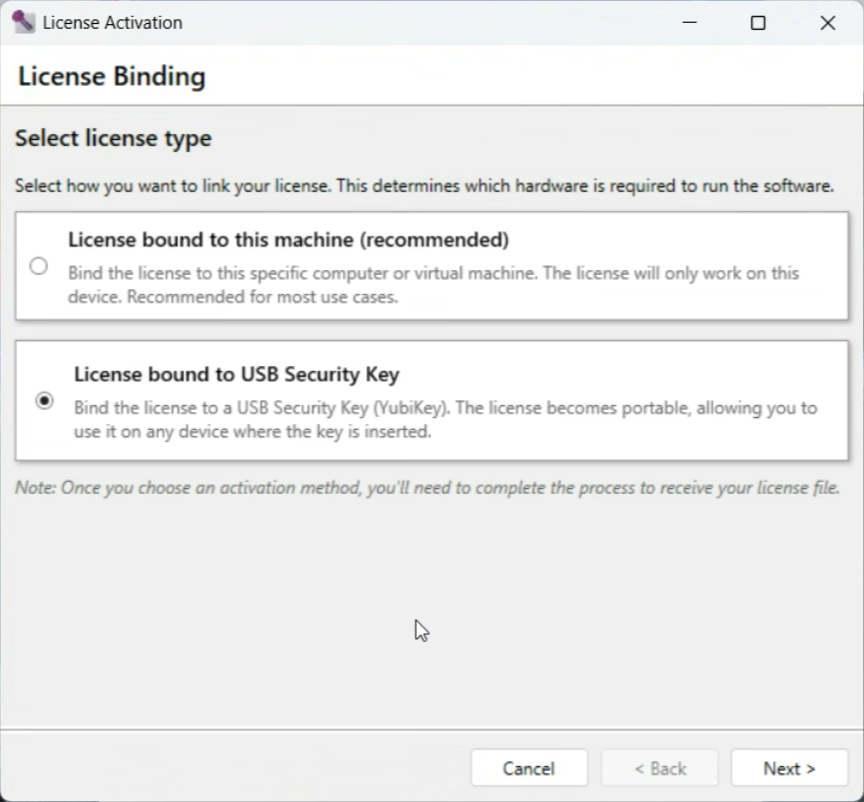
On the License Binding page, under Select license type, select License bound to USB Security Key, and then click Next.
If the YubiKey is plugged in, this option is selected automatically.
-
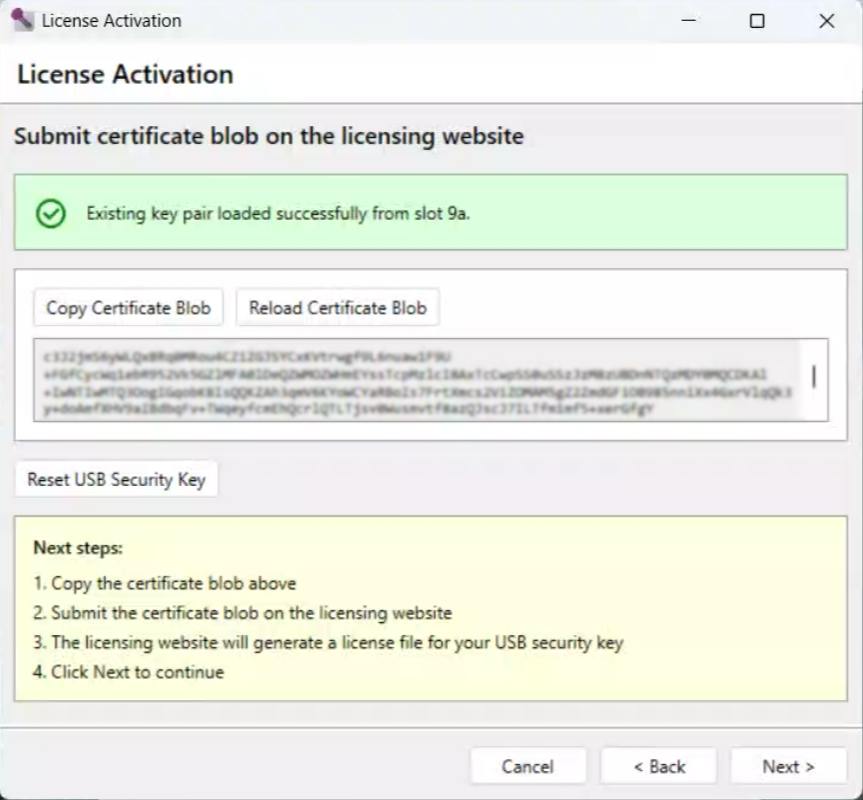
On the Submit certificate blob on the licensing website page, click Copy Certificate Blob.
If no certificate blob appears, click Reload Certificate Blob. To initialize a new, unused key, click Reset USB Security Key.
Resetting a key regenerates its certificate and invalidates any license already bound to it. Only reset a key that does not hold a license you want to keep.
-
Generate the license file on the Web Licensing site by following the steps in Activating a New Software License, pasting the copied certificate blob into the Site Code box in place of a site code. The certificate blob works like a site code but is slightly longer. Save the generated license file (.jws) on the computer.
-
Return to the License Utility and click Next to open the License File Installation page.
-
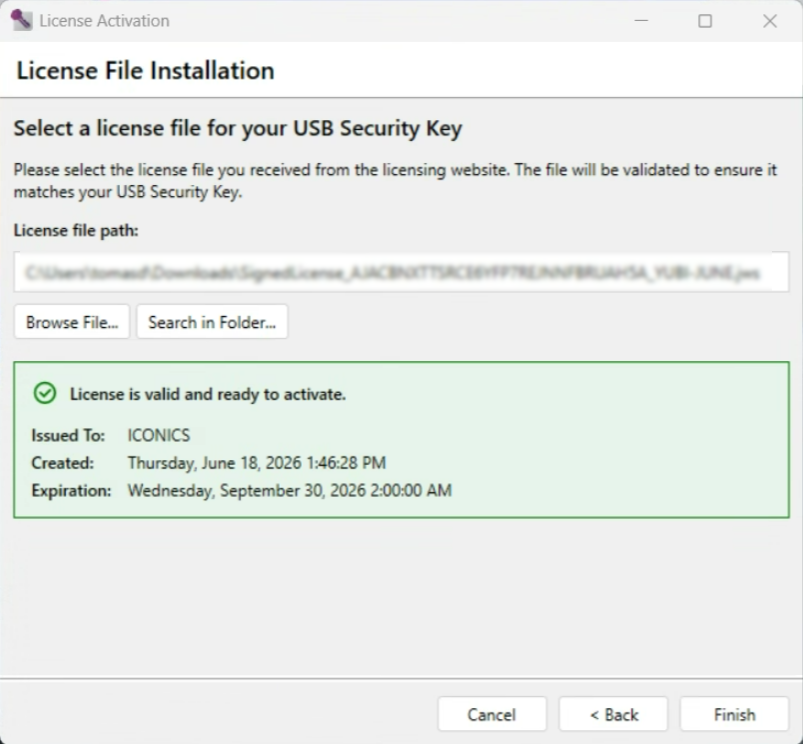
Click Browse File, select the license file, and confirm that the utility reports License is valid and ready to activate. Click Finish. The Overview tab now shows the activated license, with Bound To listing the USB security key.
Keep the YubiKey plugged in to keep GENESIS licensed. If you remove the key, the License Utility reports No USB Security Key detected and the computer returns to demo mode until you plug the key back in.
What's Next?