Data Export and Integration in Data Historian
The Data Exporter copies logged Data Historian data to external storage on a schedule, so that reporting tools, databases, and big data platforms can work with it. It exports to Microsoft SQL Server and Azure SQL databases, Azure Data Lake Storage Gen2, Amazon S3, the Hadoop Distributed File System, and comma-separated value (.csv) files.
The Data Exporter requires the Data Historian - Data Exporter license feature. Learn more
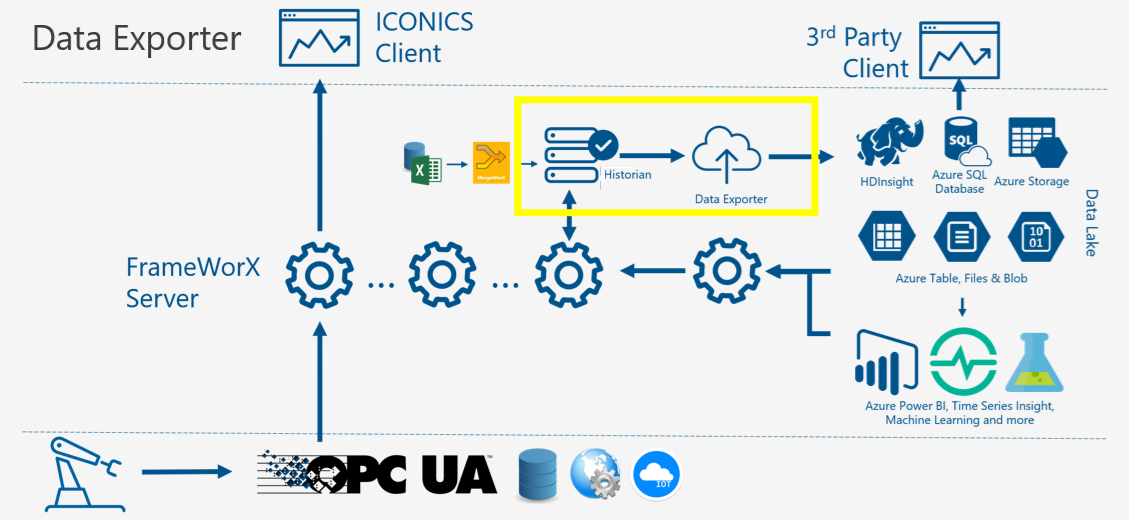
You configure the Data Exporter in Workbench under Historical Data > Data Historian > Data Exporters. An export uses three kinds of object:
-
Storage—Where the data goes: the connection type and the connection details for one destination. Learn more
-
Datasets—What to export: the tags to include, whether to export raw or aggregated values, and the columns each exported record contains. Learn more
-
Tasks—When to export: a synchronization task joins one storage to one or more datasets and runs each time its trigger fires. Learn more
How an Export Runs
Each time a task's trigger fires, the task exports the data logged since its previous run. It starts the range at the previous run minus the task's Synchronization Offset and ends it at the current time.
The task's Data Storage Schedule determines when the export starts a new storage container, such as a new file or table. For Local CSV Files, the Data Exporter creates a folder named after the dataset under the root folder and names each file after the start and end of its period in UTC, such as 20261027T14-21-16_20261103T14-21-16.csv.
You can change a storage, dataset, or task while Data Historian is running. To export a time range again or to export data logged before the task existed, add an on-demand export. Learn more
Storage Types
|
Connection Type |
Exports To |
Credentials |
|---|---|---|
|
Amazon S3 |
A bucket in an Amazon Web Services (AWS) region |
An AWS access key and secret key |
|
Azure Data Lake Gen2 |
A file system (container) in an Azure storage account |
The storage account name and the storage account's shared key |
|
Hadoop File System |
A folder in the Hadoop Distributed File System, through the WebHDFS REST API |
A user name and password |
|
Local CSV Files |
A folder on the Data Historian server |
None |
|
SQL / Azure SQL |
A Microsoft SQL Server or Azure SQL database |
Windows NT Integrated Security, SQL Security, or Entra ID Security. Learn more |
Workbench masks passwords, secret keys, and shared keys in the storage configuration.
Aliases
Datasets and storage connection strings can contain aliases, written as <<AliasName>>, so that one dataset or storage serves several tasks. Each task supplies the alias values in its Aliases field, in the form Name1=Value1;Name2=Value2. You can use aliases in a dataset's Data Point Name, Path Filter, and Point Name Filter, and in a storage's Connection String.
Concurrent Exports
By default, the Data Exporter runs one export at a time. To let it run several at once, expand your project > Historical Data > Data Historian > Product Configuration and double-click System Settings. On the Options tab, set Concurrency Level under Data Exporter Settings, and then select Apply.