Subscribing to Data from an MQTT Broker
Subscribing brings data from an MQTT broker into GENESIS, where it becomes available to other components and clients as real-time points, datasets, or events. One subscriber connection reads one branch of a broker's topic tree, so a single connection can serve many publishing devices.
Before you begin, connect to an MQTT broker so that a broker definition is available to select. You also need to know the base topic the devices publish under and the format of their messages. Learn more
To subscribe to data from an MQTT broker:
-
Open Workbench. In the Project Explorer, expand your project > Data Connectivity > Internet of Things, right-click Subscriber Connections, and select Add MQTT Subscriber Connection.
-
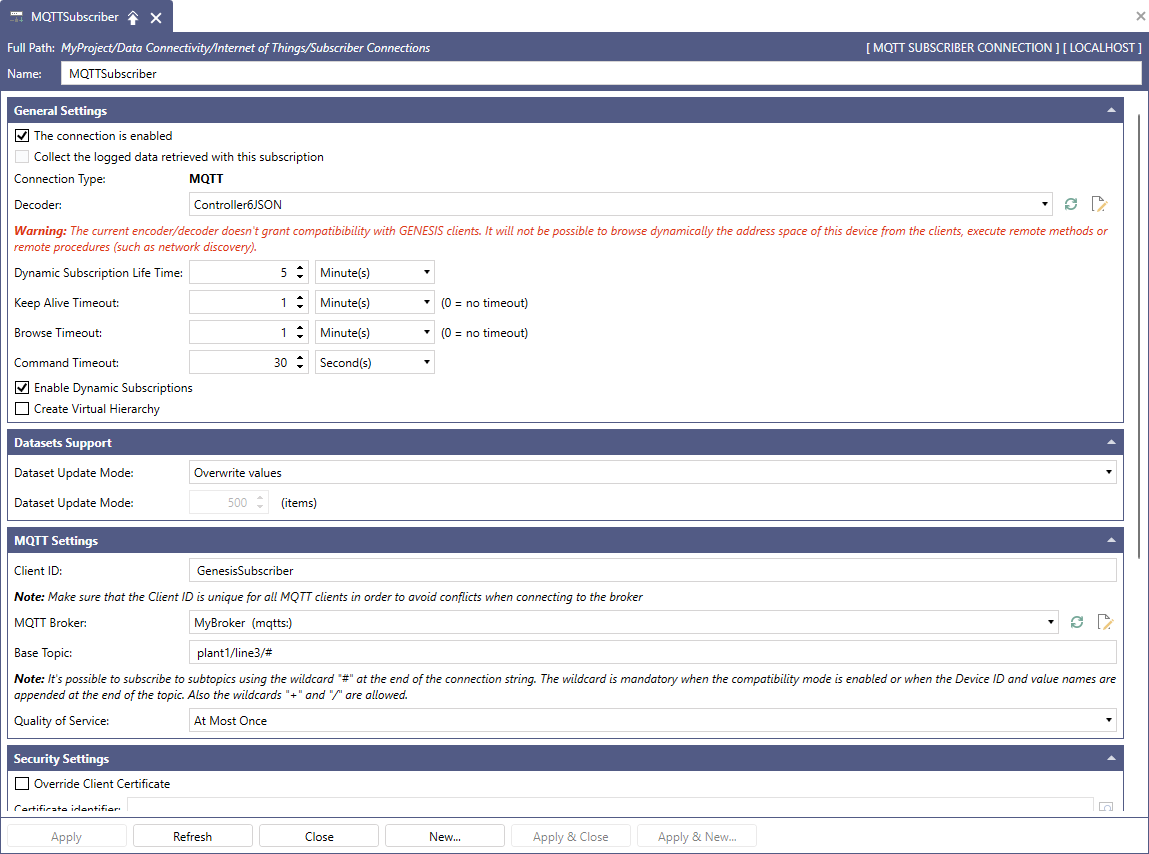
In the subscriber connection configuration dialog, enter a Name for the connection. The name becomes part of the point address of everything this connection receives.
-
In the General Settings section, configure how GENESIS interprets the connection:
-
In Decoder, select the format the devices publish in. Leave it as No Decoder to forward each message to GENESIS as an event carrying its raw payload. Learn more
Start with No Decoder when you do not yet know what a device sends. The raw payloads show you the exact message layout, which is what you need to select or build the right decoder.
-
Set the timeouts as necessary:
-
Keep Alive Timeout specifies how long to wait for a message from a device before marking it offline.
-
Browse Timeout specifies how long browsed folders and points stay cached in the address space.
-
Command Timeout specifies how long to wait for a device to respond to a command.
-
Dynamic Subscription Life Time specifies how long a dynamically subscribed publish list point stays valid after its last use.
-
Select Create Virtual Hierarchy to expose the levels of the MQTT topic as nested folders in the address space rather than as one flat list.
-
-
In the MQTT Settings section, configure the following:
-
Enter a Client ID that is unique among all clients connected to the broker.
-
In MQTT Broker, select your broker. If it does not appear, click the refresh button beside the field.
-
Enter the Base Topic to subscribe to. Use + to match a single topic level and # to match all remaining levels. For example: plant1/line3/#.
# must be the last character in the topic. It is required when a native format is selected, and when the device ID or value names are appended to the end of the topic.
-
-
(Optional) In the Security Settings section, select Override Client Certificate or Override security credentials to connect with an identity other than the one defined on the broker.
-
(Optional) In the Topic Management section, tell GENESIS how to identify the device that sent each message. This section appears only when the selected decoder is not one of the native formats. In Device ID Location, select one of the following:
-
DeviceID is specified in the topic—The last element of the topic is the device ID. A message on
MyDevices/Device4is attributed toDevice4. -
DeviceID is a property of the JSON Message—The device ID is a field in the payload, identified by the
%DEVICENAME%keyword in the decoder format. -
All messages will have the same DeviceID—Every message is attributed to the Device ID you enter.
-
-
Click Apply & Close, and then verify that the GENESIS Internet of Things Subscriber Point Manager service is running. On the Home ribbon in Workbench, ensure the traffic light for the Subscriber is green.
-
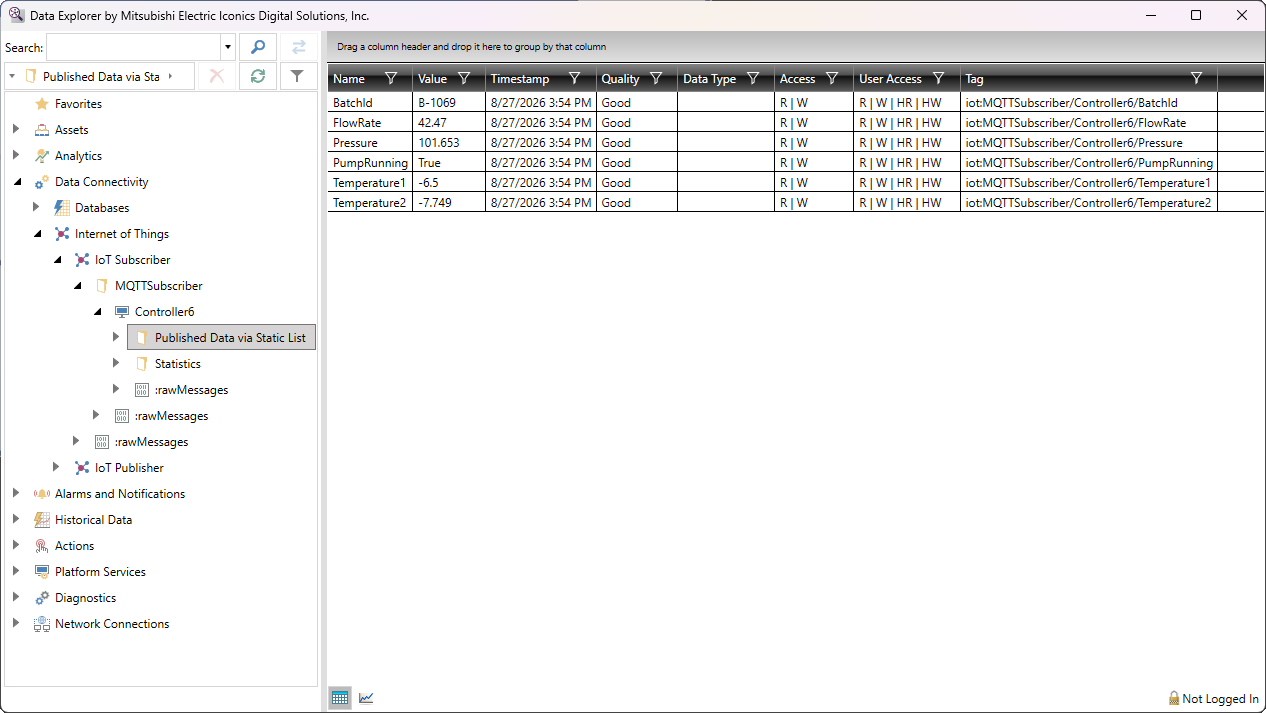
Open Data Explorer and expand My Computer > Internet of Things > your connection to browse the points the devices have published. Values appear as messages arrive, so a device that publishes infrequently does not appear until it sends its first message.
What's Next?