Creating a Custom JSON Decoder
When a device publishes JSON that none of the built-in decoders match, describe its layout to GENESIS with a custom decoder. You can build the description from templates that mirror the shape of the device's messages, marking each piece of information GENESIS should extract with a keyword. Learn more
Before you begin, find out exactly what the device sends. The quickest way is to subscribe to the broker with the Decoder left as No Decoder: each message is then forwarded as an event carrying its raw payload, which you can read in an Alarm Viewer.
The procedure below builds a decoder for a device that publishes messages in the following shape:
This message is an example only. Substitute the property names and structure of your own device's messages throughout.
To create a custom JSON decoder:
-
Open Workbench. In the Project Explorer, expand your project > Data Connectivity > Internet of Things, right-click Custom Encoders/Decoders, and select Add Encoder/Decoder.
-
In the new encoder/decoder configuration dialog, enter a Name. This name appears in the Decoder and Encoder lists of every connection, so name it after the device family it describes.
-
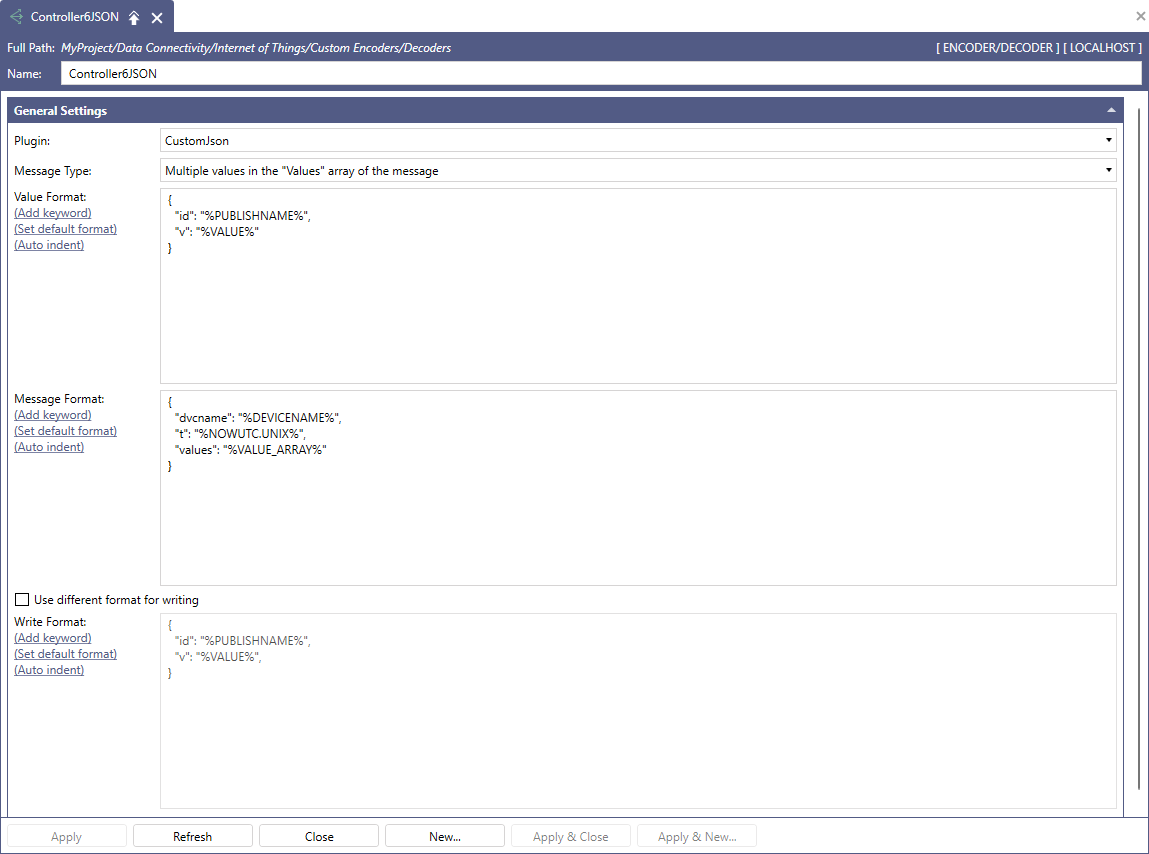
In the General Settings section, in Plugin, select CustomJson.
-
In Message Type, select the option that matches the overall shape of the device's messages:
-
One value for each message—The whole message describes a single tag. Simple to produce and easy to read, at the cost of a high message count.
-
Multiple values for each message—The message is an array of value objects. More efficient for devices that report several tags on a fixed interval.
-
Multiple values in the "Values" array of the message—The message has a root object carrying properties shared by every value, such as the device name and timestamp, and an array of values that inherit them unless they override them. This is the most compact of the value formats and the option to select for the example message above.
-
The whole message is a dataset—The message is interpreted as a table rather than as tags and is exposed to GENESIS as a dataset that clients such as the Grid Viewer can consume.
-
-
In Value Format, describe one entry in the values array. For the example message, enter the following:
{ "id": "%PUBLISHNAME%", "v": "%VALUE%" }-
%PUBLISHNAME% marks where the tag name is found. It becomes the point name in the GENESIS address space.
-
%VALUE% marks where the value is found.
Click (Add keyword) to select from the available keywords rather than entering them by hand, (Set default format) to restore the format GENESIS supplies, and (Auto indent) to reformat what you have entered. Learn more
-
-
In Message Format, describe the object that wraps the values array. For the example message, enter the following:
{ "dvcname": "%DEVICENAME%", "t": "%NOWUTC.UNIX%", "values": "%VALUE_ARRAY%" }-
%DEVICENAME% marks the property that identifies the device. Set Device ID Location on the subscriber connection to DeviceID is a property of the JSON Message so that this value is used.
-
%VALUE_ARRAY% marks where the array of values sits. GENESIS applies the value format to each entry it contains.
-
-
(Optional) Select Use different format for writing if the device expects a different structure for the messages GENESIS sends back to it, and then describe that structure in Write Format. Then click Apply & Close.
Once created, a decoder can be used as the Decoder of a subscriber connection and as the Encoder of a publisher connection that sends data in the same shape.