Understanding Data Flows
A data flow is a configured sequence of steps that reads data from GENESIS data sources and shapes it into a dataset. The first step reads the data, and each following step works on the columns that it receives from the steps before it. Data flows are the recommended data source for data tables, because they let you shape the data before BI Server loads it into memory. Learn more
You can find data flows in Workbench under Analytics > BI Server > Data Flows, where you can organize them in folders. A data flow is also a dataset in its own right: its point name starts with bi:Dataflows/, and a client that reads datasets, such as a Grid Viewer, can subscribe to it directly.
The Data Flow Editor
The data flow dialog has two tabs, Data Flow and Parameters.
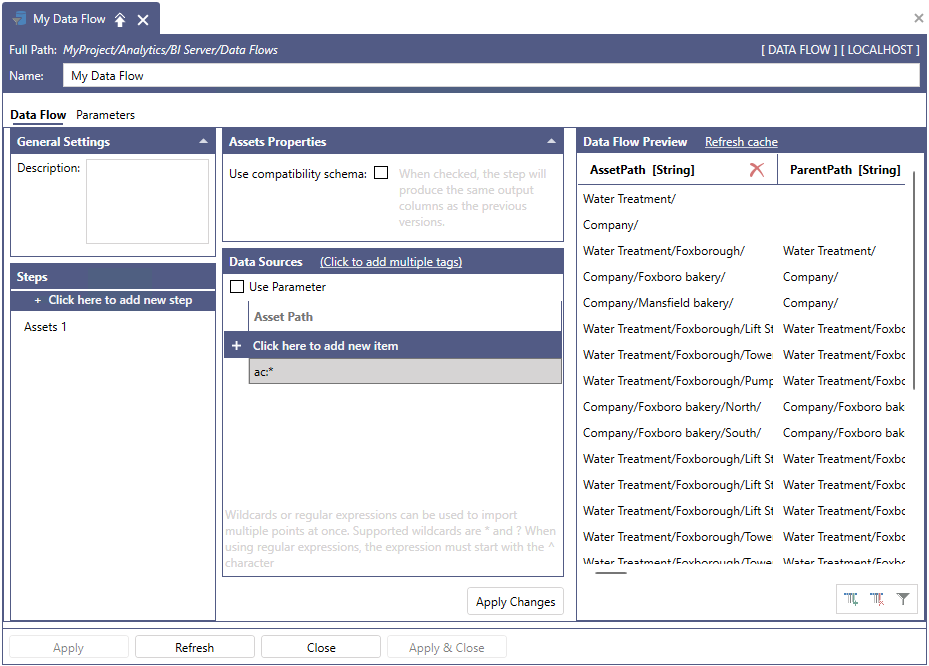
The Data Flow tab contains the following panels:
-
General Settings—A Description of the data flow.
-
Steps—The steps of the data flow, in the order in which they run. Click here to add new step opens the menu of step types, and the new step is added after the last one. Select a step to show its properties. Removing a step also removes all the steps that follow it.
-
Step properties—The properties of the selected step, grouped into panels. A data source step has a Data Sources panel that lists the points it reads and, where the step reads a time range, a Time Settings panel with the Start Time and the End Time. Each step also has a panel named after the step, such as Historical Alarms Properties, for the settings that belong to that step alone. Many properties have a Use Parameter check box that binds the property to a data flow parameter instead of a fixed value.
-
Data Flow Preview—The rows that the data flow produces, with the name and data type of each column. Select Apply Changes to run the data flow in Workbench and refresh the preview. Select Refresh cache to discard the data that Workbench has cached for the preview and read the data sources again, which also refreshes the columns that the following steps see. The preview is truncated when the result is large.
The Parameters tab lists the parameters of the data flow with their Parameter Name, Data Type, and Default Value. A parameter can supply a value to any step property that offers Use Parameter, such as the start and end times of a historical read, so that a data table can refresh the data flow for a moving time window. Learn more
Preview and Runtime
The Data Flow Preview is produced by Workbench, which runs the data flow itself and reads the data sources with its own connection. When a data table loads, the BI Server runtime runs the same data flow on the server. A preview that shows data therefore does not guarantee that the runtime load succeeds. If a data table that uses the data flow shows the Error status, check its Runtime Status and enable TraceWorX for the GENESIS BI Server Point Manager to see which step returned the error. Learn more
Kinds of Steps
Steps fall into three groups. The Data Flow Steps reference lists every step with its properties.
-
Data source steps—Read data from a GENESIS data source: raw or aggregated Data Historian values, alarm history, fault detection data, a Database Connector query, any dataset, real-time values, or asset property values. A data flow begins with one of these steps.
-
Dimension steps—Produce lists to combine with other data: the assets under an asset path, the names of their properties, the Data Historian tags under a folder, or a time dimension at a fixed resolution. Learn more
-
Shaping steps—Transform the columns that the previous steps produced: add, rename, transform, retype, remove, split, or pin columns, parse structured text, filter rows, or transpose values into columns.
Reading Only What You Need
A data source step reads every column that its source offers unless you narrow the request in the step itself. The Event Fields of a Historical Alarms step are an example: when you select the fields there, BI Server requests only those fields from the source, whereas a Remove Column step added later discards columns that have already been read. Selecting the columns in the data source step reduces the data that the source has to return and that BI Server has to process. Learn more
To configure the Historical Alarms step, see Configuring a Historical Alarms Step.