Creating a Data Table
Data tables perform a function in the BI Server that is similar to a SQL database table. They are populated with data from data flows, and you can select a column or a combination of columns to set as a Primary Key on the data table. They can also have triggers to set policies for data refreshes and updates.
To add a data table:
-
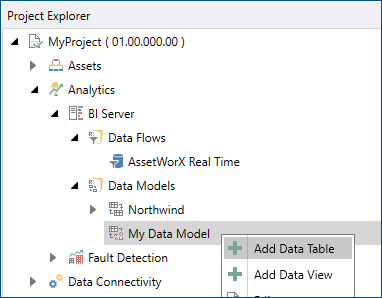
Open Workbench and in Project Explorer, expand your project > Analytics > BI Server > Data Models and, optionally, a data model folder.
-
Right-click the desired data model, and select Add Data Table.
-
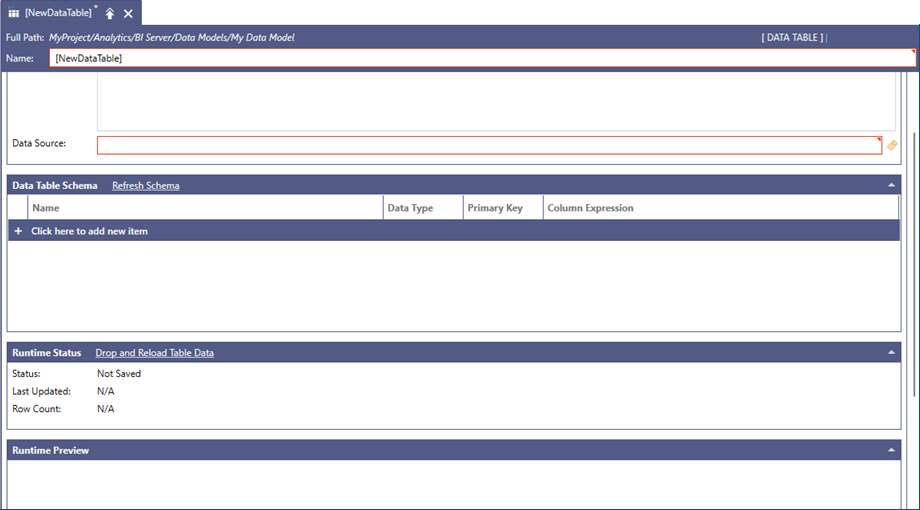
In the new data table properties dialog, complete the Name and Data Source fields. Refer to the next section of this topic for more information on configuring the data source.
How to Configure a Data Source for the Data Table
To fully configure a data table, it is necessary to specify the table’s data source. You can use any dataset exposed in GENESIS as a data table’s data source. However, it is recommended to use data flows as they provide the highest flexibility in data ingestion. Learn more
You can either enter the data source manually, click  to browse for it, or drag-and-drop it from the Data Browser side panel in Workbench. Once you make the selection, the information about the table columns are listed in the Data Table Schema section.
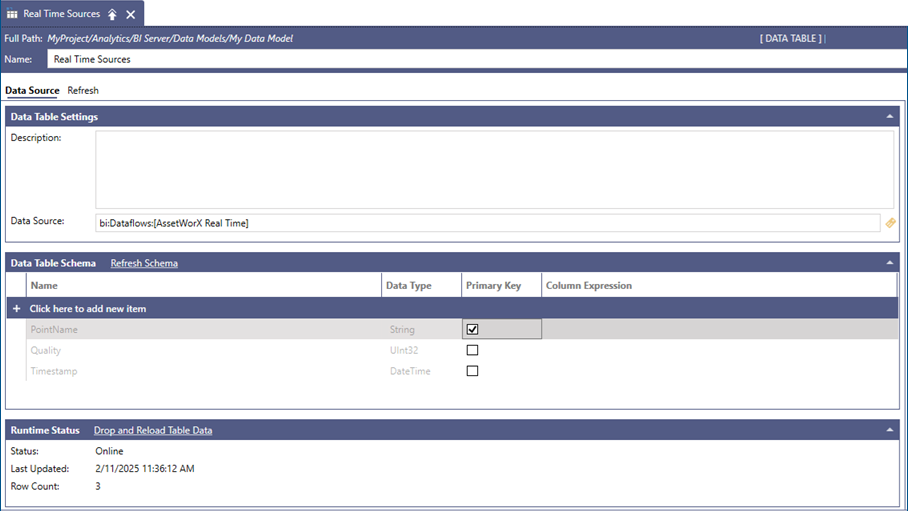
Once a data source has been specified, it is queried for its schema, and the returned metadata is used to fill the Data Table Schema panel. The schema is only retrieved the first time the data source is queried, which means that changes to the underlying data source will not be reflected in the data table schema automatically. To refresh the data table schema, click Refresh Schema in the header area.
If the underlying data source accepts parameters (for example, a Database Connector data source), the values of the parameters need to be specified in the Data Source field and cannot be bound to any type of parameter from this form.
To update the Runtime Status of the data table and to load the preview, apply the changes to the form as this will make the BI Server runtime pick up the data table and load its data in memory.
Once the data table schema has been loaded, it is a good practice to define a Primary Key, similar in concept to the SQL database keys, in order to identify each data table record uniquely. This practice can improve BI Server performance and it safeguards data integrity when a data table gets refreshed with newer data.
Loading the Data Table with Data
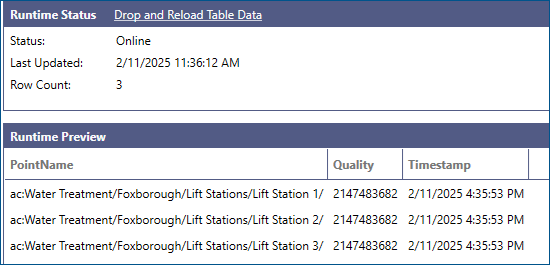
The points in Runtime Status will briefly show a bad quality value while the BI Server runtime creates the data table and starts loading the data, and then they will update to reflect the current table’s status. In this example we are loading the table with data coming from a data flow ingesting real-time data sources.
The following list explains all the possible statuses that a data table can be including, in parenthesis, the associated numeric code:
-
Not Saved (N/A): The data table has just been created and has not been saved yet.
-
Offline (0): The data table’s parent model is currently in the offline state.
-
Initialized (1): The data table has been saved and the BI Server runtime has picked up the new entity and scheduled the process to load the data table’s data.
-
Loading (2): The data for the data table is currently being loaded by the BI Server runtime.
-
Online (3): The BI Server runtime has completed loading the data and the data table is ready to be queried by clients.
-
Error (4): The BI Server runtime has encountered an error while loading data into the data table. Data may be partially loaded or not loaded at all. To find the cause, enable TraceWorX for the BI Server Point Manager and look for the
Error while loading data into tablemessage. The message logged just before it names the data flow and the error that one of its steps returned. The Data Flow Preview in Workbench can show data while the runtime load fails, so a working preview does not rule out a problem in the data flow. Learn more
The Last Updated field in Runtime Status displays the last time when data was added to the data table.
The Row Count reports how many rows of data are currently loaded in the data table.
The Drop and Reload Table Data hyperlink in the Runtime Status panel header allows to signal the server that it should drop the data table’s data and reload it from the data source. Clicking the link prompts a confirmation dialog to make sure the user wants to proceed with the operation.
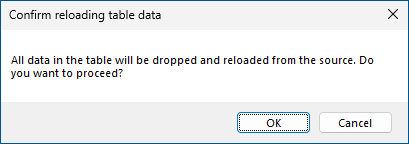
Dropping and reloading the data causes the data source to be queried again and data to be reloaded and re-compressed by the BI Server runtime, which is potentially a computationally expensive operation. Only use this functionality when necessary.
You may find that the data table schema has been loaded by the form, but no preview data is currently available, and the runtime status of the data table shows “Not Saved” for the current table. This could be due to several reasons:
-
The data table has just been created and has not been saved yet.
-
The BI Server service is not running.
-
The Data Model is offline.
Remedying these items will resolve the issue and allow the preview to show data.