Incrementally Loading Data into a Data Table
The methodology in populating a Data Table with data or scheduling a data refresh can greatly impact the performance of the specific Data Table and the overall performance of your BI Server Data Model. In this section, we will review some best practices to safeguard Data Model performance while reporting on the data that your component needs for proper analytics.
For more information on BI Server performance, please refer to BI Server Performance.
Using Data Flows to Incrementally Load Data into a Data Table
Many data components require newer data for reporting, while older data are discarded as time goes by. Other components require newer data, however they do not discard older data. Both approaches require a fair amount of load balancing implemented mainly by loading only the newer data into the Data Table. This is what we know as incremental refreshes. You can implement these scenarios of Data Table refreshes by using the parameter support of the Data Flows. As discussed in the Data Table configuration section, even if the data source for a Data Table supports parameters, it is not possible to dynamically pass values to those parameters when a refresh trigger is fired. However, when using a BI Server Data Flow as your data source you can take advantage of the Data Flow’s expression parameters and some BI Server specific functions to configure advanced scenarios,
such as only requesting the delta of data source data since the last query from a historical data source.
For example, assume that we changed our source Data Flow to use a startTime and an endTime parameter. We can configure the endTime parameter using the now() expression which will always evaluate to the current date and time. For the startTime parameter we can pick the BI Server built-in sincelastupdate() function. For example, this function can be used to say incrementally load historical data for the last (7) days.
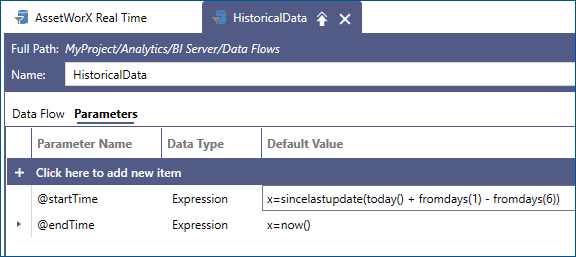
The function sincelastupdate() takes one parameter of type DateTime, or a String that can be converted to DateTime. This value, referred to as the default value, is what the function will return when there is no previous update, or the idea of an “update” does not apply. This includes any time the Data Flow is used outside the context of a Data Table (since updates only happen to data tables), in data flow previews, and when a Data Table has been populated for the first time.
When the BI Server runtime executes the Data Flow for the first time, sincelastupdate() will return the default value and BI Server will save the timestamp of when the table has finished loading the data. The next time sincelastupdate() is evaluated for the same Data Flow it will return that saved timestamp, and a new timestamp will be saved.
It is possible to retrieve the current value of sincelastupdate() by looking at the table’s Last Updated field under Runtime Status in the table’s configuration form. The same value is available in runtime by subscribing to the table’s @@LastUpdatedUTC point. The value of sincelastupdate() is stored internally in UTC by the BI Server.
Using Parameters in the Data Flow
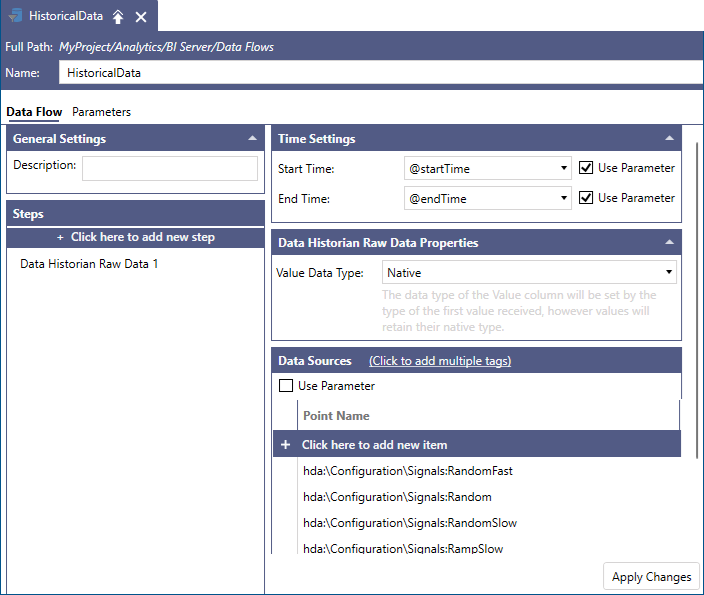
You can incorporate parameters in your Data Flow. In the case of historical data, the startTime and endTime parameters can be used to define the start and end intervals of the data requests when the data needs to be refreshed. All you need to do is to enable the Use Parameter checkboxes in your Data Flow configuration and select the proper parameters from each parameter dropdown control.
Implementing Incremental Data Load Using a Parameterized Data Flow
In the previous section, we configured a parameterized Data Flow to use the sincelastupdate() function as a first step in implementing incremental data loads into a Data Table. We used as an example the case of a Data Flow retrieving historical data for the last 7 days. Now, we will use this Data Flow, which is based on the sincelastupdate() function, to incrementally load data into a Data Table.
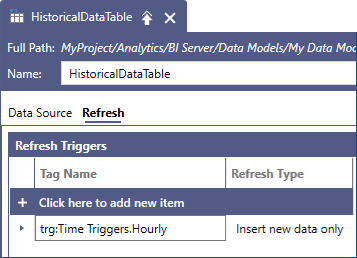
Once we create a new Data Table that references the Data Flow we created in the previous section, we can use a Refresh Trigger to control how the historical data will be refreshed. With this configuration, we can now configure a periodic trigger with the Insert new data only refresh type. Each trigger firing will append new records since the last trigger into our table. If we configure an hourly trigger, for example, each hour only the newer historical records for that hour will be read and added to the Data Table.
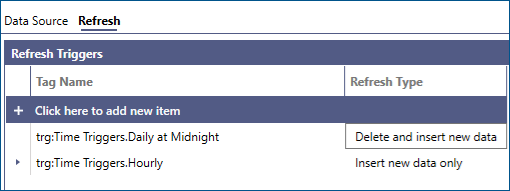
We can also control the time range for which historical data will be maintained in our Data Table by adding a second trigger to fire, say every day at midnight, using the Delete and insert new data refresh type, in order to maintain only the last 7 days of historical data, according to the definition of the startTime parameter based on the sincelastupdate() function.
The BI Server runtime updates the internal value of sincelastupdate() every time that data is loaded into the table. In some occasions however, it is necessary to clear this value before loading data so that the sincelastupdate() function can use its configured default value. This can be accomplished by using the Delete and insert new data refresh type: in this case, the BI Server runtime will clear the table and clear the value of sincelastupdate() before querying the data source.
Using Primary Key Column(s) on a Data Table to Safeguard Data Integrity
In the previous sections, we followed the steps to implement incremental data updates on a given Data Table using a parameterized Data Flow and the sincelastupdate() function. Although it only takes very few simple steps to implement an incremental refresh data policy, we need to safeguard data integrity. This is equivalent to having a way for the Data Table and the BI Server to identify each unique data record.
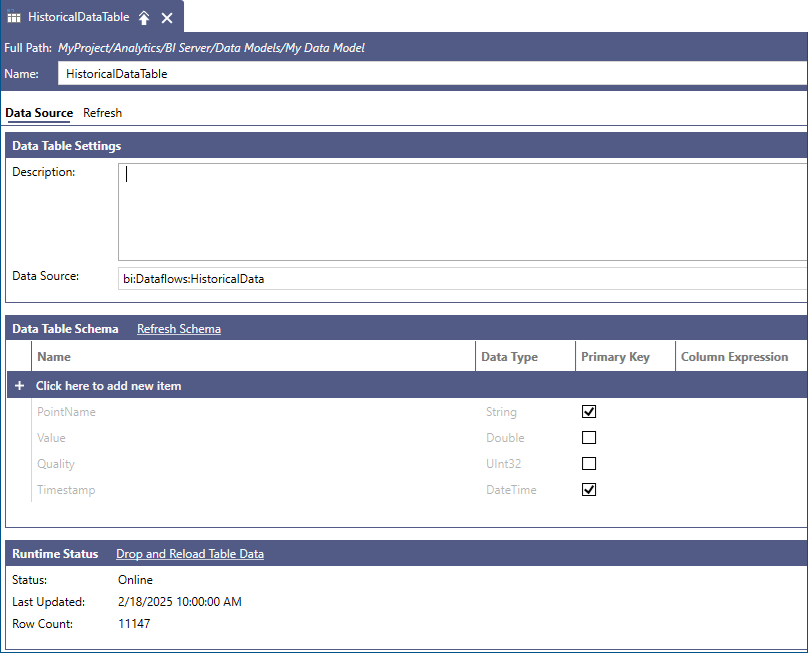
To properly merge new records in our Data Table, we have to specify at least one Primary Key column that BI Server can use to determine if the new row is a unique row or an update to an existing row. For historical data, we can use the combination of PointName and Timestamp as our primary key since each historical sample is uniquely identified by the signal that produced it and the timestamp at which it was recorded (or calculated for aggregated data).
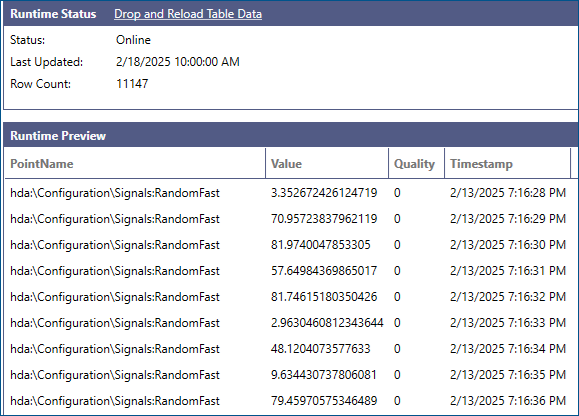
We can validate the proper choice of columns for the primary key by reviewing the Runtime Preview section of the Data Table configuration form inside Workbench.