Configuring GSM SMS Hardware and Data
After creating a new SMS/Text node, the dialog opens on the Hardware and Data tab.
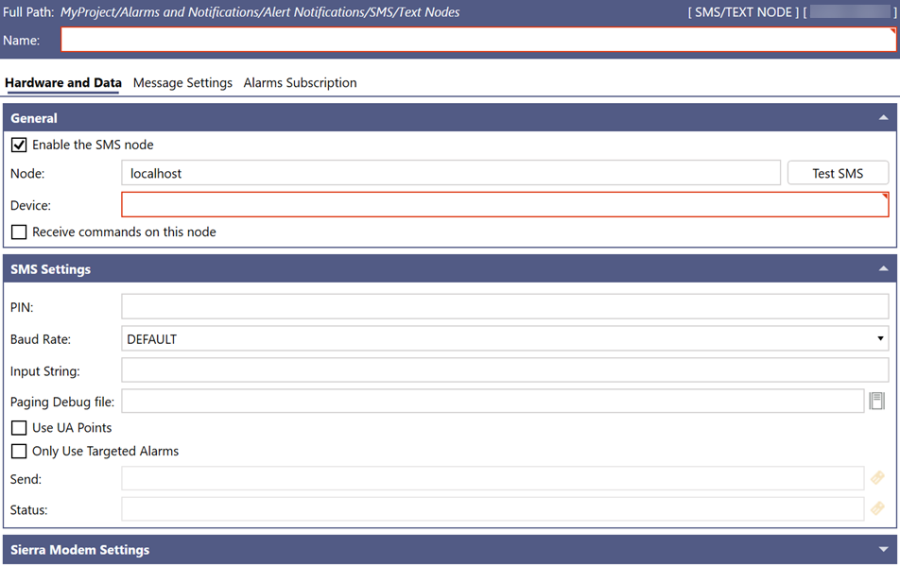
To configure the Hardware and Data tab of an SMS/text node:
-
In the General section, complete the following fields.
Field
Description
Name
Enter a name for the configuration.
Enable the SMS node
Select the checkbox to enable this configuration.
Node
Enter the node name.
Device
Enter the name or IP address of the modem.
Receive commands on this node
Select this checkbox to make this configuration the commanding configuration.
- You use the commanding configuration for clients like Connected Field Service and Bridging. Only one commanding configuration is supported.
- When Received commands on this node is not set, a configuration is selected randomly.
- You can only use Test SMS button with the commanding configuration.
-
In the SMS Settings section, complete the following fields, and then click Apply.
Field
Description
PIN
Enter the personal identification number to securely access the service.
Baud Rate
Select the modem communication rate from the drop-down list.
Input String
Enter the modem initialization string that is sent to the modem.
Paging Debug File
Enter the destination of the paging debug file or click
 to browse to the file.
Use UA Points
Select the checkbox to load the Notification Message Fields as data points.
Send
Enter the data source that will trigger sending a message when it transitions from False to True. Click
 to open Data Browser and select the data source.
 Only active when Use UA Points is selected.
Status
Enter the status of the sent message. Click
to open Data Browser and select the data source.Only active when Use UA Points is selected.
-
Before testing the GSM SMS configuration, enable tracing to capture the test data.
- In the Windows search box, enter traceworx and open the TraceWorX Configurator app with administrator privileges.
-
In the Category list, navigate to Alarm Server Point Manager and in the Trace Level column, select Debug Verbose (All).
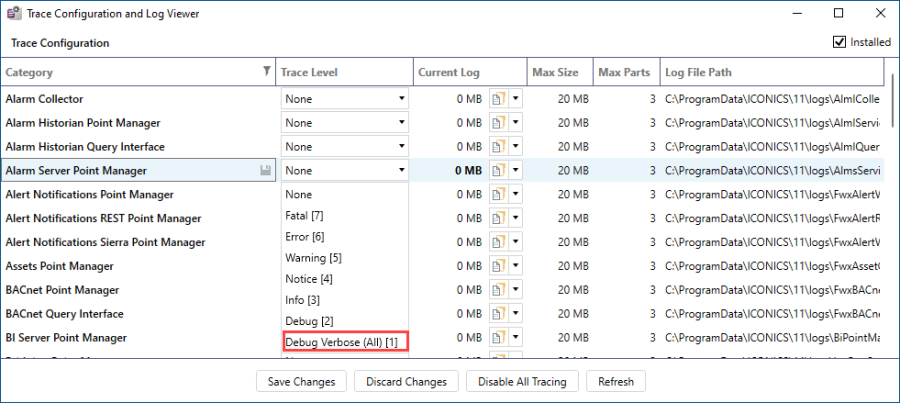
- Click Save Changes and close the dialog.
-
Test the GSM SMS hardware configuration settings. Do the following:
-
Verify that you selected the Received commands on this node checkbox in the General settings section, and then click the Test SMS button next to the Node text box. The Send a test message dialog opens.
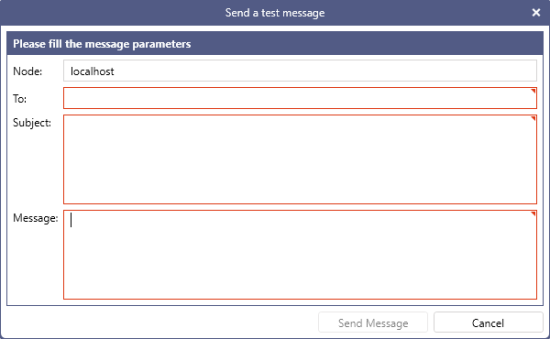
- In To, enter the test pager number.
-
Enter the desired text in Subject and Message, and then click Send Message.
- The Test SMS button is not supported for Alert Sierra services. To verify Alert Sierra functionality, see Creating an Alert Sierra Test Configuration.
- For configuring the Sierra Modem Settings section, refer to Configuring the Alert Sierra Service.
-
-
Check the logged information on the test in the Paging Debug File or in the Alert Server Point Manager Trace.
What's Next?