Configuring GSM Message Settings
After configuring the Hardware and Data tab of an SMS/text node, you can configure the alarm filter and notification message preferences on the Message Settings tab.
Setting up alarm filters allows you to limit alarm messages that trigger outgoing SMS. You can base the filter on specific alarm criteria, such as high-severity alarms or specific alarm areas.
You can define the subject, the body, and the recipient of the alarm message to be sent. Optionally, you can create templates of subject and message combinations to reuse for other configurations. Learn more
To configure the message settings of an SMS/text node:
-
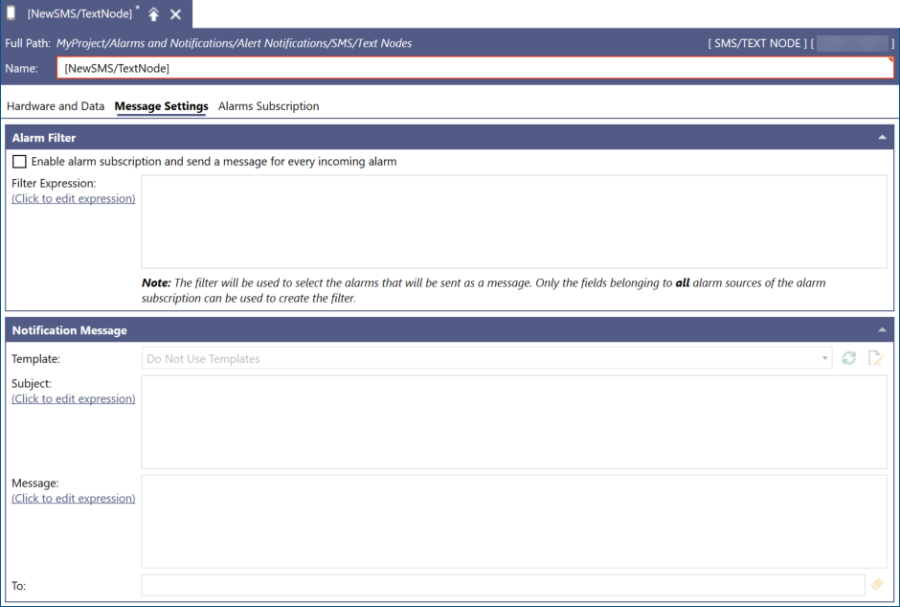
In the SMS/text node configuration dialog, switch to the Message Settings tab.
-
In the Alarm Filter section, select the Enable Alarm Subscription and Send a Message for every incoming alarm checkbox to activate alarm messages, filtering, message templates, and alarm subscriptions.
Alarm subscription is not available for Sierra Modem Service. -
In Filter Expression, select Click to edit expression to open the expression dialog.
-
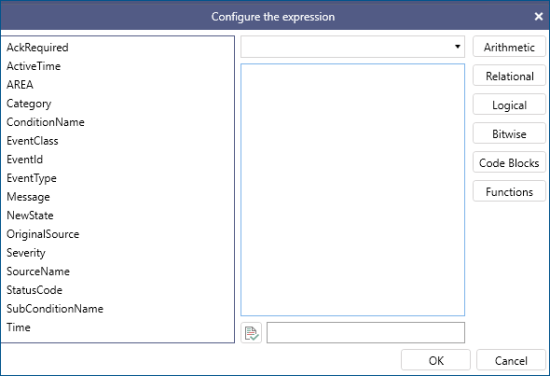
Configure the filter expression.
- Double-click the desired parameter in the left panel to include it to your expression.
- Click the element type button in the right panel, such as Arithmetic, Relational, or Logical, to display and select the expression elements.
- Enter the value or description.
Examples:
-
Example 1: To only send alarm messages for severity equal to or greater than 800, enter
x={{field:Severity}} >= 800,
using the Severity parameter and the Greater Than or Equal element from the Relational category, and setting the value to 800.
-
Example 2: To only send alarm messages for alarms containing source Tower3, enter
x=rgmatch({{field:SourceName}},"Tower3"),
selecting the rgmatch function from the String Functions list in the Functions category and replacing the string in parentheses with the SourceName element and the "Tower3" value.
- Click
 to test the expression, and when it returns "No errors", click OK.
 -
In the Notification Message section, do one of the following:
- In Template, select an existing template from the drop-down list. You can edit the template by clicking
 .
. -
Click
to create a new template. Learn more -
Select Do Not Use Templates and enter the desired text or expression in Subject and Message.
Use the Click to edit expression link to define the subject or message expression in the expression dialog.
- In Template, select an existing template from the drop-down list. You can edit the template by clicking
- In To, enter the message recipient's number, click
 to select the data source, and then click Apply.
What's Next?