Testing REST API Calls with Swagger
Web API provides the Swagger interface that contains a documentation page for each mapped REST API. Learn more
You can call these REST APIs and test the connection in the Swagger interface on the secure (HTTPS) URL, using the embedded HTTP client.
To test REST APIs with Swagger, you need to complete the following prerequisites:
-
Start GENESIS Web API Service. Learn more
-
In Workbench, configure a user with Web API permissions.
-
In Project Explorer, expand Security > Users and select an existing user or add a new one.
-
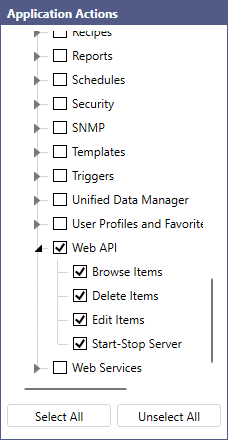
In the user configuration dialog in the Application Actions section, expand Workbench, select Web API, and then click Apply.
-
Optional prerequisites:
-
Start the GENESIS Simulator Point Manager (for using simulated data).
-
Set up Internet Information Services (IIS) to run as a reverse proxy.
-
Configure self-signed or real certificates on IIS.
To test a Web API with Swagger:
-
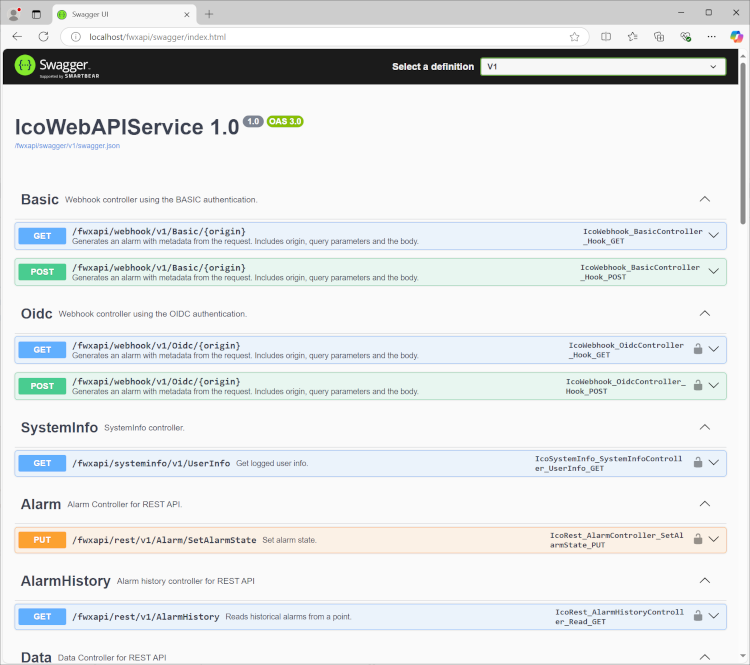
Go to https://localhost/fwxapi/swagger/index.html.
If your Web API service is running on a different server, replace <b>localhost</b> with your server name or IP address.
The list of all endpoints provided by the Web API is displayed.
-
To start and check a REST API service, select the desired endpoint and authenticate by performing the following steps.
-
On top of the dialog, click Authorize.
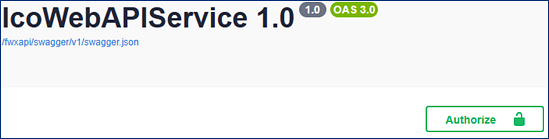
If you cannot see the Authorize button, verify that Swagger is using the secure (HTTPS) URL.
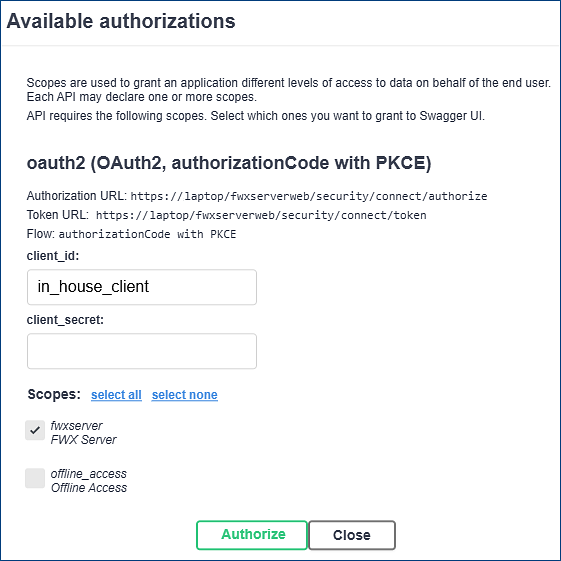
Swagger displays the Available authorizations dialog with the OAuth details.
-
In Scopes, select fwxserver, and then click Authorize.
-
In the next dialog, enter the credentials of a user with WebAPI permissions defined in GENESIS Security and click Sign in. After a successful authentication, click Close .
-
-
On the Web API documentation page, click Try it out to unlock the parameter settings.
-
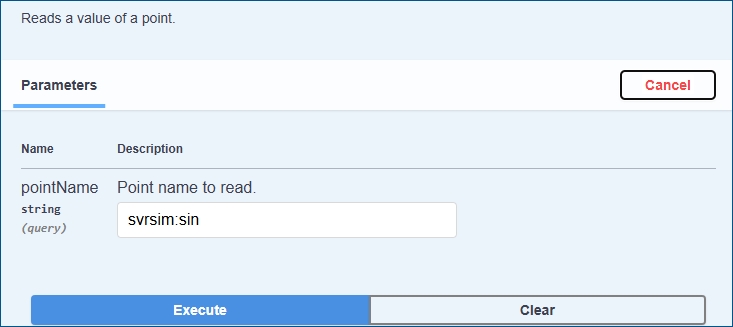
In the pointName text box, enter the point name to read, and then click Execute. In the example image, the point name is svrsim:sin, which means that the REST API reads a sine signal from the Server Simulator (query parameter svrsim:sin).
-
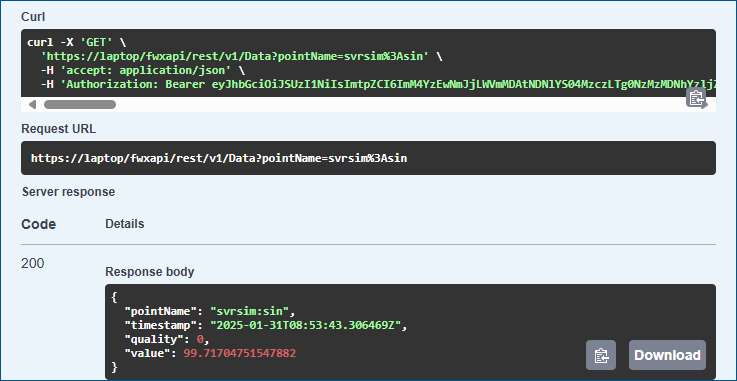
In the Server response section of the results, verify that your request returns code 200, and the response body contains the following fields:
-
pointName
-
timestamp
-
quality
-
value
-