Managing Services in Workbench
You can use the Configure Services feature to view and manage all GENESIS services directly in Workbench without opening the Services application in Windows.
To manage services in Workbench:
-
Open Workbench and select your project in Project Explorer.
-
On the Home ribbon in the Tools section, select Configure Services. The list of all available services for the project is displayed.
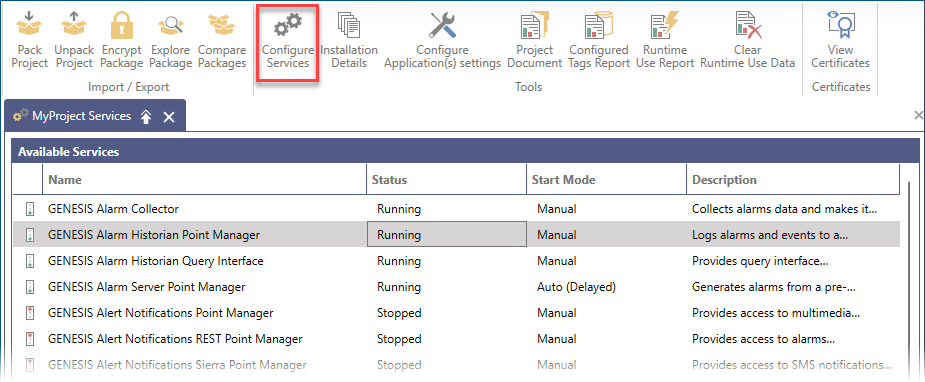
-
(Optional) Clear the Show Only GENESIS Services checkbox below the Available Services section to display all Windows services.
This is only for checking the service status; you cannot start, stop, or change the start mode of the services non-related to GENESIS.
-
In Available Services, navigate to the desired service. You can perform the following tasks.
-
Check the status of the service in the Status column.
It is very useful to make sure that only the services in use are running, as it reduces memory consumption and CPU usage on the server.
-
Start or stop the service using the button in the first column.
-
Select the start mode of the service by clicking the field in the Start Mode column and selecting the desired option from the drop-down list:
-
Auto: Starts automatically on Windows startup.
-
Auto (Delayed): Starts automatically a few minutes after the Windows startup.
-
Manual: Must be started manually when needed.
-
Disabled
-
-