Adding a User and Configuring Permissions
The following procedure explains how to add two users named Admin and Operator and configure their permissions.
To add a user and configure permissions:
-
Open Workbench and in Project Explorer, expand your project > Security.
-
Right-click Users and select Add User.
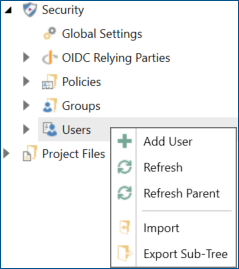
-
Name the user Admin and press Enter.
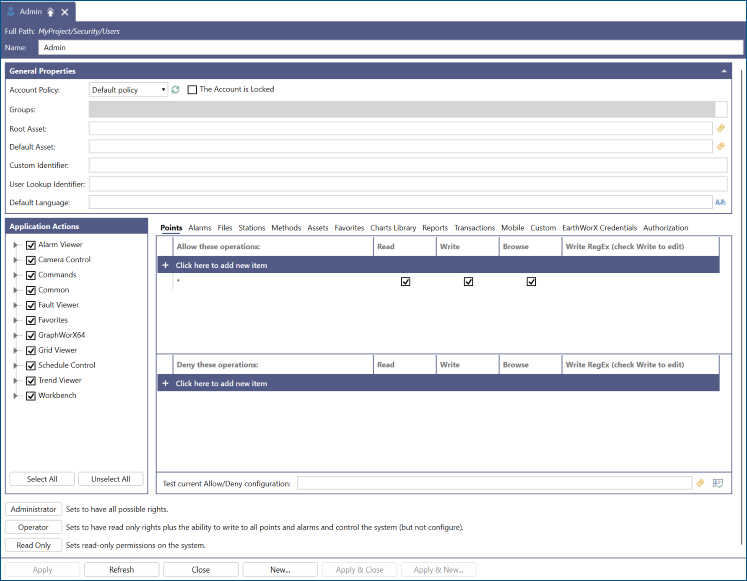
The first user that you add to the security is always a system administrator with all permissions granted. This prevents you from being locked out of the system as soon as you enable security.
-
When prompted, specify the user password.
As soon as you create your first user, security becomes enabled and you have to log in to continue.
-
Repeat steps 1 to 4 but this time change the name of the user to Operator . Note that this time all Application Actions are unselected and the Access Control Lists are blank.
-
Click the Operator button in the bottom section of the pane and click Apply. This will preset all user permissions to the defaults typical for operators. Feel free to modify the permissions as needed.
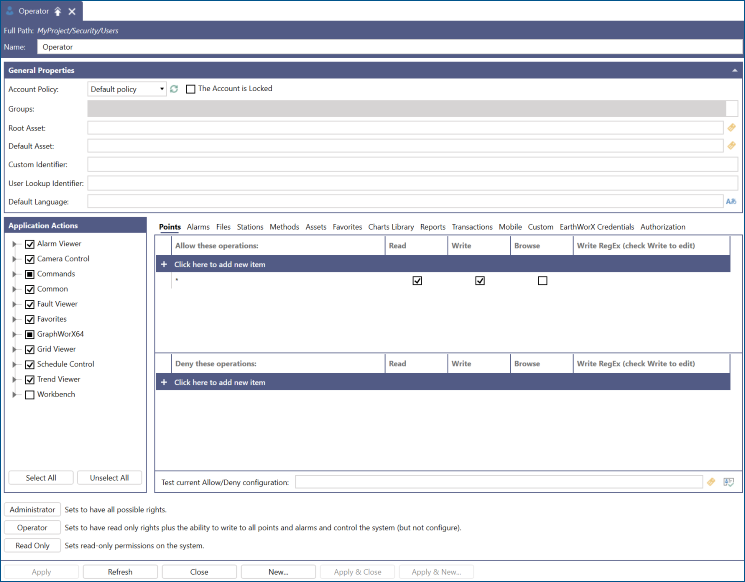
You can use the Administrator, Operator, and Read Only buttons to quickly set typical permissions for these roles. Learn more
What's Next?