Adding Fault Detection to Equipment
You define the faults for a piece of equipment, and link it to a diagnostic model, on the equipment's Fault Detection tab in Assets. You can add the same tab to an equipment class so that all equipment created from the class inherits its faults. To diagnose faults, create a diagnostic model before you begin. Learn more
To add fault detection to equipment:
-
Open Workbench and in Project Explorer, expand your project > Assets > Equipment and select the equipment.
-
Click
 and then
 to add the Fault Detection tab.
-
On the Fault Definitions tab, click Add Fault, enter a unique Fault Name, and enter expressions for Enabled and Severity. Click
 in either field to open the Expression Editor.
-
Click
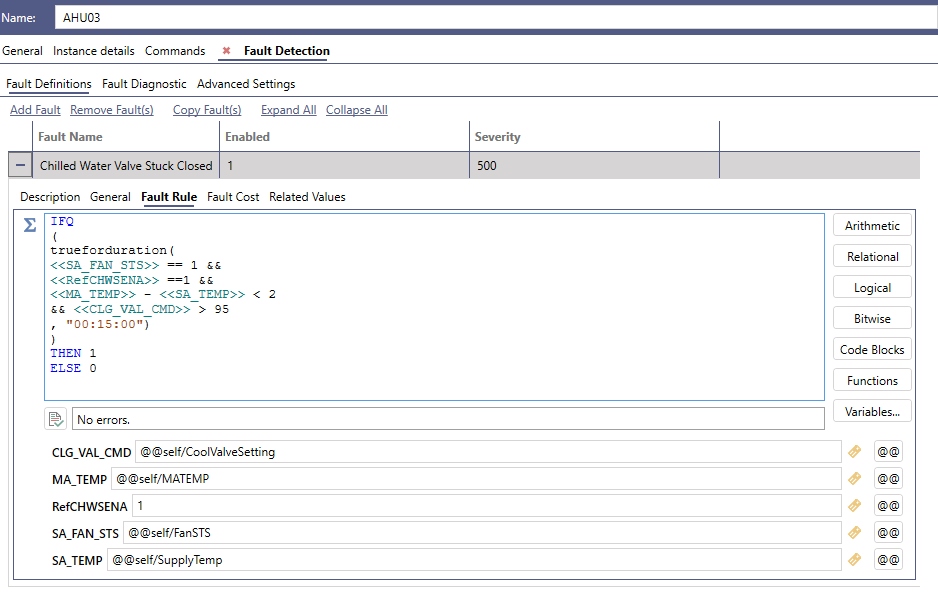
 next to the fault and, on the Fault Rule tab, enter the expression that defines the fault condition. The fault is active when the rule is true. Click
 to check the syntax.
To bind the rule to data, enter an input variable such as <<SupplyTemp>> in the expression. A field appears for each variable, where you can click
 to select a data point or
 to select an asset alias.
-
(Optional) Complete the remaining tabs for the fault:
-
Description—A description of the fault.
-
Fault Cost—An expression that calculates the cost of the fault, used to prioritize repairs.
-
Related Values—Up to 20 data points or expressions captured when the fault occurs, which you can review in Fault Viewer.
-
-
(Optional) To link a diagnostic model, do the following on the Fault Diagnostic tab:
-
Click
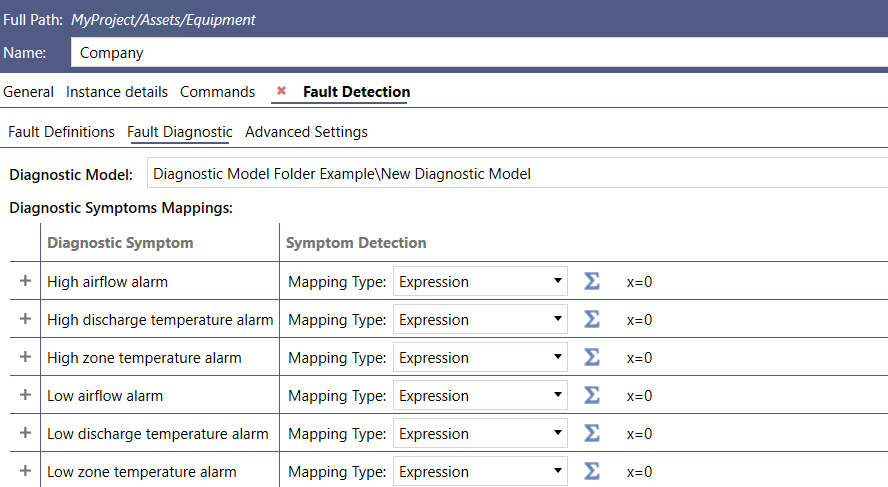
 and select the model from the Diagnostic Model list. The model's symptoms appear under Diagnostic Symptoms Mappings.
-
Click
next to each symptom and select a Mapping Type:-
Expression—Enter an expression that is true while the symptom is present.
-
Alarm—Select the alarm point and subcondition, such as Hi or LoLo, that indicates the symptom.
-
-
-
Click Apply.