Creating a Parameterized Bridging Transaction
A parameter turns a template into a reusable workflow. Instead of hard-coding a folder name, a time range, or a threshold into each activity, you declare the value as a parameter on the template and reference it from the activities that need it. The same template can then serve many transactions, and an operator can supply a different value each time the transaction runs.
This task continues from Creating a Bridging Transaction. Complete that task first, so that you have a working LogTankValues transaction that reads a group of tags and writes them to a .csv file.
As it stands, that transaction always writes the same file to the same folder. The following procedure replaces both with parameters, so that one template can export any unit to any folder.
To parameterize a template:
-
Open Workbench and in Project Explorer, expand your project > Bridging > Templates, and select the template you created for the LogTankValues transaction.
-
Open the Settings and Parameters tab. Under Configure the list of parameters available in the workflow, select Click here to add new item.
-
In the new row, define the destination folder:
-
In Name, enter ExportFolder. This is the name you use in expressions, and it must be unique within the template.
-
In Display Name, enter Export folder. This is the label shown to an operator who supplies the value at run time.
-
In Type, select String.
-
In Default Value, enter
C:\ProgramData\ICONICS\11\Exports. The transaction uses this value when no other is supplied.
-
-
Click Click here to add new item again and define the unit:
-
In Name, enter UnitName.
-
In Display Name, enter Unit name.
-
In Type, select String.
-
In Default Value, enter Tank1.
-
Click Apply to save the parameter list.
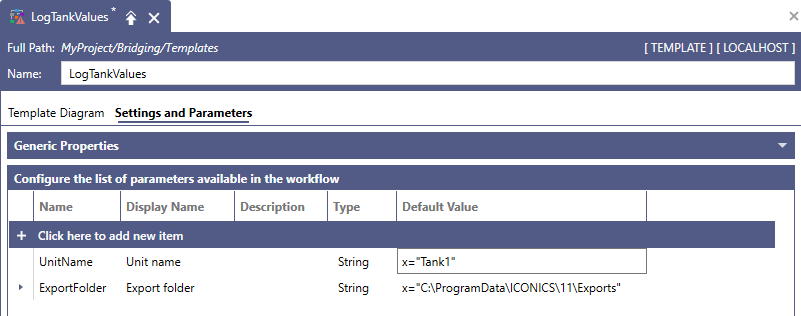
-
-
Open the Template Diagram tab and select the Write CSV activity.
-
In Target Folder, click
 and enter the following, which uses the parameter on its own:x=<<ExportFolder>>
In the expression editor, expand Parameters under Available Variables to insert a parameter reference instead of typing it.
-
In Target File Name, click
and enter the following, which uses the parameter as part of a larger expression so that each unit produces its own file:x=<<UnitName>> + "-values.csv" -
Click Apply, close the Template Designer, select the LogTankValues transaction, and click Apply so that it picks up the new parameter list.
-
Right-click the transaction and select Test Transaction. The transaction writes Tank1-values.csv to the folder you entered as the default.
To confirm what each parameter resolved to, set the transaction's Execution Log to trace activity information and test it again. The log then shows a Parameter Expression Evaluation step with the value of every parameter. Learn more
A parameter can be used in any field that accepts an expression. Common uses are the time range of a Historical Input activity, the row-selection expression of a Data Filter, and the condition on a Condition activity.
Supplying Values at Runtime
When no value is supplied, the transaction uses the Default Value set on the template— for example, Tank1 and the export folder in the LogTankValues transaction used in the previous procedure. To supply a different value, use one of the following:
-
From a client—The Bridging Viewer control prompts for the parameters that the selected transaction declares, and passes the values you enter when it executes the transaction. Learn more
-
From a display or another component—Write to the transaction's @@Execute point and pass the parameter values with the request. Learn more
Each request creates its own instance with its own parameter values, so several instances of a parameterized transaction can run in parallel—one per production line, per file, or per trigger.
Parameter values are not considered when the service decides whether two instances are similar. Two requests that differ only by parameter value therefore count as similar, and every Transaction Options value except Queue and Execute Immediately will suppress one of them. Leave that option at Queue and Execute Immediately on a transaction whose runs are distinguished only by their parameters. Learn more