How Bridging Executes Transactions
You do not run a Bridging transaction directly. Instead, something requests it—a trigger fires, an alarm changes state, an operator presses a button, or you test it from Workbench—and the Bridging service decides when that request actually runs. Understanding how the service manages those requests explains why a transaction sometimes waits, why a burst of requests does not always produce a burst of executions, and which settings to reach for when the timing is not what you wanted.
For what a transaction is made of and how data moves through it, see How Bridging Transactions Work.
How the Service Manages Transactions
The Bridging service runs several transactions at the same time, but not an unlimited number. Requests that arrive when every slot is busy wait in one of two queues until a slot becomes free, depending on how they arrive:
-
Scheduler queue—Requests from triggers, alarms, and the
@@Schedulepoint wait in the Bridging scheduler. The engine pulls requests from this queue only when it has free slots, so while every slot is busy, the backlog builds up here. Thebwxs:QueueLengthpoint reports its length. Learn more -
Engine queue—Requests from the
@@Executepoint, the Bridging Viewer, and Test Transaction go straight to the engine that receives them, ahead of the requests in the scheduler queue. Thebwx:@@TransactionQueueLengthpoint reports its length.
Two settings determine when a request in the scheduler queue runs: how long the queue can grow and where the request sits in it.
-
Max. Queue Length, in the Scheduling section of a transaction configuration, sets how many requests the scheduler queue holds, and When queue is full sets what happens to further requests. Enter
0for no limit. The limit applies only with Local Scheduler.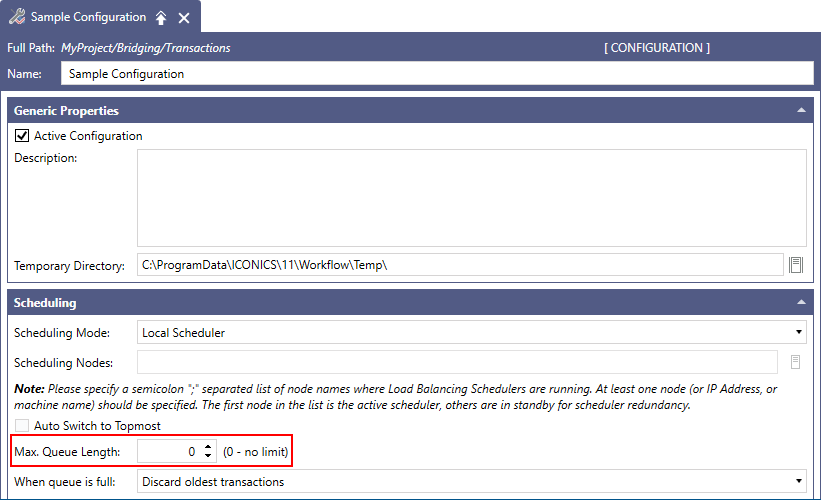
-
Priority on each transaction sets how urgent its requests are. You assign each transaction Normal, Below Normal, or Above Normal, and higher-priority requests leave the scheduler queue ahead of lower-priority ones. Use it so that a batch of slower workflows does not hold up a short, time-critical one.
Priority governs the order in which requests leave the queue, not how fast a transaction runs once it has started. A transaction already executing is never interrupted to make room for a higher-priority one.
Because a slot is allocated to one running transaction at a time, the activities within one diagram always run in sequence. Concurrency in Bridging happens between transactions, not within a single workflow.
Running Several Instances of the Same Transaction
A transaction is a definition, not a single running thing. Each request creates a separate instance of it, and by default the service is free to run several instances of the same transaction at the same time, each in its own execution slot. An instance is self-contained: it has its own copy of every activity output dataset, its own local variables, its own parameter values, and its own global alias themes. Two instances of one transaction can therefore be doing quite different work.
That is usually exactly what you want:
-
Several triggers, one workflow—A transaction can be started by many triggers, each supplying different parameter values or different global alias themes. A single "export unit data" transaction can then run once per production line, with all the instances proceeding in parallel, instead of you building one transaction per line.
-
A workflow that is meant to repeat—When a transaction is driven by incoming events—a file arriving, an alarm activating, a database row appearing—instances naturally overlap during a busy period. Running them in parallel is what keeps the system up to date rather than falling behind.
-
A burst of work—If twenty alarms activate at once, twenty instances are requested. Allowing them to run concurrently means the last one is handled in seconds rather than after all the others have finished in turn.
Sometimes it is not what you want. Instances that write to the same file, the same global variable, or the same destination record can interfere with each other, and some processes simply must not overlap, such as a nightly reconciliation or a workflow that moves a batch of files. In those cases, constrain the transaction to one instance at a time rather than trying to time the requests so they do not collide.
Where instances need to keep values apart, use a local variable rather than a global one. A local variable belongs to the instance, while a global variable is shared by all instances and can be overwritten by whichever one writes last. Learn more
Choosing How Many Instances Are Allowed
Transaction Options, on the Transaction Settings tab of each transaction, control whether a new request can produce an instance while an earlier one is still waiting or running.
|
Transaction Option |
Behavior |
|---|---|
|
Queue and Execute Immediately |
Every request produces an instance. Instances of the transaction run in parallel, limited only by the available execution slots. This is the setting to keep when a transaction is deliberately driven by several triggers or by a stream of events. |
|
Execute if the transaction is unique |
The request is queued, but runs only if no other similar instance is executing. Requests that arrive while one is running are discarded. |
|
Queue if the transaction is unique |
The request is queued only if no other similar instance is already waiting, and runs only if no other similar instance is executing. At most, one instance runs and one waits. |
|
Execute if the transaction is unique and the trigger is unique |
The request runs only if no other similar instance is executing and no other instance has been started by a similar trigger. Use this to allow one instance per trigger while preventing the same trigger from overlapping itself. |
When a Transaction Does Not Finish
Three settings on the transaction decide what happens when a workflow fails, hangs, or is cut short.
-
Number of Retries and Retry Delay—How many further attempts the service makes after a failure, and how long it waits between them.
-
Timeout—How long one instance may run before the service gives up and fails it. Enter
0for no timeout. Set this deliberately on any transaction that waits on an external system or repeats activities in a loop. -
Recovery Mode—What happens to transactions that were lost because a server stopped unexpectedly. The service tracks each running transaction, and on the next startup it can resubmit the ones that stopped reporting.
Recovery restarts a transaction from its Start activity rather than resuming it, so a workflow that writes data should be safe to run twice or should check whether its work has already been done.
Recovery Mode
Behavior
Recovery disabled
Lost transactions are not recovered.
Local Recovery
Lost transactions restart from the beginning on the same server that recovers them.
Distributed Recovery
Lost transactions restart from the beginning on a redundant server when the scheduler detects that a server has stopped. Requires distributed scheduling.
-
Cancel transaction on server shutdown—Stops a transaction from continuing after the server it runs on is shut down.
Hibernation
Hibernation is a feature in Bridging that allows long-running transactions to be shifted out of active memory during periods of inactivity, typically around long-running Delay activities. With hibernation, these activities are removed from active processing to allow other transactions in the queue to execute. All attributes of the hibernated transaction are kept in memory so that it can resume at the appropriate time.
Hibernation happens at a Delay activity. If the delay is longer than the Hibernation Threshold set for the transaction, the service saves the transaction's progress, frees the slot, and restores the transaction when the delay elapses and a slot is available. Execution continues at the activity after the Delay. Transactions coming back from hibernation are given precedence over requests still waiting in the queue, so a hibernating transaction is not left behind.
Running Transactions Across Several Servers
Scheduling Mode, in the Scheduling section of a transaction configuration, determines where transactions execute.
-
Local Scheduler—The server that hosts the configuration schedules and runs its own transactions.
-
Distributed Load-Balancing Schedulers Network—A scheduler distributes requests across several servers that share the same configuration, which both increases the number of transactions the system can run and keeps it running when one server is lost.
In distributed mode, you list the scheduler nodes in Scheduling Nodes as a semicolon-separated list of node names, IP addresses, or machine names. The first node in the list is the active scheduler; the others run as standby schedulers. Select Auto Switch to Topmost to hand control back to the first entry when it comes back online.
The active scheduler distributes requests based on how loaded each server is, and checks whether those servers are still responding. The standby schedulers watch the active scheduler and receive the changes it broadcasts, so if the active scheduler is lost, a standby takes over with knowledge of the work already in progress.
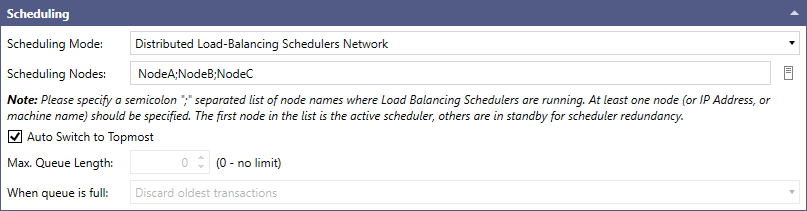
This is the recommended configuration for Distributed Load-Balancing Schedulers Network mode. All schedulers participating in a Distributed Load-Balancing Schedulers Network transaction setup should retrieve their triggers from the same Triggers server. To ensure proper event matching, each transaction trigger subscription tag must use the format:
\NodeName\trg:TriggerType/TriggerABC
The trigger subscription tag must be configured identically in all configuration databases, including character case. In other words, all schedulers must subscribe to the same trigger set from the same Triggers server. This ensures that the event IDs generated for a given trigger firing are identical across all trigger clients, allowing transactions to be correctly coordinated and distributed among the participating servers.
When using a FrameWorX cluster as the trigger source, enable the Auto-Failback option on the FrameWorX cluster.
Even when all schedulers are configured with the same trigger subscription tag: \NodeName\trg:TriggerType/TriggerABC each scheduler independently determines which cluster node it communicates with. Following a temporary network disruption, one scheduler may connect to the primary node while another connects to the secondary node. This can reintroduce Event ID mismatches and lead to transaction requeueing or duplicate transaction execution. While Auto-Failback cannot completely prevent this scenario, it helps ensure that schedulers return to the primary cluster node as soon as it becomes available, reducing the likelihood of inconsistent trigger sources across the load-balanced scheduler network.