Adding Historical Data to an Equipment Property
Once you enable the Assets extension for Data Historian, you can add various formats of historical data created in Data Historian to an equipment class property or an individual equipment property instance in your asset tree.
To add historical data to a specific equipment property instance, follow the procedure below, but in step 1, go to the Assets > Equipment section to open the desired equipment property instance. However, it is only recommended for equipment that has not been created from an equipment class. Otherwise, the settings will be lost if the equipment class configuration is regenerated.
To add historical data to an equipment class property:
-
Open Workbench and in Project Explorer, expand your project > Assets > Equipment classes, navigate to the desired equipment class, and double-click the desired equipment property to open its configuration.
-
On the Historical Data tab in Source type, select Historical Data Source.
For more advanced options and detailed settings, refer to Advanced Historical Data Source Type Settings.
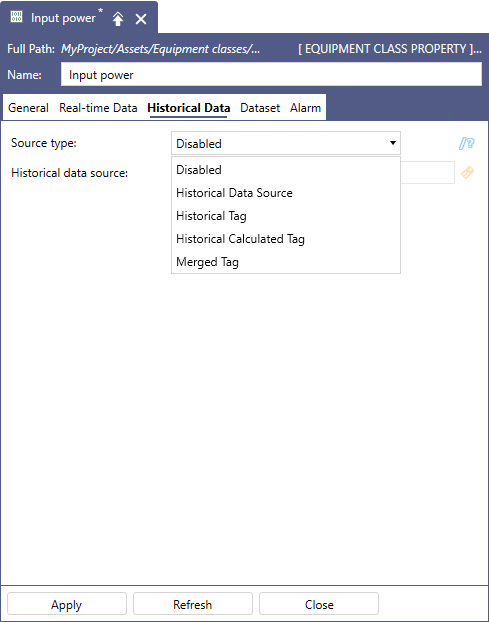
The selected data type is added to the Type field, and related settings are displayed.
-
In Historical data source, click
 to open Data Browser, select the desired data point, and click OK. The selected data point is added to the text box.
 -
Click Apply to add the historical data to the equipment class. Once the equipment class configuration is updated, the data source will be added to all (or all selected) existing instances of that equipment class. Learn more