Updating Assets from Equipment Classes
Assets equipment classes allow you to create multiple instances of equipment with identical or similar properties and settings, and you can also use them to quickly and easily edit those properties and settings. You only need to make the desired changes once in the equipment class configuration, and then update all equipment instances by a single action.
To update all equipment instances from their equipment class:
-
Open Workbench and in Project Explorer, expand your project > Assets > Equipment classes and double-click the desired equipment class to open its configuration.
-
Make the desired changes and click Apply.
-
In Project Explorer, do one of the following to display the update dialog:
-
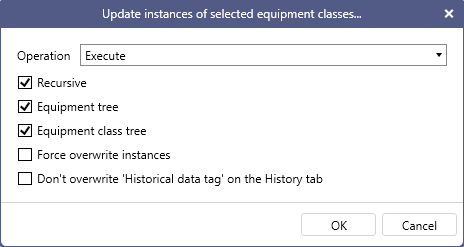
To update all equipment instances of the equipment class:
In Equipment classes, right-click the edited equipment class node and select Update instances of selected equipment classes.
-
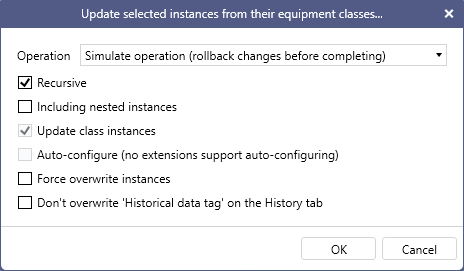
To only update selected equipment instances of the equipment class:
Expand the Equipment node, right-click the desired instance created from the edited equipment class, and select Update selected instances from their equipment classes.
-
-
In Operation, select Execute.
-
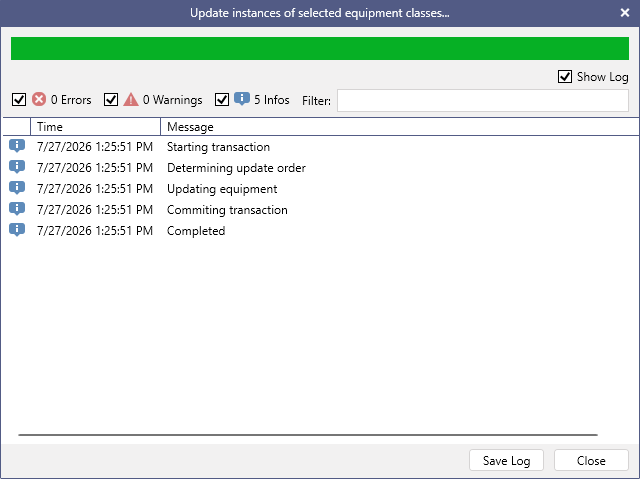
Complete the remaining settings as desired and click OK to start the transaction. The process log is displayed.
-
If the transaction process completes successfully, click Close. If it returns any errors or warnings, click Save Log and select the location for storing the log as a .csv file before closing the dialog.