Creating a GSM SMS Template
When configuring the Message Settings tab of an SMS/text node, you can create a new template of subject and message combination that you can use in multiple configurations.
To create a new message template:
-
On the Message Settings tab of an SMS/text node in the Notification Message section, click
 to open the Message Templates dialog.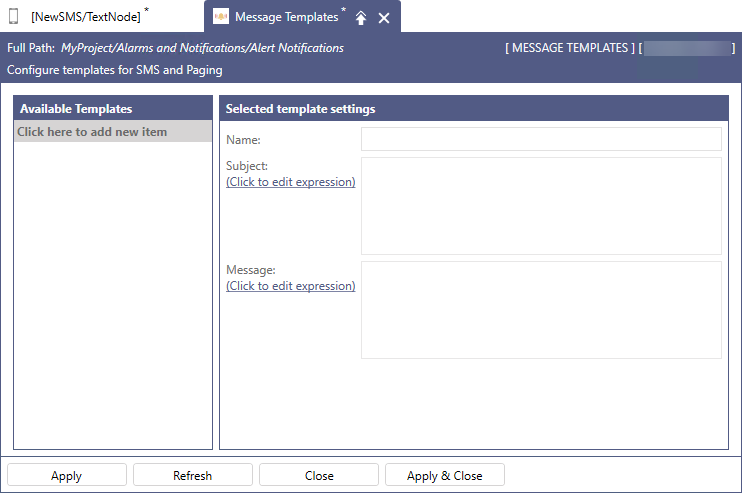
- In the left panel, select Click here to add new item.
-
In the right panel in Name, enter the name of the template.
-
In Subject and Message, use the Click to edit expression links to open the expression dialog.
-
Create the desired string expression for the subject or body of the message.
- Double-click the desired parameter in the left panel to include it to your expression.
- Click the element type button in the right panel, such as Arithmetic, Relational, or Logical, to display and select the expression elements.
- Enter the value or description.
Examples:
-
Example 1: Use the raw field to send string alarm data.
x={{field:Message}}
-
Example 2: Use the tostring function to convert numerical alarm data to strings.
x={{field:Message}}+tostring({{field:NewState}}).
- Click
 to test the expression. When it returns "No errors", click OK to close the expression dialog, and then click Apply & Close.
 - In the SMS/text node dialog, click
 to refresh the list of message templates, and select the new template in the Template drop-down list.