Configuring GSM SMS Alarm Subscription
After configuring the Message Settings tab of an SMS/text node, you need to configure the Alarm Subscription tab.
To activate alarm subscriptions, you must select the Enable alarm subscription and send a message for every incoming alarm checkbox on the Message Settings tab. When enabled, you can configure the alarm sources that trigger outgoing SMS messages for this SMS/text node. You can subscribe to all alarm sources, but the performance is better with subscriptions to fewer sources.
To configure the alarm subscription settings:
-
In the SMS/text node configuration dialog, switch to the Alarm Subscription tab.
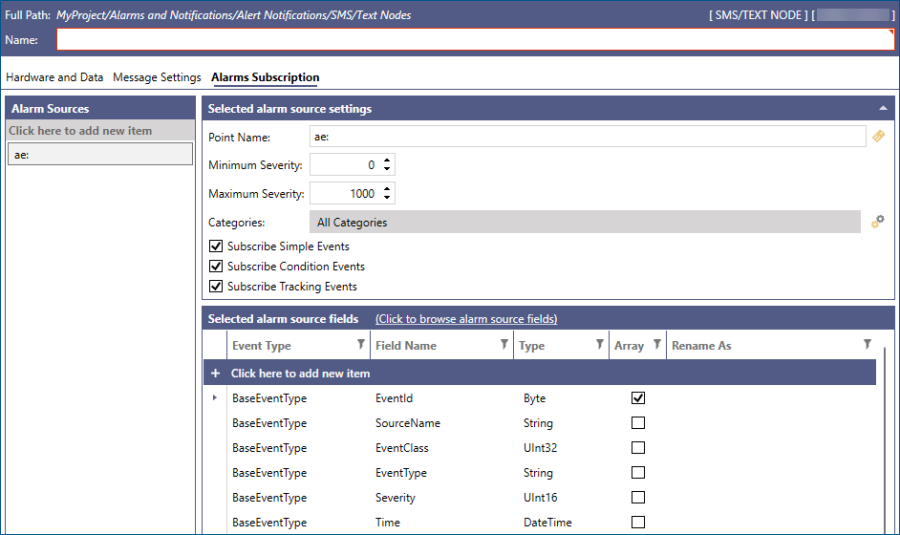
-
In the Alarm Sources sections on the left, do one of the following: or create a new Alarm Source.
- Select an existing alarm source from the list. The settings are displayed in the right panel.
- Select Click here to add new item to add a new alarm source. In the Data Browser that opens, navigate to Alarms and Notifications, select the desired source, and click OK.
-
In the right panel, edit or configure the following alarm source settings, and then click Apply.
Setting
Description
Point Name
Enter the alarm service point name. Click
 to open Data Browser and select the source from Alarm and Notifications.
 Minimum Severity
Enter a number from 1 to 1000 to set the minimum severity.
Maximum Severity
Enter a number from 1 to 1000 to set the maximum severity.
Categories
Click
 to select the alarm categories. This setting does not exist in some servers.
Subscribe Simple Events
Select to enable simple events.
Subscribe Condition Events
Select to enable condition events.
Subscribe Tracking Events
Select to enable tracking events.
-
In the Selected alarm source fields section, select Click to browse alarm source fields to open the Select event types and properties dialog.

Since individual alarm services have service-specific information, the displayed event types and properties are alarm service-specific.
The GENESIS Alarm Server Point Manager service must be running to access this information. - In the left panel, select the event type in the tree structure, and then select or clear the checkboxes for individual fields as desired.
- When finished, click OK to close the dialog, and then click Apply to save the alarm subscription settings.