Connecting a Remote Server to a Project
By default, you configure your project in Workbench as the "local" server project. However, you can also connect to other servers and manage their projects through Workbench. This may be useful to larger applications with multiple GENESIS nodes, or to system integrators managing multiple customer projects.
Connecting a Server to a Project in Workbench
To connect a remote server to your Workbench project, right-click the desired project in Project Explorer (MyProject or your custom project name) and select New Server. In the New Server Properties dialog, enter the name or IP address of the desired server and click OK. The new machine appears in Project Explorer, and the local project's tree structure moves under a My Computer node.
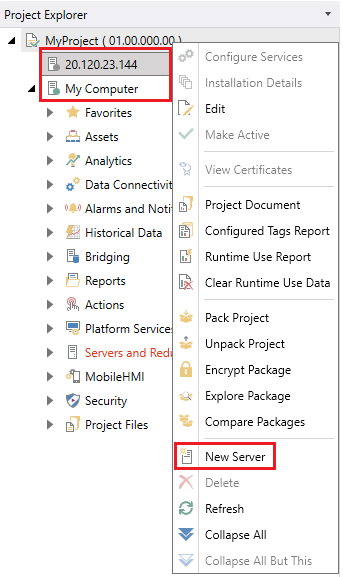
To remove a server from a project, right-click the server in Project Explorer and select Disconnect.
Server State Indication
The icon for each server in Project Explorer contains a green or gray dot that indicates whether FrameWorX on that server is running (see the image above). The state is determined from the quality of the cfg:ServerVersion tag for that server. If this tag is good quality, the server is considered online (green dot). If it is bad quality, the server is considered offline (gray dot).
Adding Server Components
When you add a new server, the local Workbench point manager contacts FrameWorX on the remote server and retrieves the list of components that were configured for that server. This list is used to populate the children nodes of that server.
The list is cached, which means that if the remote FrameWorX is offline (gray dot), you may still be able to expand the server if FrameWorX was online at some point in the past and the Workbench point manager was able to download the list of components.
If the Workbench point manager could not retrieve the list of components when the server was added, you can configure them manually using the Configure Components menu option on the Home ribbon. Learn more
Alternatively, you can remove the server and then add it back to the project, at which point the Workbench point manager will try to read the list of components again.
Adding Component Child Nodes
To populate the nodes under each component, the local Workbench point manager needs direct access to the SQL Server used by the remote GENESIS server to store its configurations. If the SQL Server cannot be reached, the child nodes cannot be expanded. For example, you may see that Alarm Server is part of the project, but you cannot expand it to see how it is configured.