Adding Annotations to a 3D View
The 3D Viewport in GraphWorX allows you to include true, three-dimensional models in your dashboard. These models can be animated and interacted with in runtime for an immersive 3D experience.
Adding annotations to a 3D viewport is a helpful way to provide context and information. The annotations appear in runtime as a 2D element that is displayed on top of the 3D environment. They have a defined position in the display and are always oriented to the user, meaning that they clearly present their information regardless of the camera orientation.
To add annotations to a GraphWorX 3D View:
- Open GraphWorX in the configuration mode (default).
- On the Home tab of the ribbon in the Shapes section, click
 , and then drag the mouse diagonally across the canvas to create a new 3D viewport, or open a display that already contains a 3D view.
 -
Select the viewport to display a custom ribbon for the 3D view that contains Home, Materials, Dynamics, and Help tabs.
When selected, the viewport is framed by a solid blue box in the editor. -
To continue, select one of the following options, depending or the GraphWorX mode you are using.
Primitives in GraphWorX are configured and behave differently when configuring a display for Desktop App mode or Web Browser mode. Learn more-
Desktop App mode: On the Home tab of the custom ribbon in the Primitives section, click the annotation button
 to add a new annotation to the view.
 Adding and Editing a Desktop App Mode Annotation
The added annotation appears at the origin (0,0,0) of the view. It is implemented as a single element that contains a canvas within it, allowing you to add display elements within an annotation for all of those elements to be animated together in one 2D annotation.
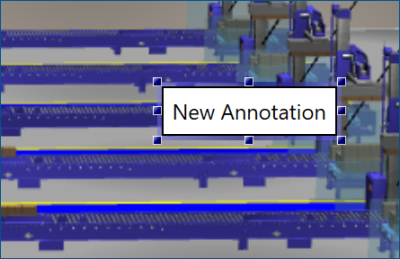
By default, the annotation includes a text label that says "New Annotation". You can edit the text and add additional 2D elements to the annotation.
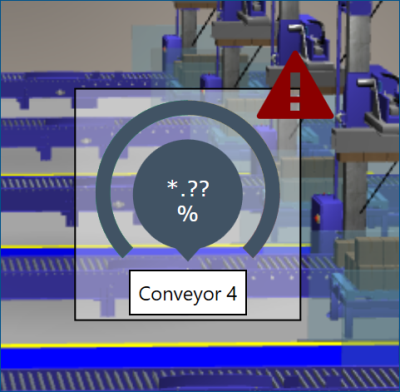
Objects added via the ribbon or symbol library are displayed in the annotation canvas. You can move and layer them in the appropriate z-order as necessary.
-
Web Browser mode: On the Home tab of the custom ribbon in the Primitives section, expand the annotation options
and select the desired type of annotation to add to the view. 3D views for a web browser offer four different types of annotations: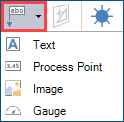
-
 Adding a Text Annotation
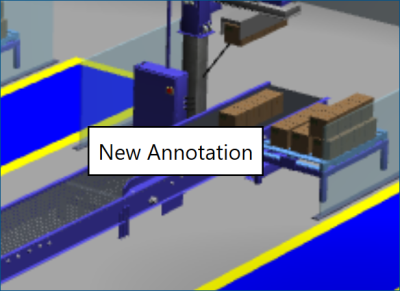
A text annotation includes a single static text label. You can adjust the displayed text using the property grid for the annotation, but it cannot be set to a dynamic data source.
-
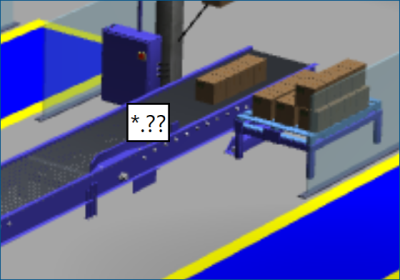
 Adding a Process Point Annotation
A process point annotation includes a single text label configured to have a process point dynamic. Its dynamic can be configured from the DataSource property in the property grid for the annotation.
-
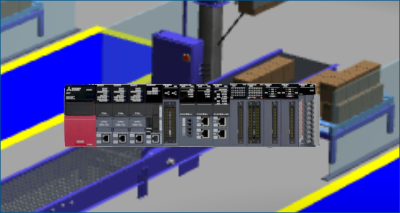
 Adding an Image Annotation
Adding an image annotation opens the file browse dialog for selecting the image you want to use. Once selected, it will appear on screen as the annotation. You can use the property grid to adjust the size and aspect ratio of the image, and if appropriate you can set the file path name to be a dynamically derived source instead.
-
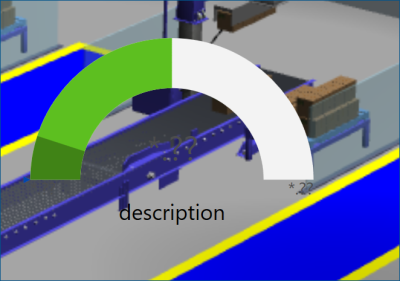
 Adding a Gauge Annotation
The gauge annotation includes a pre-built smart symbol gauge. The properties used to customize the behavior of this gauge are exposed in the annotation's property grid.
-
-
-
After adding and customizing the annotation, go to the Explorer tab in the left panel of GraphWorX and click the annotation to display the move manipulator. Drag the arrows to place the annotation to the desired location.
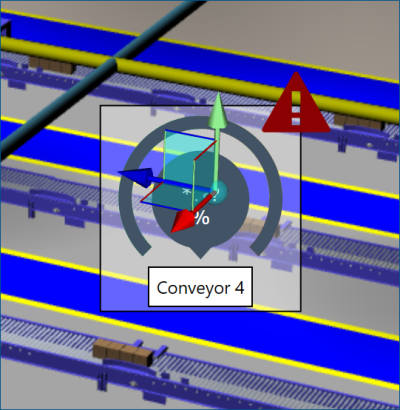 Annotations are always visible to the user regardless of camera position, so this can help you place the annotation somewhere contextually useful.
 -
Use the options on the upper right of the GraphWorX screen to switch to the runtime mode
 or to open the display in a web browser
  . View the annotation in runtime and note that it is always oriented to the viewer as you pan and zoom the display.
Annotations support standard GraphWorX dynamics such as Hide, Color, or Disable. These can be applied to annotations to enhance the user experience in a 3D view.
You can also associate annotations to specific 3D models in the viewport, which provides additional functionality. Learn more