Adding Annotations to a 3D Model
Adding annotations to a 3D view is a helpful way to provide context and information. For more information, refer to Adding Annotations to a 3D View.
When adding an annotation, you can associate it with a specific 3D model in the viewport. This provides the standard functionality of the annotation, but additionally binds and associates the annotation to that model, which can be useful for animations and orientation to the user.
You can bind multiple annotations to a single model.
To add an annotation to a 3D model in a GraphWorX 3D View:
-
Open GraphWorX in the configuration mode (default).
-
On the Home tab of the ribbon in the Shapes section, click
 , and then drag the mouse diagonally across the canvas to create a new 3D viewport, or open a display that already contains a 3D view.
 -
Select the viewport to display a custom ribbon for the 3D view that contains Home, Materials, Dynamics, and Help tabs.
When selected, the viewport is framed by a solid blue box in the editor.
-
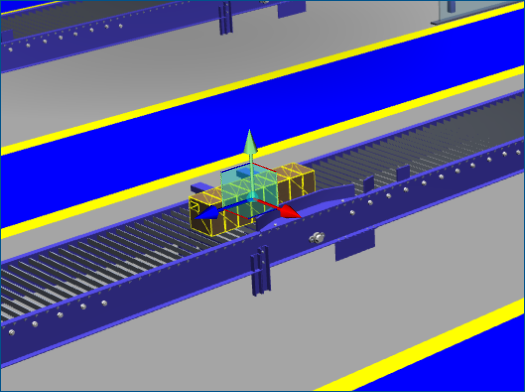
Select a specific model in the viewport. When selected, the model may be highlighted using a mesh wireframe, a bounding box, or a color tint highlight.
-
On the Home ribbon tab in the Primitives section, click the annotation button
 to add a new annotation that is associated to the model.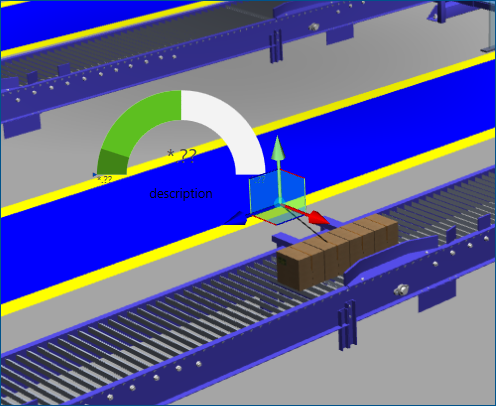
For a better understanding of which object the annotation relates to, it is linked to the model by a line that automatically resizes and repositions when moved.
Annotations maintain a relative position offset from the object they are bound to, meaning that if the underlying object moves in the viewport, either by manually moving the object in configuration or through a location dynamic in runtime, the annotation moves with it.
-
(Optional) Adjust the anchor point of the connecting line, which allows you to control more precisely where and how the annotation points to the model. By default, the line links to the origin point (0,0,0) of the model.
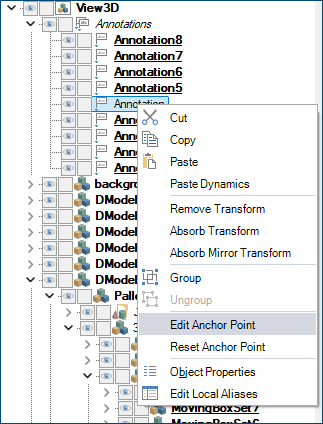
On theExplorertab in the left panel of GraphWorX, right-click the annotation and select Edit Anchor Point, and then shift the position of the anchor relative to the model.
-
(Optional) Customize the line connecting the annotation to its model using the property grid, such as changing the color with LineColor or toggling the visibility with ShowLine.
When the line is hidden, the annotation still retains the offset relative to its bound model.