Creating an OPC UA Connection Using the GDS
After registering GENESIS to the Global Discovery Server (GDS), you can easily find any OPC UA server and application registered to the GDS. You can add connections to them in Workbench under OPC UA Connections.
To create an OPC UA connection using the GDS:
- Open Workbench and in Project Explorer, expand your project > OPC UA and double-click OPC UA Connections to open the connections dialog.
- In the Connections panel, select Click here to add new item to open a new connection settings dialog in the right panel.
-
In Server URL, click
 to open OPC UA Server Browser with the list of available connections to the OPC UA servers registered to the GDS.
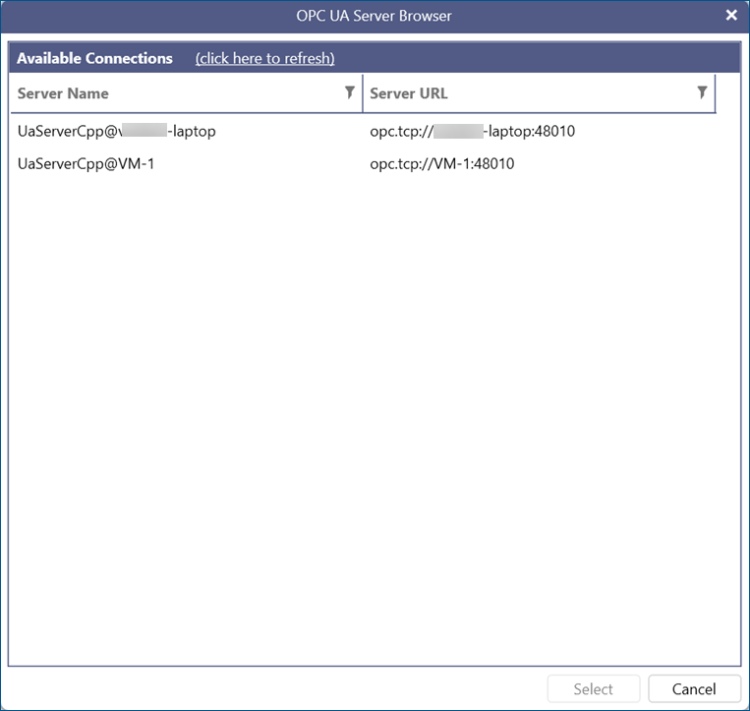 For the connections to be displayed, the GENESIS OPC UA Point Manager service must be running.
 - In Available Connections, select the desired connection and click Select to close the dialog. The connection name and the server URL are copied to the Connection Settings form.
- Complete the rest of the settings in the same way as any other OPC UA connection, and then click Apply. Learn more