Configuring the GDS Settings in Workbench
After installing a Global Discovery Server to your network, you need to configure the GDS settings in Workbench under Data Connectivity > OPC UA and register the OPC UA point manager to the GDS as a client application.
To configure the GDS settings and register GENESIS OPC UA to the GDS:
- Open Workbench and in Project Explorer, expand your project > Data Connectivity, expand OPC UA and double-click Global Discovery Server Settings to open the configuration dialog.
-
In the Connection Settings section in Server URL, enter the URL address of the GDS, including the port number.
Example: opc.tcp://vm-1:48060/
- In Preferred Endpoint, click
 to download the available endpoints from the server, and then select the desired type of endpoint from the drop-down list.
 -
In Authentication Mode, select either Username and Password or Certificate, and then enter the credentials of the user that was set up on the GDS, or click
 next to the User Certificate text box to browser for the desired user certificate.We do not recommend using the Anonymous mode due to its limitations and security risks.
 - In Trust List Update Interval, set up the interval for a periodic check of the certificate trust list updates on the GDS.
- When finished, click Test Connection. If the connection is successful, click Apply to save the settings.
-
In the Server Registration section, click Register to start the automatic registration process. You can monitor the progress in the box below the bar.
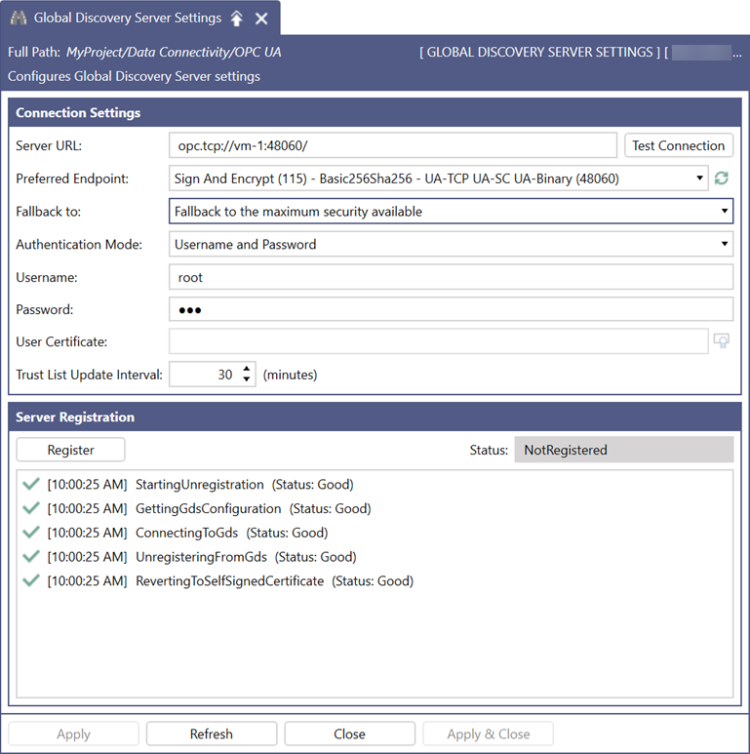
When the registration successfully completes, the Status changes to Registered, and the Register button is replaced with Unregister. Use this button for removing the registration from the GDS when no longer needed.
If the registration or unregistration process fails, refer to GDS Troubleshooting.
What's Next?