Subscribing to Sparkplug B Data
A Sparkplug subscriber connection reads Sparkplug B-encoded data from an MQTT broker. Because Sparkplug B standardizes both the topic structure and the payload, the connection needs no decoder; the devices describe themselves in their birth messages, and GENESIS builds the address space from what they report. Learn more
Before you begin, connect to an MQTT broker so that a broker definition is available to select. You also need the group identifier and edge node identifier that the devices publish under.
To subscribe to Sparkplug B data:
-
Open Workbench. In the Project Explorer, expand your project > Data Connectivity > Internet of Things, right-click Subscriber Connections, and select Add Sparkplug Subscriber Connection.
-
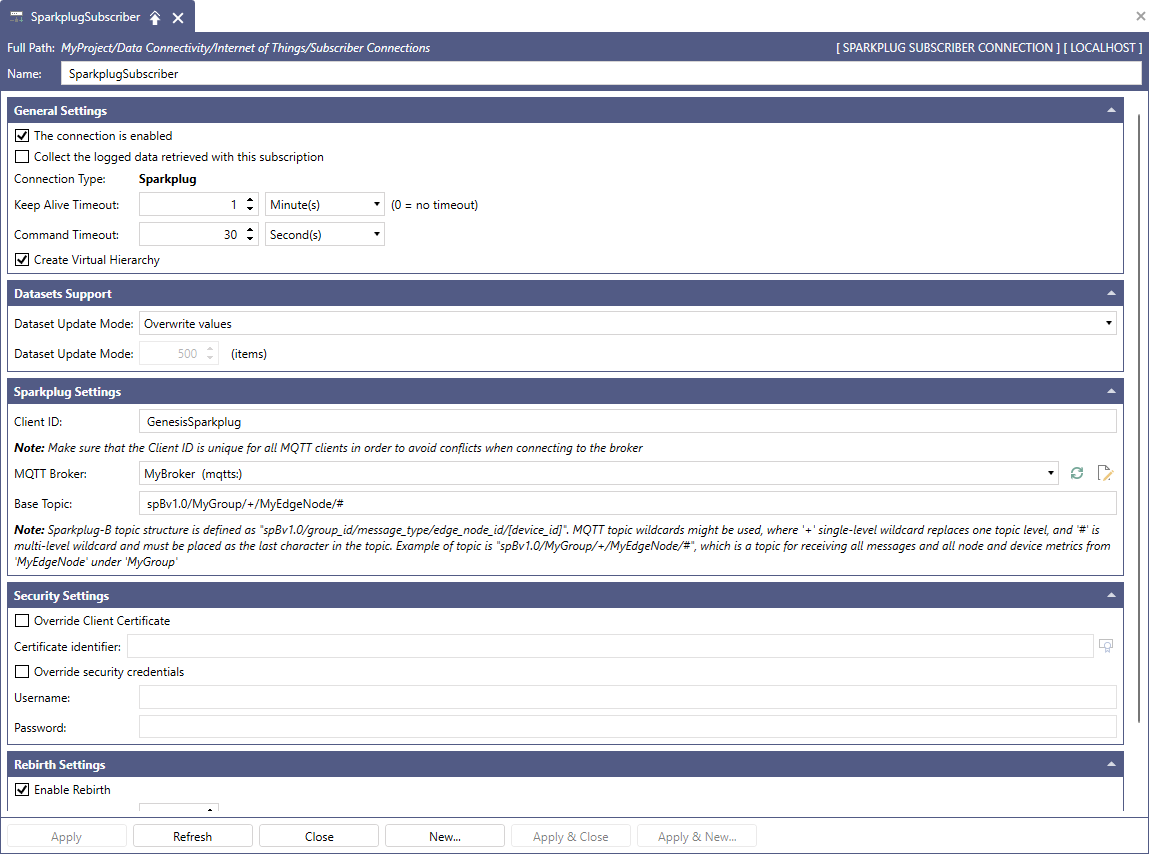
In the new configuration dialog, enter a Name for the connection.
-
In the Sparkplug Settings section, configure what to subscribe to:
-
Enter a Client ID that is unique among all clients connected to the broker.
-
In MQTT Broker, select the broker definition that points at the broker carrying the Sparkplug B data. If it does not appear, click the refresh button beside the field.
-
Enter the Base Topic in the form
spBv1.0/group_id/message_type/edge_node_id/[device_id]. Use+to match a single level and#to match all remaining levels. For example,spBv1.0/MyGroup/+/MyEdgeNode/#receives every message type fromMyEdgeNodeand all devices beneath it.The topic must start with the
spBv1.0namespace, and#must be the last character in the topic.
-
-
(Optional) In the Security Settings section, select Override Client Certificate or Override security credentials to connect with an identity other than the one defined on the broker.
-
In the Rebirth Settings section, select Enable Rebirth so that GENESIS can ask a device to resend its birth message when data arrives that GENESIS has no description for. The supplied defaults suit most systems; adjust them only for devices that are slow to answer.
Leave rebirth enabled unless the devices on your broker are known not to support it. Without it, restarting the subscriber can leave data arriving that GENESIS cannot resolve to named metrics.
-
Click Apply & Close, and then verify that the GENESIS Internet of Things Subscriber Point Manager service is running. On the Home ribbon in Workbench, ensure the traffic light for the Subscriber is green.
-
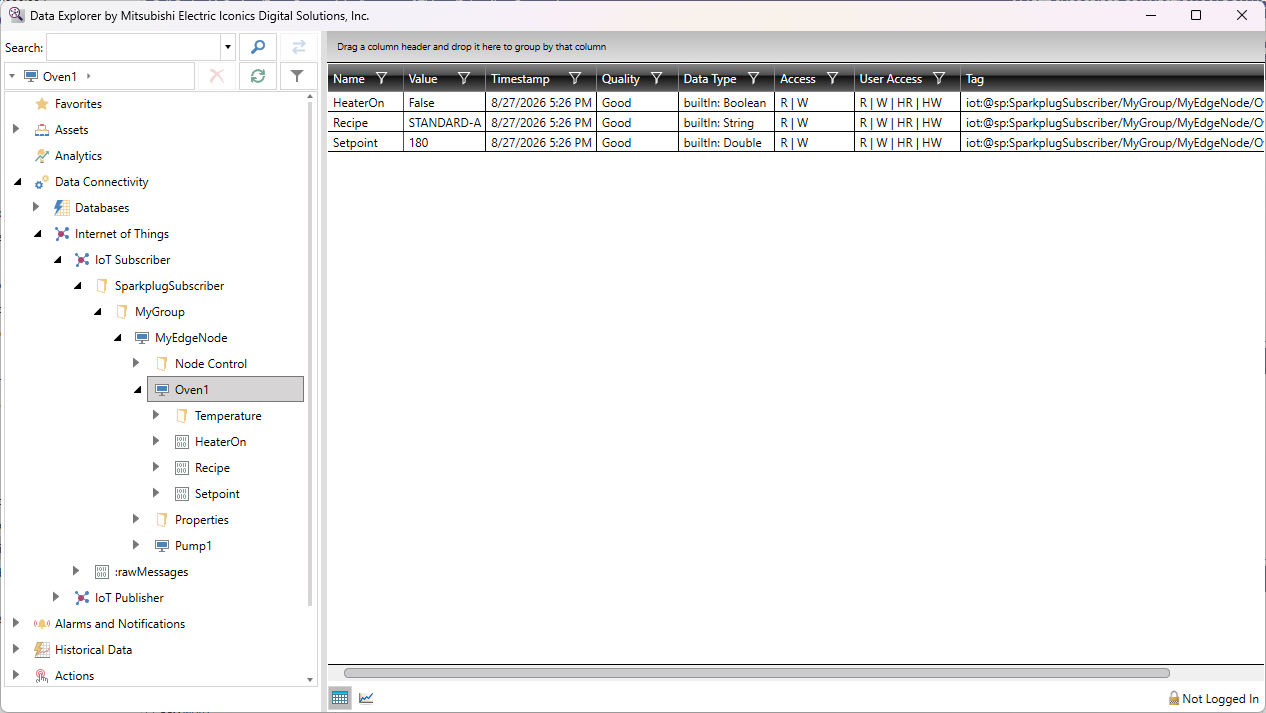
Open Data Explorer and expand My Computer > Internet of Things > your connection. Each edge node and device appears as a folder containing its metrics, with the data types and quality reported by the device.