Calculations Overview
Calculated Tags in Data Historian are virtual data points that perform computations on historical data from one or more source tags, storing the calculated results in the Data Historian database. These tags allow you to derive meaningful insights, such as averages, trends, and conditional thresholds, from raw data without the need to perform calculations in external systems or applications.
Calculated tags are essential for applications requiring complex data analysis and performance monitoring directly within the historian. They use a defined calculation trigger and a formula that references one or more source tags. Each time the trigger condition is met, Data Historian reads the values from the source tags, processes the formula, and updates the calculated tag with the result. The calculated tag can then be used in dashboards, reports, or further calculations as a standard data point.
You can use the following features for creating and maintaining a calculated tag.
Triggers
Each calculation can be activated by multiple triggers configured in the calculated tag's settings. Each trigger is uniquely identified by a name within a single calculation tag, and this name can be referenced within the calculation formula. Calculations are processed sequentially; if two trigger events occur simultaneously, the trigger that is listed higher on the list has higher priority and takes precedence over the lower-priority one.
Trigger Configurations
Available triggers are located in your Workbench project under the Historical Data > Data Historian > Calculation Triggers node in the Project Explorer tree. The triggers are organized into a hierarchical tree structure of folders. The sample database includes a set of predefined time triggers with intervals ranging from seconds to 1 hour, and a sample data trigger that activates at any data point change.
Expressions
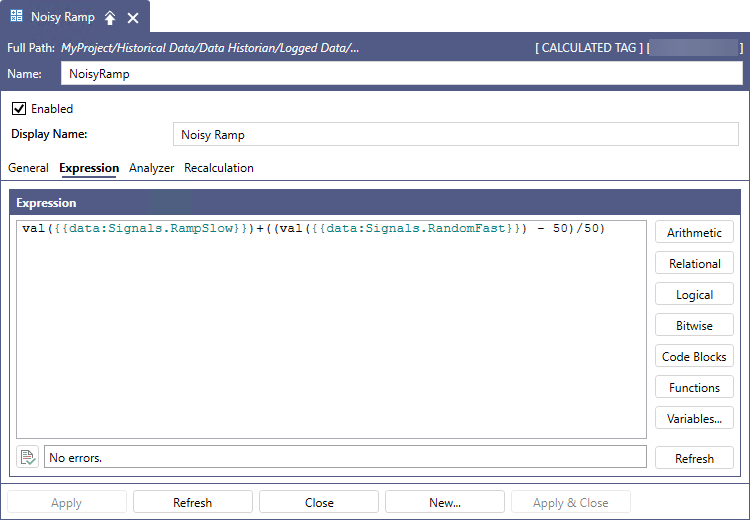
In Data Historian, an expression in a calculated tag is a customizable mathematical or logical formula that processes data from one or more source historical tags logged by the Data Historian. These expressions are the foundation of calculated tags, enabling you to create new data points by applying arithmetic, statistical, or conditional operations to existing historical data.
Calculation Functions
In calculation formulas that are complex or contain repeated patterns, you can use the calculation functions to simplify them. A calculation function is essentially a reusable formula (expression) with a predefined set of input parameters. Calculation functions can call other calculation functions. However, to prevent infinite recursion, the hierarchy of nested functions should not exceed twenty levels.
These functions can be created and stored in your Workbench project under the Historical Data > Data Historian > Calculation Functions node in the Project Explorer tree. When creating a calculated tag, you can access them in the Functions menu in the expression editor.
Analyzer
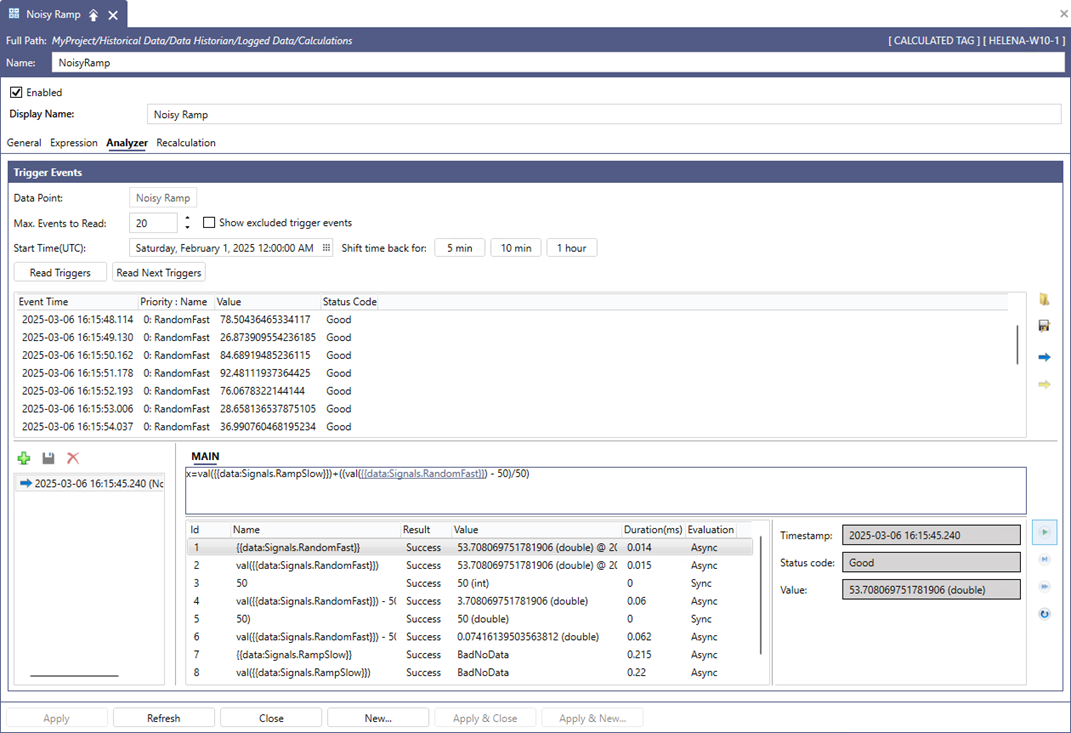
Some performance calculation formulas can become complex, making validation challenging. The calculation analyzer tool facilitates this process by providing detailed calculation analysis. You can access it on the Analyzer tab of the calculated tag configuration dialog. To begin, read trigger events from the running Data Historian, select an event to analyze, and execute it in the lower section of the analyzer interface. The tool displays step-by-step data processing with all intermediate calculation results, allowing users to trace how the final value was derived.
Calculation functions can also be debugged, with each function’s code appearing in tabs next to the MAIN tab in the analyzer’s debugging area. This feature enables you to view the full calculation process, including approximate execution time, which is useful for optimizing the performance. The tool makes it relatively easy to identify incorrect parts of calculation formulas.
Since the analyzer performs analysis on the server side, you can test the expression edits almost in real time, with only a slight delay due to the online configuration change detection mechanism. You can save the evaluation analysis results as a binary-formatted file on a disk and share it with other stakeholders for further evaluation. This allows the results to be reviewed on different machines, without requiring analysis on the same host where the Data Historian is running.
Recalculation
In the unlikely event that a portion of a calculated value needs to be recalculated—such as when remote collectors fail to deliver data on time due to network issues or when an incorrect calculation was previously performed—you can use a recalculation task. A recalculation task specifies the time range for the recalculation, the start time (which can be scheduled during off-peak hours), and the tag(s) to be recalculated. Learn more
The file name follows a specific format representing the time (in UTC) when the task is scheduled to run.
Example: 20241213T13-00-18.txt
This file is placed in a well-known directory where it is detected and processed by the Data Historian logger. Once the task has been processed, the file is automatically deleted.
The default location is ProgramData\ICONICS\11\DataHistorian\Logger\CalculationTasks.
Recalculation tasks created in the configuration tool generate a text file formatted as a set of keyword-value pairs.
Example: Keyword1=Value1; Keyword2="Textual Value2"; ...
Supported Keywords:
- Begin: Start time in UTC (format: YYYYMMDDTHH-mm-ss)
- End: End time in UTC (format: YYYYMMDDTHH-mm-ss)
- TagFilter: Filter text in double quotes
- Exclusive: Boolean (True/False)
Example of a calculation task content: Begin=20241210T23-00-00;End=20241211T23-00-00;TagFilter="MyTag";Exclusive=False;
What's Next?