Creating a Workflow and Assigning Triggering Alarms
A workflow binds a template to the alarms that trigger it. The template holds the diagram—who to contact and what to do about the response—and the workflow says which of the alarms arriving on the configuration's subscription should run that diagram, and how the engine should treat each execution.
The following procedure uses a scenario in which high-severity alarms from a pump house run a notification template. Substitute the alarm filter and template to suit your own project.
To create a workflow and assign its triggering alarms:
-
Open Workbench. In Project Explorer, expand your project > Alarms and Notifications > Connected Field Service > Workflows, right-click your workflow configuration, and select Add Workflow.
-
In Name, enter a name for the workflow, such as Notify Pump House Technicians.
-
On the Workflow Settings tab under General Settings, select The workflow is enabled.
-
In the Workflow Template section in Selected Template, select the template that this workflow runs.
-
To build a template here instead, click
 , enter a Template Name, and then click
  to open the template designer. Learn more
-
-
(Optional) In the Advanced Settings section, set Workflow Options to control what happens when the same workflow is triggered again while an execution is still running. The default, Queue and Execute Immediately, runs every trigger in parallel.
-
Execute if the workflow is unique—A trigger runs only if no similar workflow is already executing.
-
Queue if the workflow is unique—A trigger is queued only if no similar workflow is already queued.
-
-
On the Workflow Execution tab, go to the Alarm Filter section and enter Filter Expression or select (Click to edit expression) to open the expression editor.
-
Specify the condition that decides which alarms run this workflow, and then click OK.
Example:
{{Severity}} >= 700 && {{Area}} == "Pump Houses"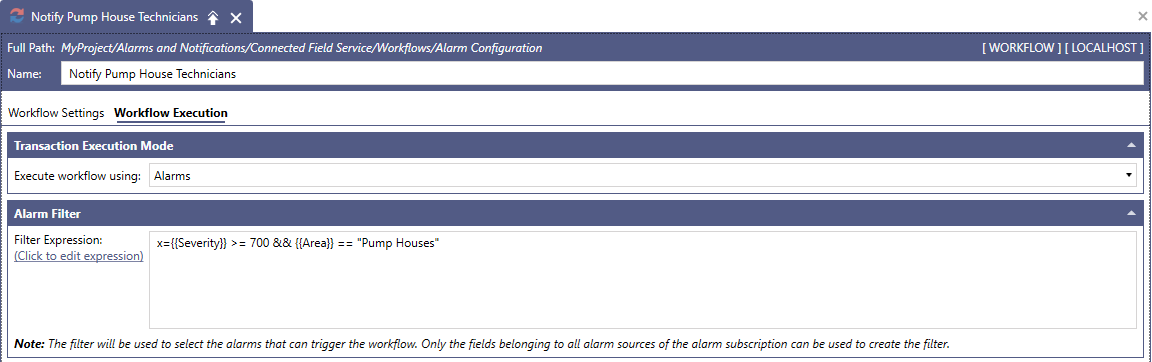
An empty filter runs this workflow for every alarm in the underlying configuration's subscription. The filter can use only the fields that belong to the alarm sources in that subscription. Learn more
-
Click Apply, and then close the workflow.
What's Next?