Configuring a Tree View
You can configure custom tree views in Workbench to manage and display your assets in runtime clients. These views use special rules to determine how assets are displayed at various levels of the equipment hierarchy. For example, you can choose to display all assets of a specific equipment level or filter them based on criteria such as property values or custom expressions.
Prerequisite: Your project must contain an Assets database.
If your project uses distributed assets, refer to Configuring a Tree View with Distributed Assets.
To create a custom tree view:
-
Open Workbench and in Project Explorer, expand your project > Assets.
-
Right-click Tree views and select Add Tree view.
-
Enter the Name of the tree view. Optionally, specify the Display Name and Description.
-
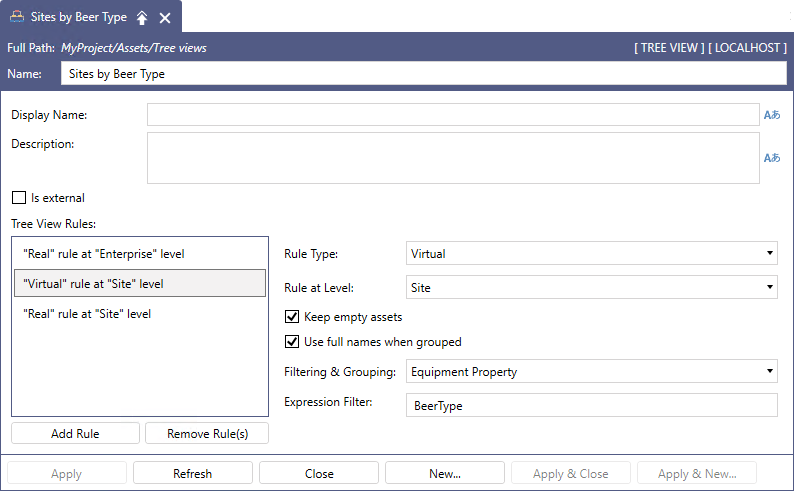
Click Add Rule and select the new rule in the Tree View Rules list. The settings are displayed on the right.
-
In Rule Type, select one of the following options.
-
Real: Displays all assets at the selected equipment level. You can define only one Real rule per equipment level, and you must define subsequent rules for lower levels in the hierarchy.
-
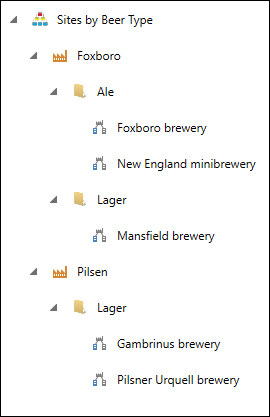
Virtual: Groups the assets at the selected level according to the filtering criteria set in Filtering & Grouping and Expression Filter.
If the equipment has a static equipment property, you must disable database caching to use the property value.
-
Filter: Displays assets at the selected level, filtered by a true/false expression specified in Expression Filter.
-
-
In Rule at Level, select the equipment level for this rule from the drop-down list.
You can check the configured equipment levels under Assets > Product configuration > Equipment hierarchy. For example, the sample database's hierarchy levels are: Enterprise > Site > Area > Process Cell > Unit > Equipment Module > Control Module. If you define a Real rule for the Unit level, subsequent rules in the tree view can only be defined for the Equipment Module or Control Module levels.
-
For the Virtual rule type, select the filtering criteria in Filtering & Grouping. Virtual rules can filter assets by an equipment property, object property such as name or description, or a custom expression.
-
In Expression Filter, enter the required information for the selected filtering and grouping type.
-
For Object Property or Equipment Property filtering, enter the property name in the box.
-
For Expression filtering in the Virtual or Filter rule type, use the expression editor with built-in functions to construct the expression. Learn More
-
-
Select the Keep empty assets checkbox to include assets without child assets or properties. This option is always enabled for the last rule in the list.
-
Select Use full names when grouped to display the full path names of grouped assets, and then click Apply.
What's Next?