Using a Tree View in Runtime
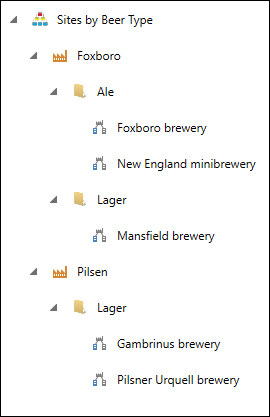
You can view configured asset tree views in GraphWorX using Asset Navigator.
To view asset trees in Asset Navigator:
-
Open GraphWorX.
-
On the Controls ribbon, select Asset Navigator and place it on your display canvas.
-
Double-click the Asset Navigator to open its configuration.
-
On the General tab in the Navigator section, click
 next to the Tree View text box. A Data Browser dialog opens.
 -
Double-click the desired tree view to select it and click OK.
-
Click OK to close the Asset Navigator configuration.
-
In the upper-right corner of the GraphWorX screen, expand the Open in Web Browser drop-down list and select Desktop Runtime. The Asset Navigator displays your assets according to the configured tree view rules.