Signing in via the GmailSample Application
Once you have configured the Gmail settings for sending notifications, you can sign-in to Gmail via the
To sign in to Gmail using the GmailSample application:
-
Open the GENESIS Services folder. The default location is C:\Program Files\ICONICS\GENESIS64\Services.
-
Open the AlertWorX folder, right-click
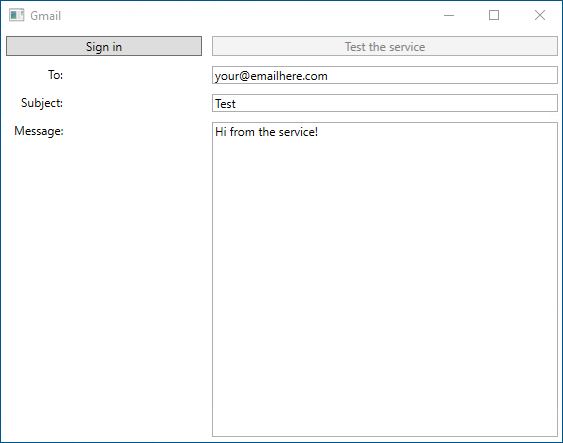
- In the application, click Sign in. A Google sign-in form opens in your web browser.
-
Log in with your Gmail account and password, and then click Next. The necessary information is saved to the Windows credential sever.
The sign-in account must be included in the Google Audience test list.The Windows credential server resets the stored security information on reboot. To prevent that, store the information as Persistent: Enterprise. -
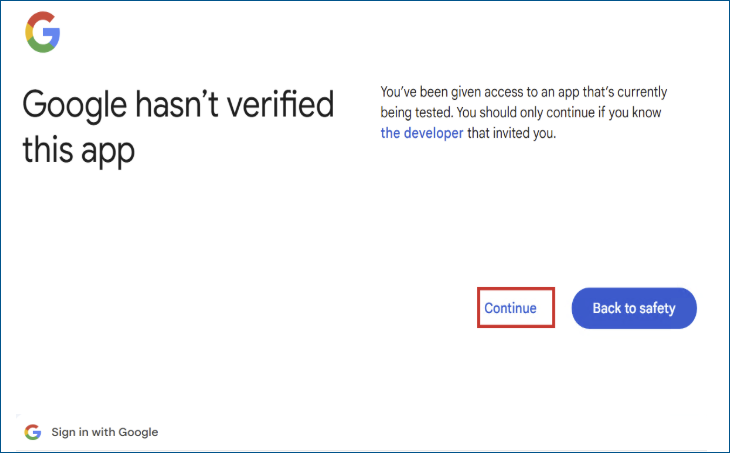
Go through the process of verifying the app by clicking Continue, and then clicking Continue again.
-
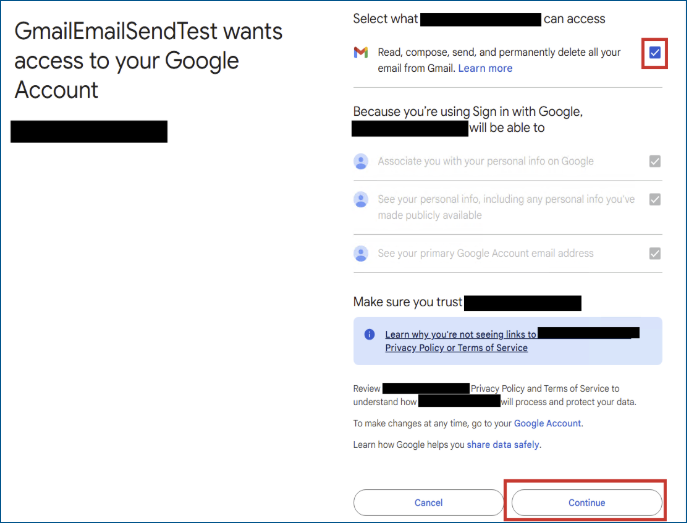
On the next page, specify the desired settings by selecting or clearing the available checkboxes, and then click Continue.
What's Next?