Creating an OAuth Client
After creating the OAuth consent on the Google API Console website, continue with creating an OAuth client and obtaining the client ID and client secret that you need for the configuration in GENESIS.
To create an OAuth client ID:
-
In your web browser, sign in to Google API Console using your Gmail account and open your project.
-
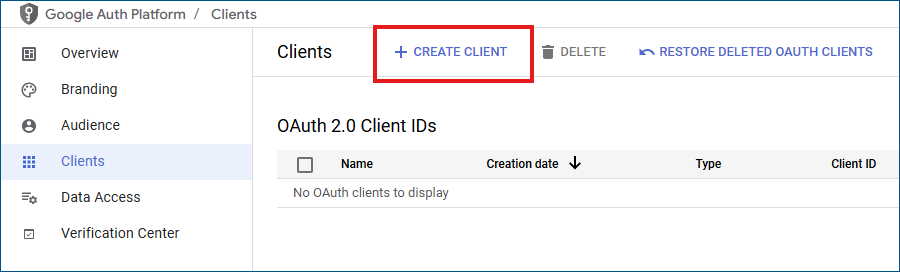
In the menu in the left panel, select Clients, and then click Create client on the top bar menu.
-
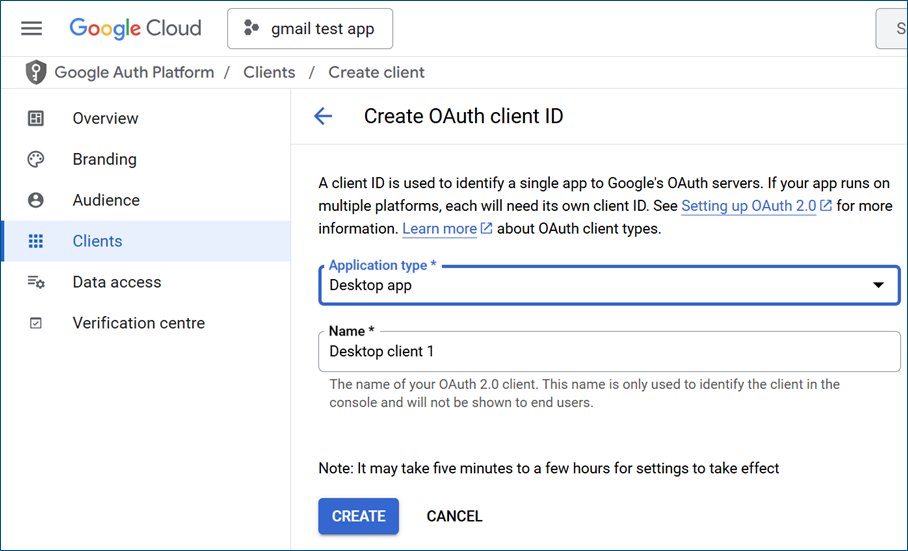
In the next dialog in Application Type, select Desktop app.
-
Enter a name of the application (client) and click Create.
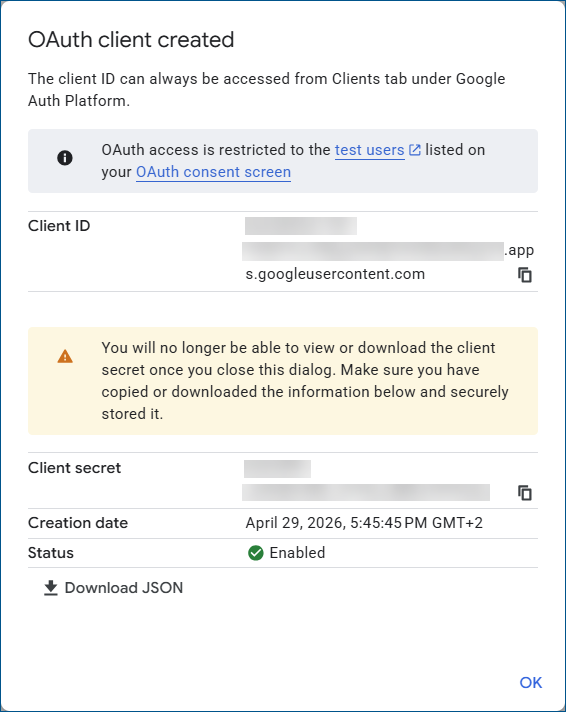
The OAuth client created dialog appears.
-
Copy the client ID by clicking
 in the Client ID section and save it for later use. Do the same in the Client secret section.
Alternatively, click Download JSON to save all the details as a .json file.
You will no longer have access to the client secret after you close the dialog, so make sure the information is securely stored.
When finished, click OK.
-
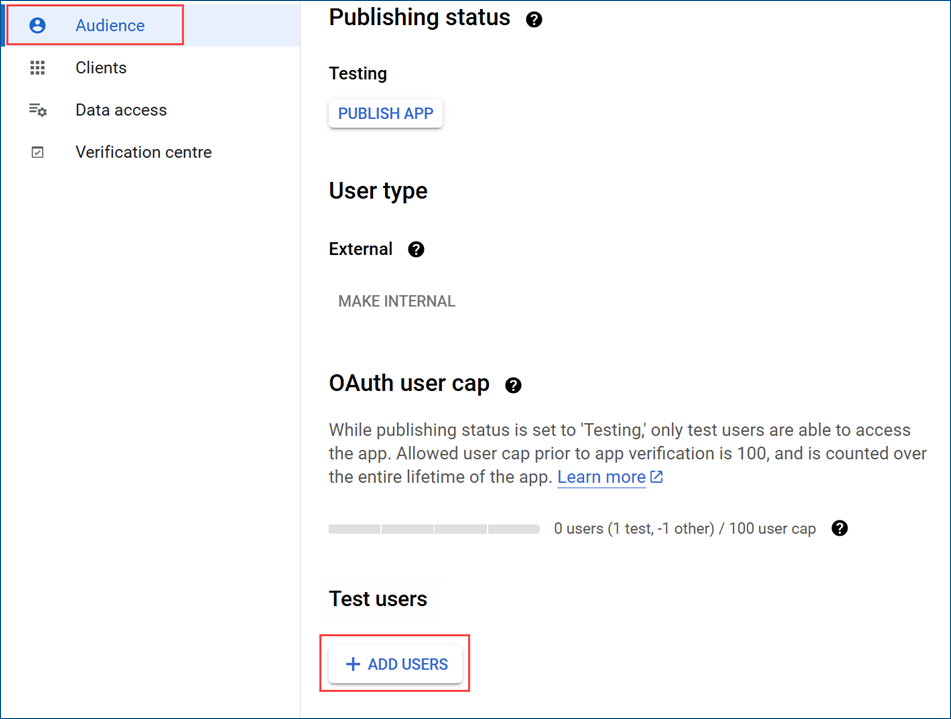
In the left panel, select Audience and click Add Users in the Test users section.
-
Enter the email address to be used for address setting in the SMTP template, and then click Save.