Converting AlarmWorX64 Logger Data
Before converting data from AlarmWorX64 Logger to Alarm Historian, you need to convert the AlarmWorX64 Logger configuration and create a point map file, which is required for the data conversion.
To convert the AlarmWorX64 Logger data:
-
On the Data Migration Utility ribbon, select AlarmWorX64 Logger to Alarm Historian Data, and then select the previously created point map file.

-
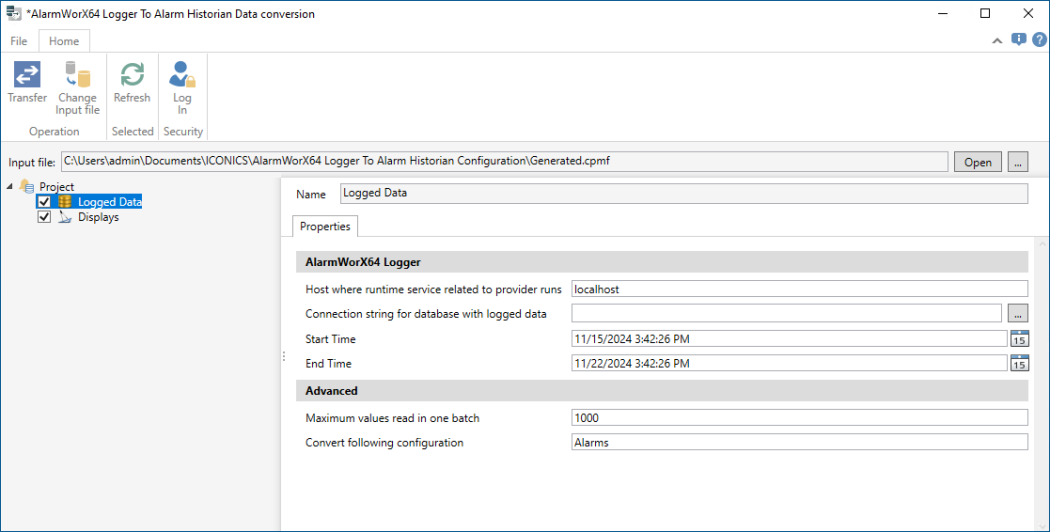
In the left pane, click Logged Data to display the settings for the logged data conversion.
-
In the AlarmWorX64 Logger section, click
 next to the Connection String for database with logged data field and specify the connection to the database that contains the AlarmWorX64 Logger data from the target configuration.
  Learn more
 -
In Start time and End time, specify the time range of the data to be converted. This is particularly useful when you only want to convert a part of the data.
-
In the Advanced section, enter the name of the AlarmWorX64 Logger configuration that contains the desired data.
There are separate tables with alarms and events. The process allows you to convert them one by one. -
(Optional) In Maximum values read in one batch, specify the number of values to be read and converted at one time. You can use this to increase performance when converting a large database.
-
On the ribbon, select Transfer to start the conversion. In the process dialog, check the conversion status for potential errors or warnings.
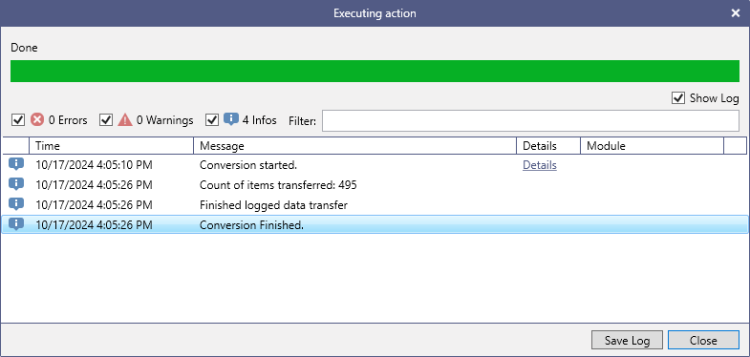 Use the Errors, Warnings, and Infos checkboxes to set up the level of messages that you want to see. If you want to let the import process run in a silent mode, can clear the Show Log checkbox.
 -
When the conversion finishes, make sure that the data in the specified range is available. Check the data for any gaps and verify consistency.
What's Next?