Converting the AlarmWorX64 Logger Configuration
To convert your AlarmWorX64 Logger configuration to Alarm Historian, you need to update the legacy database to the latest available version.
To convert the AlarmWorX64 Logger configuration and create a map file:
- In the Windows search box, enter data migration and open the Data Migration Utility with administrator privileges.
-
On the top ribbon, do one of the following:
- Click Open and select an existing project.
- Click New Project to convert your configuration into a new project.
-
Select AlarmWorX64 Logger to Alarm Historian Configuration.

-
In the AlarmWorX64 Logger section, click
 next to the Connection String for configuration database field to open the dialog for setting up the legacy database connection.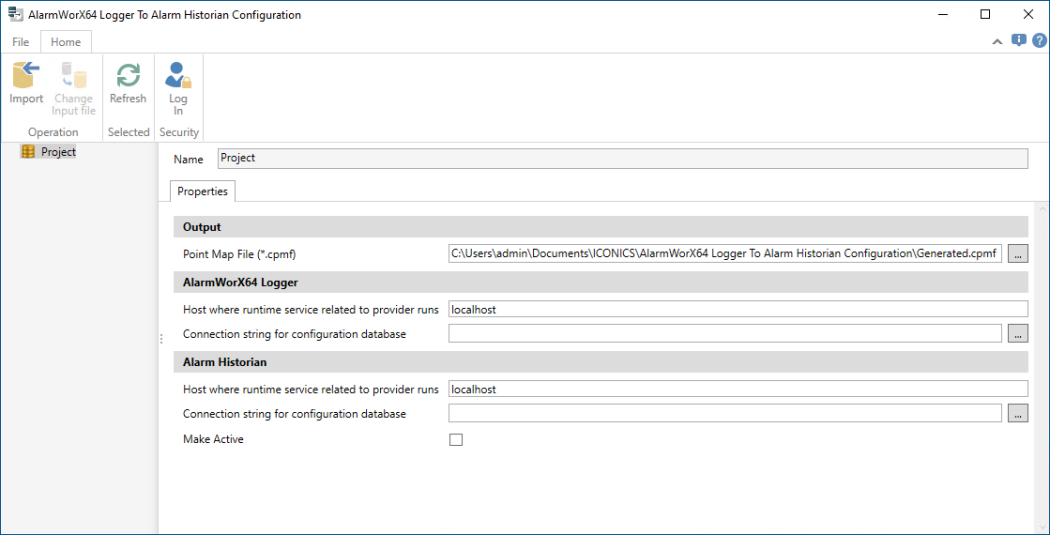
-
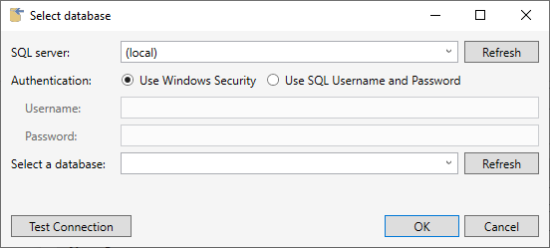
In SQL server, select the SQL Server instance from the drop-down, and in Authentication, select the desired authentication method. If required, specify the username and password.
-
In Select a database, select the database containing the AlarmWorX64 Logger configuration, and then click OK. The database must exist and contain the mandatory tables.
Click Test Connection to verify your settings. - In the Alarm Historian section, click next to the Connection string for configuration database field, and then set up the database connection like you did in steps 5 and 6 for the AlarmWorX64 Logger. The Alarm Historian database does not need to exist—the Data Migration Utility creates it.
-
In the Output section in Point Map File, select the path to the desired file location.
This file stores the column conversions between AlarmWorX64 Logger and Alarm Historian, which is important for data conversions. -
On the ribbon, select Import to start the conversion. In the process dialog, check the conversion status for potential errors or warnings.
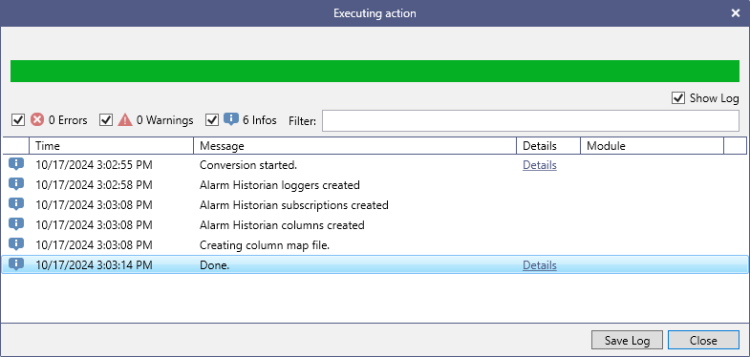 Use the Errors, Warnings, and Infos checkboxes to set up the level of messages that you want to see. If you want to let the import process run in a silent mode, you can clear the Show Log checkbox.
 - When the conversion finishes, check the system to make sure that all functions are operating correctly. Test new alarms logging, performance issues, and any integrations with other systems. You can manually adjust your configuration in the Alarm Logger in Workbench.
What's Next?
Converting AlarmWorX64 Logger Data