File Configuration Overview
File Configuration defines the folders outside of a project that GENESIS components are allowed to browse and use. Each entry pairs a folder on disk with an alias, so that you configure a folder once and then reference it from any component in the project.
File Configuration is available on the Project ribbon in Workbench, in the Project Tools section. The left of the window lists the folders configured for the project, and the right shows the settings of the folder you select. Learn more
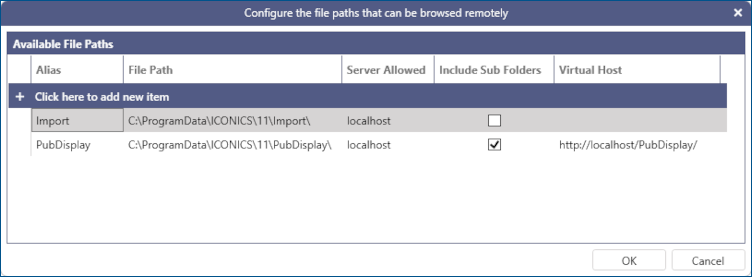
Folder Settings
Each folder in the list has the following settings:
-
Alias—The name that identifies the folder when a component references it.
-
File Path—The location of the folder.
-
Server Allowed—The server that is permitted to access the folder. Enter an asterisk (*) to allow any server.
-
Include Sub Folders—Makes the folders beneath the folder available as well.
-
Virtual Host—The address that serves the contents of the folder to clients.
Component Access
The Permissions settings of a folder determine which components are allowed to use it. Selecting a component grants its Windows service account write permission to the folder, and makes the folder available when you browse for a file in that component.
|
Permission |
Grants write access to |
|---|---|
|
(default) |
NETWORK SERVICE |
|
Bridging |
NT SERVICE\FwxBridgingService |
|
Connected Field Service |
NT SERVICE\FwxCfsService |
Because these settings change the permissions of a folder on disk, you need administrator privileges to change them.
Granting a service account write access to a folder that holds sensitive content exposes that content to every part of GENESIS that runs under the account. Select only the components that need the folder.
Browsing for Files
When you browse for a file in a component, the file browser offers only the folders that the component is allowed to use:
-
In Bridging, the browser shows the folders that have the Bridging permission selected.
-
In Connected Field Service, the browser shows the folders that have the Connected Field Service permission selected.
-
In every other component, the browser shows all of the configured folders.
A workflow is browsed according to where it is configured, so a workflow configured under Bridging offers the Bridging folders and a workflow configured under Connected Field Service offers the Connected Field Service folders.