Configuring Web Login
The Web Login feature of GENESIS Security can be used in two ways.
- The Security component inside FrameWorX Server can act as an OpenID Connect (OIDC) Identity Provider (IdP) that other clients can connect to and authenticate. Learn more
- GENESIS can connect to a 3rd party OIDC or SAML 2.0 Identity Provider and outsource the authentication to them. Learn more
You can configure web login to combine these two features: a client can connect to the OIDC IdP exposed by our Security to obtain an OIDC token, while the Security redirects the client to an external SAML or OIDC IdP to perform the authentication.
Prerequisite: Before setting up the web login, you need to set the public origin of your web server. Learn more
To configure web login in GENESIS:
- Open Workbench and in Project Explorer, expand your project > Security > Global Settings.
-
On the General tab, ensure that for Security active, the Active button is selected, and clear the checkbox for Allow simultaneous login.
- In the Automatic Login section, clear the Enabled checkbox. Web login is not possible when a user logs in automatically.
-
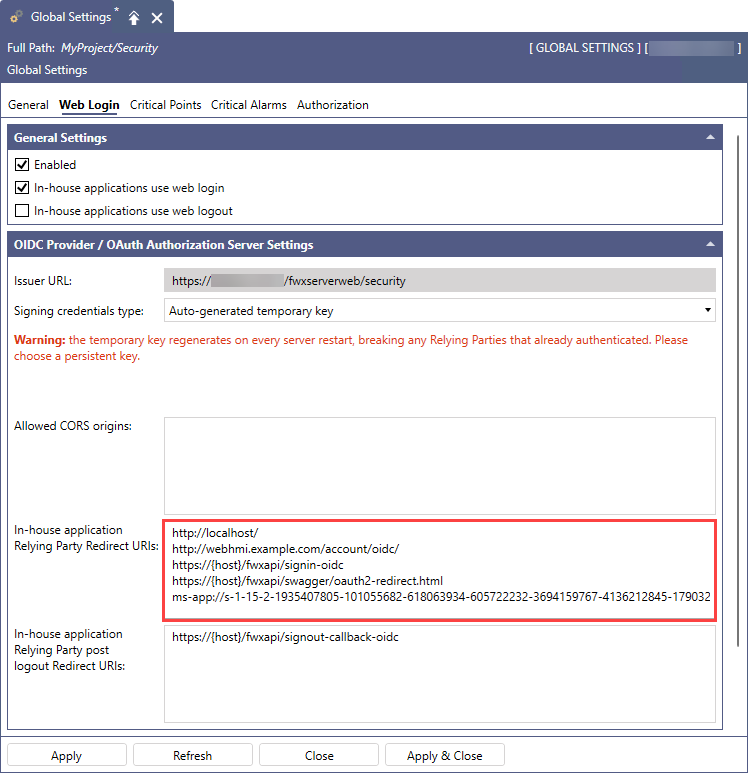
On the Web Login tab, set up the following options, and then click Apply.
- In the General Settings section, select Enable and In-house applications use web login.
- (Optional) Select In-house applications use web logout to enable logging out via a web browser in GENESIS desktop applications or WebHMI.
- In the next section in In-house application Relying Party Redirected URIs, add the desired DNS name to which the identity provider should send users after they successfully sign in, if it is not already listed.
-
In the Authentication section in Type, select the desired option, and then continue with the settings for the selected authentication type.
-
Built-in: Authenticates internally against either Active Directory or the list of users specified directly in the Security database.
No other settings are required. Optionally, select the Allow the 'Remember me' option in the web login form checkbox, and then click Apply.
- Open ID Connect
- SAML 2.0
- Entra ID
-
See an example configuration in Connecting to an External Identity Provider for Web Login.