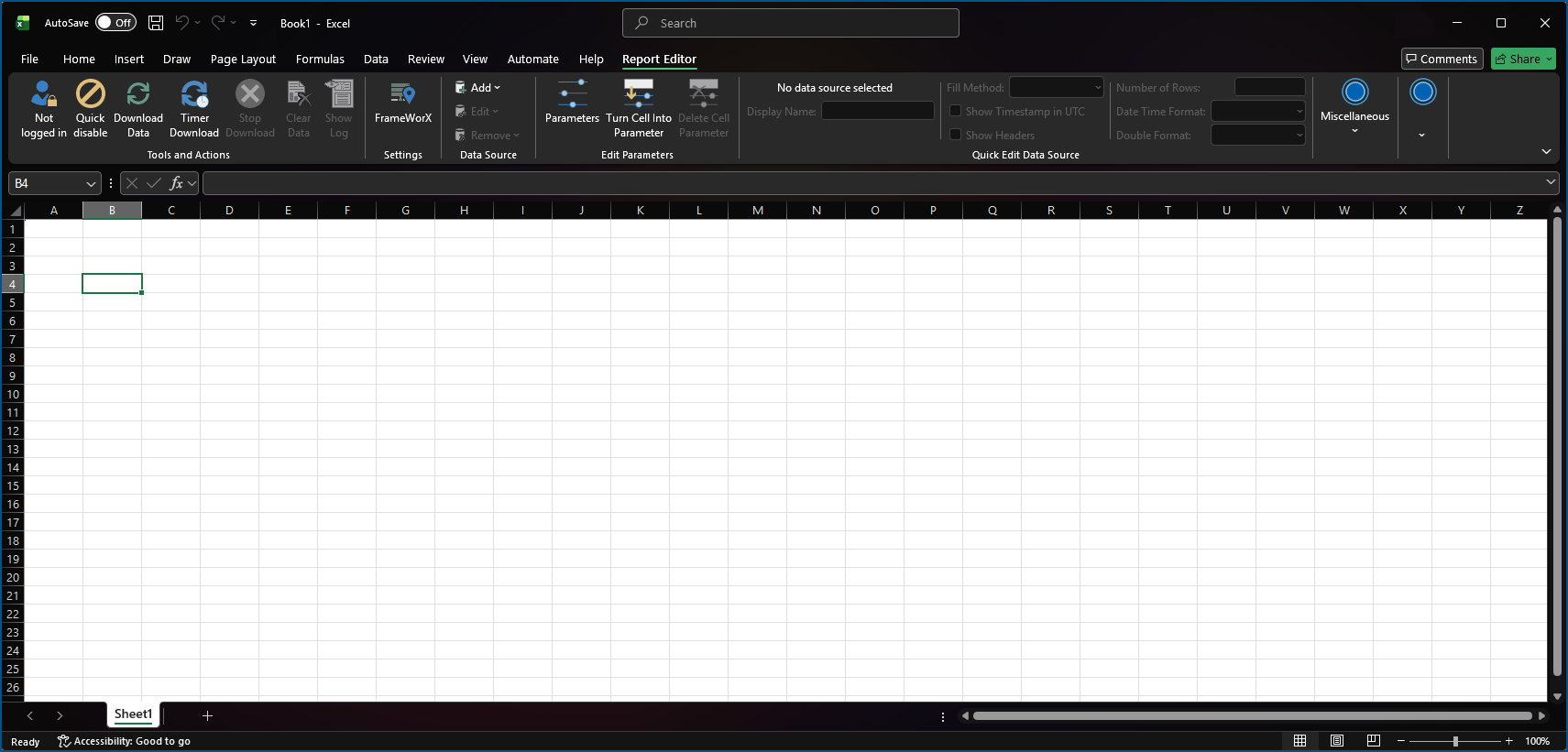
Installing Report Editor
You can install GENESIS Report Editor as a add-in extension to Microsoft Excel via an installer that is available on the Mitsubishi Electric Iconics Digital Solutions Community Portal.
Using Report Editor requires the following software installed:
-
Microsoft Excel installed with Microsoft Office Business 2024 and later or Microsoft Office 365.
-
GENESIS version 11 (even a client-only installation)
To install Report Editor:
-
Log in to the Community Portal and navigate to Resources > Product Downloads.
If you use the Community Portal link on the Mitsubishi Electric Iconics Digital Solutions website and log in to the Support Center page, expand Navigate in the top ribbon and click Return to Main.
-
On the product version 11 tab, select the desired version of Report Editor, and on the next page, click the link in Download URL.
-
Read the license agreement, enter your name and email, and click the accept button to start the download.
-
Open the downloaded .iso file and run Report_Editor_Setup.exe.
-
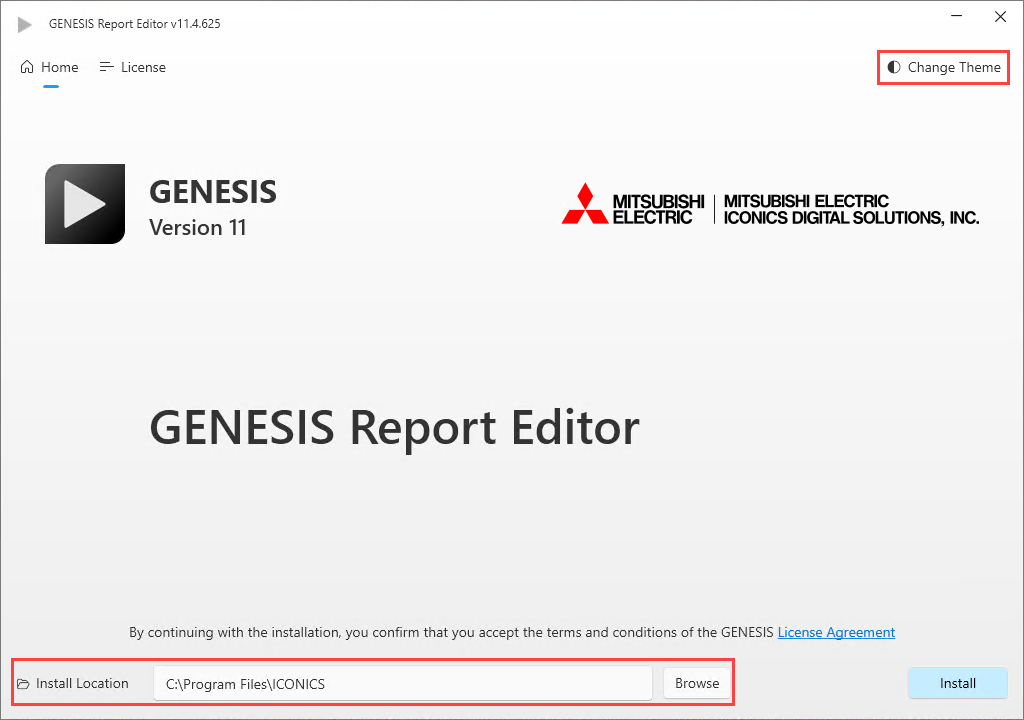
On the home screen, click Install. Optionally, you can change the default location of the installation (C:\Program Files\ICONICS) or toggle the installer's theme from dark (default) to light.
-
When the installation completes, click Close. Open Excel and verify that it includes the Report Editor tab.