License Sidebar Overview
The license sidebar, which you can access from GraphWorX and Workbench, makes it easy to monitor your license usage and status while working in GENESIS.
To open or close the license sidebar:
In either GraphWorX or Workbench, click the License button on the right side of the status bar.
If there are license violations, a badge with the number of license categories that have been violated appears on the button ( ).
).
The license sidebar has three sections.
-
Info—Lists the server name and license tier.
-
Counts—Lists the number of tags that are in use in the following tag groups.
-
GENESIS Tags
-
Mitsubishi Electric Tags
-
Data Historian Access
-
WebHMI Servers
-
-
Options—Consists of 7 sections that correspond to the license (or feature) categories. The color of a category indicates its status (see the table below).
The following image is an example of a license sidebar that has some license violations.
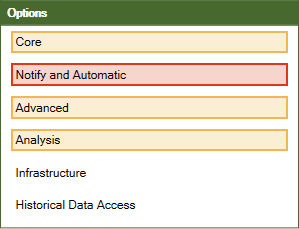
A license violation starts as a warning and escalates to an error and then a severe error the longer it continues. Learn more
The following table describes each status. For more information, about a license status, view the license in License Monitor.
|
License Status |
Status Color |
Description |
|---|---|---|
|
Not enabled |
No border or background |
The feature is not being used. |
|
Licensed and in use |
Green border and background |
The license is being actively used. |
|
Warning |
Yellow border and background |
A license violation is in progress, or a recent violation has not yet cleared. |
|
Error |
Red border and background |
A license violation has continued for 2 days or more. |
|
Severe error |
Bright red background and white text |
A license violation has continued for about 5 days or more. |
A message box for warning, error, or severe error also appears at the top of the license sidebar with more details about the warning or error status. Example:

When any license category reaches the severe error status, the GraphWorX title bar also turns red, and "[License Exceeded]" is added to the title. The title bar keeps this color in both configuration mode and runtime mode, and returns to its usual color when the severe error is resolved.