Using Language Aliasing in a GraphWorX Display
This topic describes how to use aliases and text translations defined in Language Aliasing in a GraphWorX visualization.
The following instructions assume that you already have text translations configured in Workbench. The steps provided in this example use the sample Language Aliasing data installed with GENESIS.
To use text translations in a GraphWorX display:
-
Open GraphWorX in the configuration mode (default). Make sure that GraphWorX is in the
 Desktop App mode.
- On the Home ribbon, select
 , and then insert the label in the main view area by clicking in the desired location.
 -
Browse for a language alias.
-
In the right pane in the property editor, select Text, and then click
 to open Data Browser.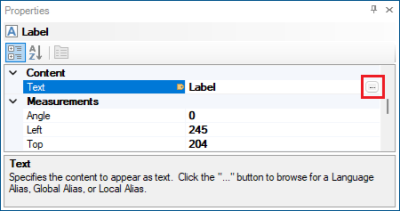
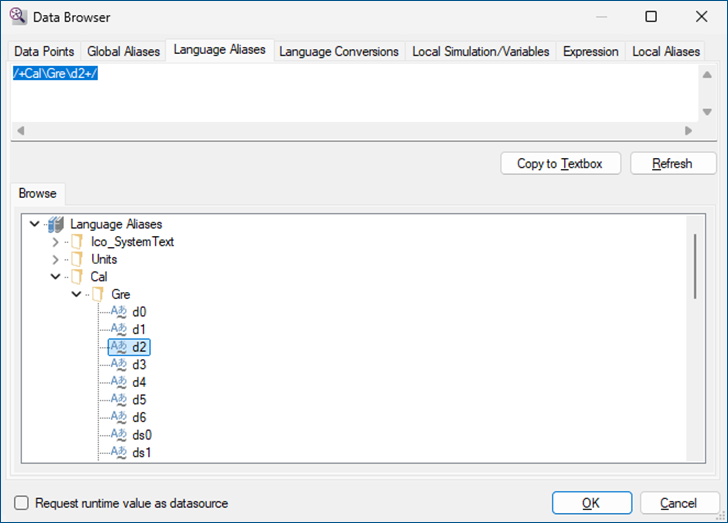
- In the Data Browser dialog, switch to the Language Aliases tab, and then expand Language Aliases > Cal > Gre.
-
Double-click d2. The /+Cal\Gre\d2+/ language alias is added to the text field above the tree.
-
Click OK to close the Data Browser dialog. The text property for the label is now set to the language alias name, which is displayed as the text of the label object.
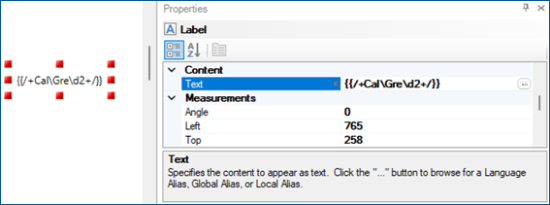 Data Browser inserts curly brackets at the beginning and end of the alias name, so in the configuration mode, the text appears as {{/+Cal\Gre\d2+/}}. These brackets indicate that the value is dynamic and will be resolved in runtime. In case of language aliases, these brackets are optional, and you could specify the alias name without them as /+Cal\Gre\d2+/.
-
-
In the upper right corner of the GraphWorX screen, click
 , or press CTRL+M. GraphWorX switches to the runtime mode. Assuming your current language is English, the alias name of the label translates to Monday.
 - Switch to a different language.
On the Runtime ribbon, select Language. The language selector opens.
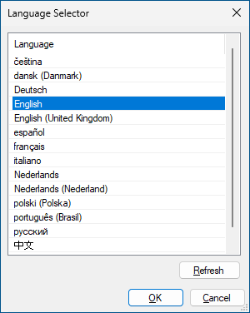
- Select a different language, such as français (French), and then click OK to close the dialog. The text of the label changes to the French translation (mardi).
- Repeat the steps to switch the language back to English. The text of the label changes back to Monday.