Applying a Command to a Table Control
In a Table control, you can apply a command that causes a specific action to occur when the control encounters various events in runtime such as loading data or when a user selects a row. You can select from a list of various events that can occur. Then, you select the command.
The following procedure uses the event, Row Selected, with the command, Write Value.
To create a runtime command:
-
Open GraphWorX and add a table control. Click the table control to open the configuration.
-
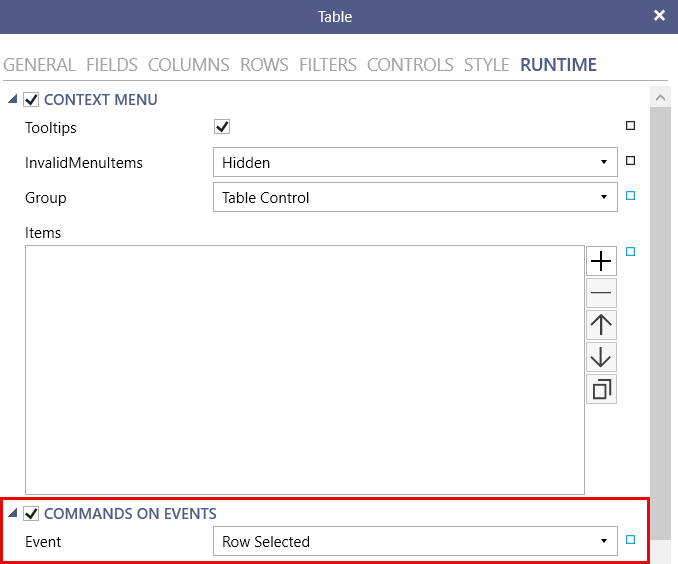
On the RUNTIME tab of the configuration, enable Commands on Events. In Event, select the event that executes the command.
-
In the Commands section, click
 to add a command. Then, in the Command field, select Write Value.
 -
Once you have selected the command, click
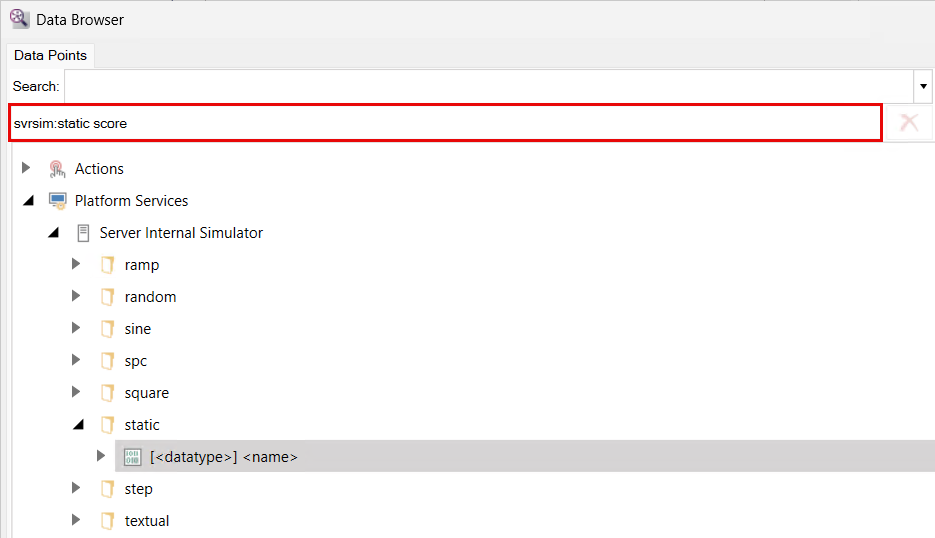
 next to PointName. Expand Platform Services > Server Internal Simulator > static. Then, select [<datatype>] <name>.
 -
Click into the path field. Delete [<datatype>] <name> from the end of the path and replace it with score. Click OK.
-
In Value, click
 to open the Data Browser and select the Expression tab from the top ribbon. Delete the red text in the editor.
 -
From the buttons on the right, select Variables and on the Context Variables tab, double-click @@field.Score, and then click OK.
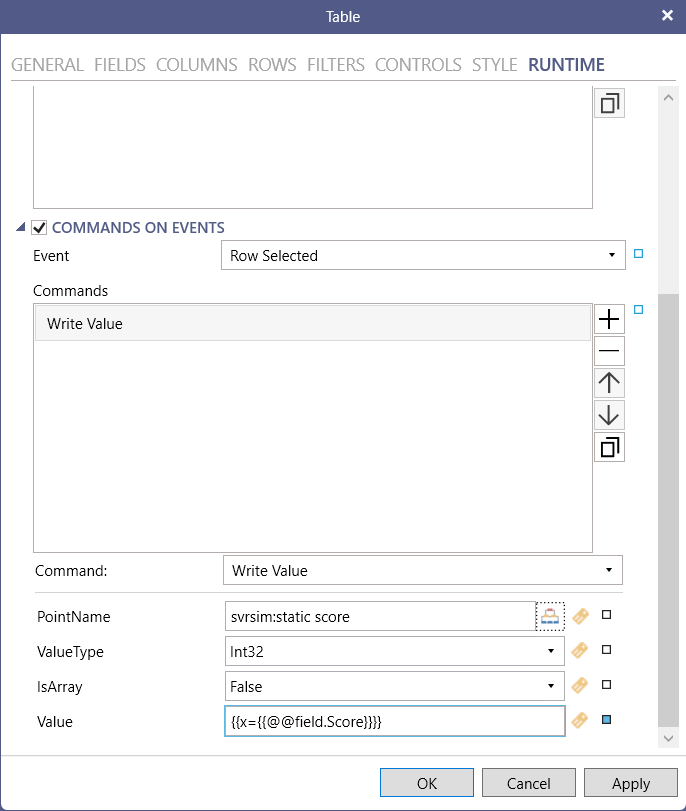
The context variable appears in the Value field. Click OK to close the configuration.
-
When you are finished applying the command to the table control, select the Dynamics tab from the top ribbon in GraphWorX and select Data Entry. Then, click into the canvas and drag diagonally to create a data entry box to visualize the data.
-
Click the data entry box. In the panel on the right, go to DataSource and select the same data point as in step 5.
-
Switch to runtime and select a row to see the value written in the data entry box.