Adding Pump Input and Valve Input Control Buttons
To the right of the process points, you will add a Pump In control button (Pump 01—Input) which turns the input pump on or off. Then, below the Pump In button, you will add a Valve In control button (Valve 01—Input) which opens or closes the selected input valve.
To add a Pump In and Valve In control button:
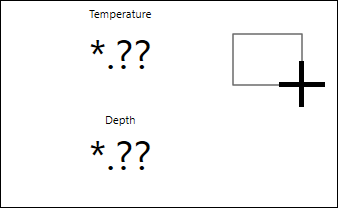
- On the Dynamics ribbon, click
 to place a button on the canvas.
 - On the canvas, click and drag to size and place the button to the right of the process points.
- Double-click the new button and enter Pump In.
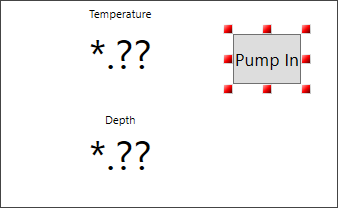
- In the Dynamics panel, do the following:
- In the Dynamic Behavior section, select Command, and then select Toggle Value from the list.
- In the Data section, select DataSource and click
 to open the Data Browser.
 On the Data Points tab, expand Assets > Tank Farm Management System > Pumps, select Pump 01 - Input as the data source (tag), and then click OK.
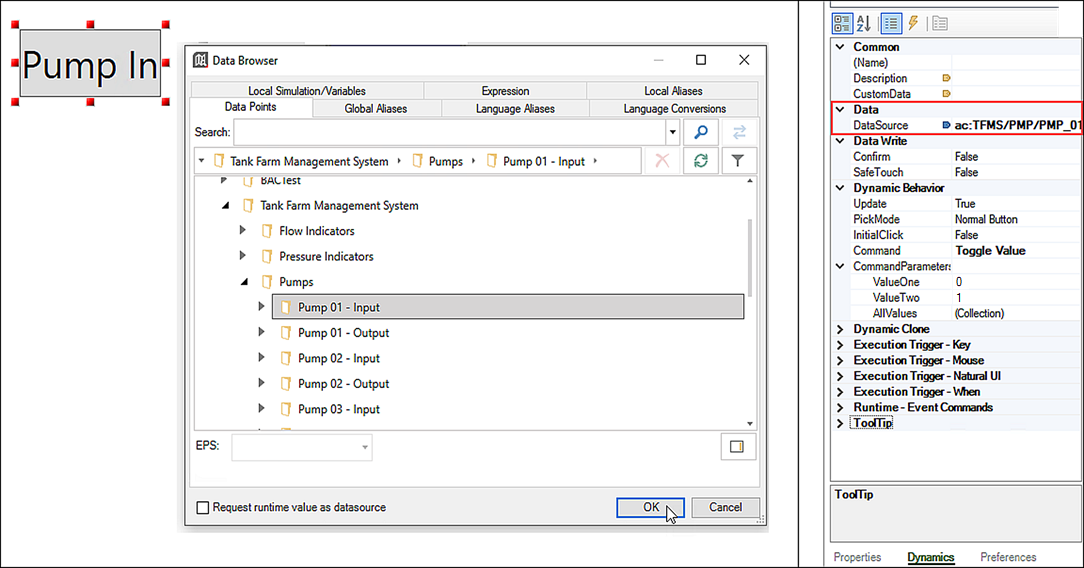
- In the Dynamic Behavior section, select CommandParameters and enter the following values:
- ValueOne: 0
- ValueTwo: 1
- At the top of the Dynamic panel, click
 to add and define the button's Color actions.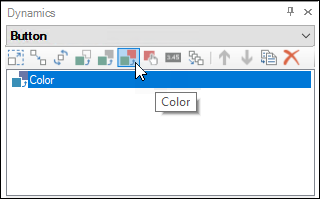
- Define the button's color data source.
- In the Data section, select DataSource and click to open the Data Browser.
- On the Data Points tab, expand Assets > Tank Farm Management System > Pumps, select Pump 01 - Input as the data source (tag), and then click OK.
- In the Data section, select DataSource and click
- Define the button's background color.
- In the Dynamic Behavior section, select TargetPropertyName, and then select Background from the list.
- Select EndColor and click .
- Pick a green color from the Solid Color tab and click OK.
- Define the button's color data source.
- Add the Valve In control button:
- On the canvas, click the Pump In button and select Ctrl+D to duplicate it. The duplicated button retains the Pump In dynamic behavior properties.
- Double-click the duplicated button and enter Valve In, and then click and drag the button below the Pump In button.
 After duplicating the button, make sure the existing Pick action located at the top section of the Dynamics panel is selected, so that the correct dynamics properties appear for the Valve In control button.
 - In the Dynamics panel in the Data section, select DataSource and click to open the Data Browser.
- In the upper right corner, click Runtime to view the button's interaction with the rising Depth value, and then do the following:
- Press the Pump In and Valve In buttons. When activated, the buttons turn green. You may notice a slight delay after turning on the pump and opening the valve, which is designed.

- To deactivate a button, click it again, shutting off the pump or closing the valve. The tank will stop filling and the Depth will stop changing.
- When finished, click Configure in the upper right corner to return to the configuration mode.
- Press the Pump In and Valve In buttons. When activated, the buttons turn green. You may notice a slight delay after turning on the pump and opening the valve, which is designed.
What's Next?