Transforming 3D Models Using the Property Grid
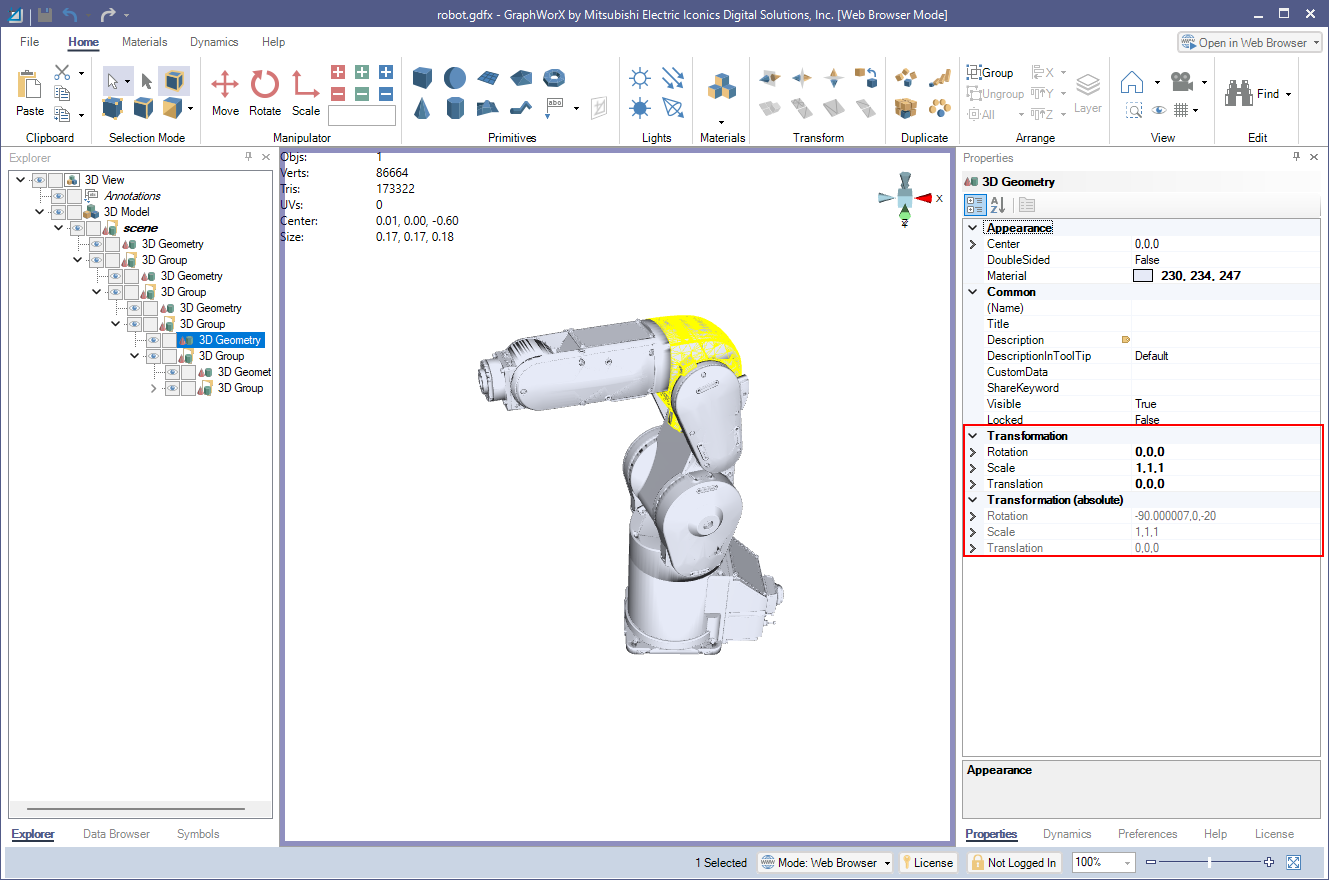
In a GraphWorX 3D view, you can set the exact position, size, and orientation of a model by entering values in the property grid instead of dragging the 3D manipulators. The property grid shows two sets of transformation properties for a selected model:
-
Transformation (relative)—The Translation, Scale, and Rotation of the model within its local coordinate space, relative to its parent object. Edit these properties to transform the model.
-
Transformation (absolute)—The resulting Translation, Scale, and Rotation of the model within the root coordinate space of the 3D view. GraphWorX calculates these values by combining the relative transformation of the model with the transformations of all its parent objects, so these properties are read only.
The two sets differ when the model is nested inside another object, such as a group, that has its own transformation. Use the absolute values to find where a nested model sits in the 3D view, and use the relative values to move it.
Many 3D editors store the position of each part in its geometry when exporting. Parts of an imported model then show the same relative and absolute values until you transform one of their parent objects.
To transform a 3D model using the property grid:
-
Open GraphWorX in the configuration mode (default), and then open a display that contains a 3D view with the model you want to transform. To add a model to the 3D view, see Importing 3D Files.
-
Select the viewport to display a custom ribbon for the 3D view.
-
Select the model in the viewport. The properties of the model are displayed in the property grid in the right panel.
-
In the Transformation (relative) section of the property grid, expand the property you want to change, and then enter values for X, Y, and Z:
-
Translation—The position offset of the model along each axis.
-
Scale—The scale factor of the model along each axis, anchored at the center of the model.
-
Rotation—The rotation angle of the model, in degrees, about each axis through the center of the model.
For some object types, this section is named Transformation.
The model updates in the viewport, and the Transformation (absolute) section updates to show the combined result.
-