Connecting to a REST API
This topic explains how to create a connection to a REST API from GENESIS.
To create a connection to a REST API:
- Open Workbench and in Project Explorer, expand your project > Data Connectivity.
-
Right-click Web Services and select Create a new Folder. Give the folder a name and click Apply.
You can skip this step and use an existing folder, like the default Sample Web Services folder. -
In Project Explorer, right-click the desired folder and select Add REST Service. The REST service configuration dialog is displayed.
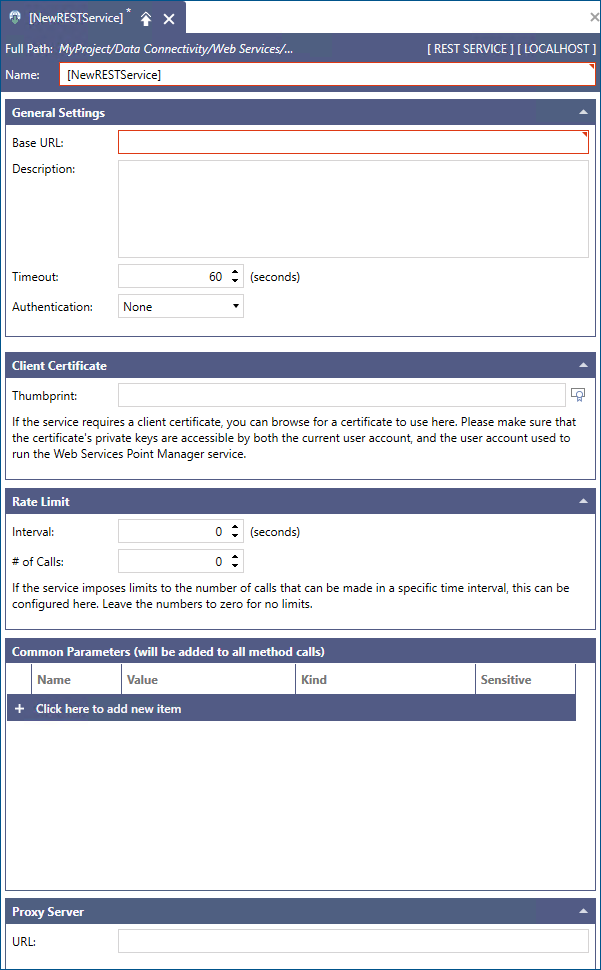
- Give the service a name and in the General Settings section in Base URL, enter the URL for the desired REST API. This information is typically available in the API documentation.
-
Configure the remaining REST service settings in the following sections as needed, and then click Apply.
-
General Settings
Contains basic settings to connect to the REST API.
Option Name
Description
Base URL
The base URL of the REST API. When configuring web methods, the web method URL will be relative to this URL.
Description
An optional description for the service.
Timeout
The number of seconds that the GENESIS Web Services point manager waits for a response from the REST API before considering the call as timed out.
Authentication
The authentication mechanism to employ when connecting to the REST API. Learn more
-
Client Certificate
Allows you to select a client certificate to be used for authentication when calling the REST API if the service requires it.
Option Name
Description
Thumbprint
The thumbprint of the desired client certificate. Click
 next to the Thumbprint text box to browse for certificates installed on the machine. If the network service account does not have access to the desired certificate, a confirmation dialog is displayed to grant access. To stop using a client certificate, manually delete the certificate thumbprint from the text box.
 -
Rate Limit
Allows you to configure limits on usage that some REST APIs impose. When working with rate limited REST APIs, keep in mind that GENESIS has an internal cache that can help reduce the number of calls.
Option Name
Description
Interval
Defines the time interval in seconds for the limited number of calls made to the REST API. For example, if the REST API has a limit of 100 calls per hour, set this option to 3,600 seconds. Enter 0 for no limits.
# of Calls
Defines the maximum number of calls that can be made during the defined interval. If the number of calls during the defined interval is reached, the Web Services point manager waits until a new call can be made before calling the REST API again.
-
Common Parameters
Allows you to configure parameters that are common to all calls made to the REST API, so that they can be defined only once and applied to all web methods configured under the service. This is useful, for example, if there is a value (like an API key) that must be sent will all calls, as you can define it only once for all methods.
Parameters in REST services are considered sensitive, therefore they are not added to runtime tags and cannot be overridden by clients. -
Proxy Server
Allows you to configure the address of a proxy server if routing the calls to the REST API is required.
Option Name
Description
URL
The URL of the proxy server.
-
What's Next?