Configuring DeviceXPlorer OPC Server
After installing the DeviceXPlorer OPC Server, you need to configure the OPC UA Server Property settings to enable a secure access from GENESIS. This topic describes how to set up DeviceXPlorer OPC Server with self-signed certificates.
To set up the DeviceXPlorer OPC Server with a self-signed certificate:
-
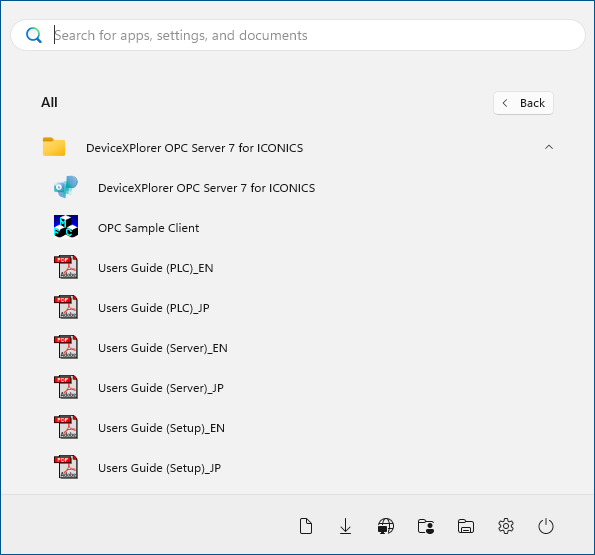
Open DeviceXPlorer OPC Server from the Windows Start menu or using the Windows search box.
-
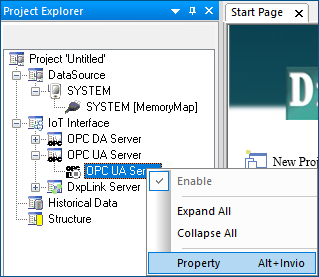
In the Project Explorer panel, expand your project > IoT Interface > OPC UA Server.
-
Right-click OPC UA Server and select Property.
-
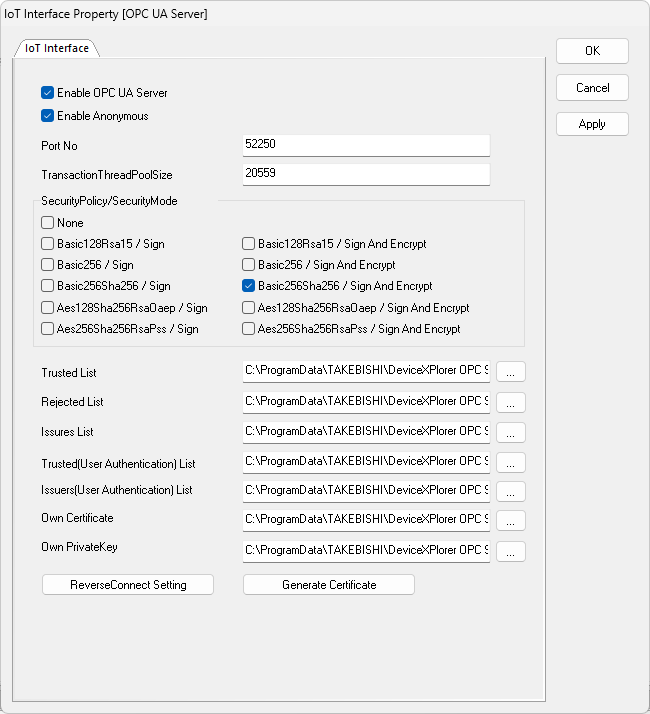
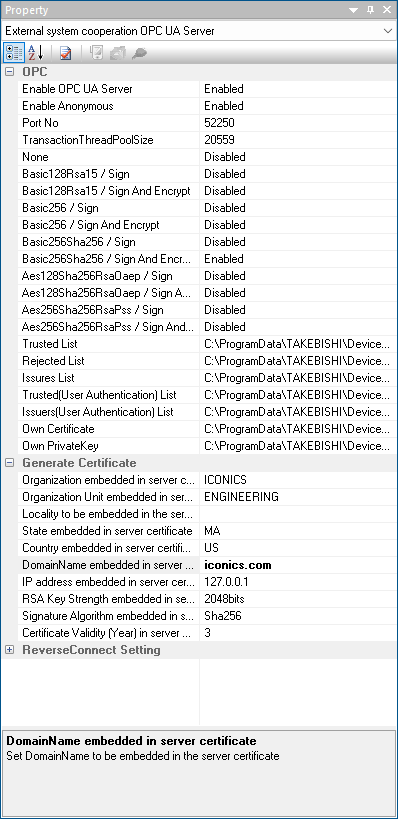
In the IoT Interface Property [OPC UA Server] dialog, select Enable OPC UA Server and Enable Anonymous, and in the SecurityPolicy/SecurityMode section, select Basic256Sha256 / Sign And Encrypt.
-
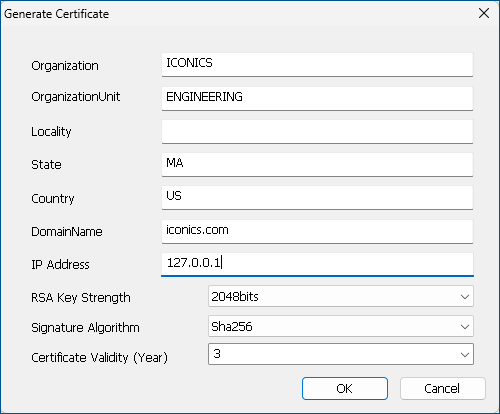
Click Generate Certificate, enter the required information, and then click OK.
-
In Signature Algorithm, enter Sha256.
-
In IP Address, enter 127.0.0.1 since the DeviceXPlorer OPC Server is running in the same environment as GENESIS.
-
-
In the IoT Interface Property [OPC UA Server] dialog, click OK to apply the settings.
-
Check the configurations in the Property panel on the right.
What's Next?