Repeating Notifications in a Workflow Template
Sending just one message is rarely enough to process a notification. If the first worker does not respond, someone else needs to be notified; if no one responds, a supervisor needs to be informed. This can be accounted for by using loops in workflow diagrams to send notifications repeatedly.
The loop is made from a delay, a condition block to test for when conditions are right to stop the notification, and a link that returns to the worker lookup. The condition block re-reads the state of the triggering alarm each pass, so the loop ends once your desired conditions are met. Because a Worker Lookup returns the next worker on each pass rather than the same one, each iteration contacts the next person on the list. Learn more
Before you begin, build a template that looks up workers and sends them a message. This procedure adds the loop and the escalation to that template. Learn more
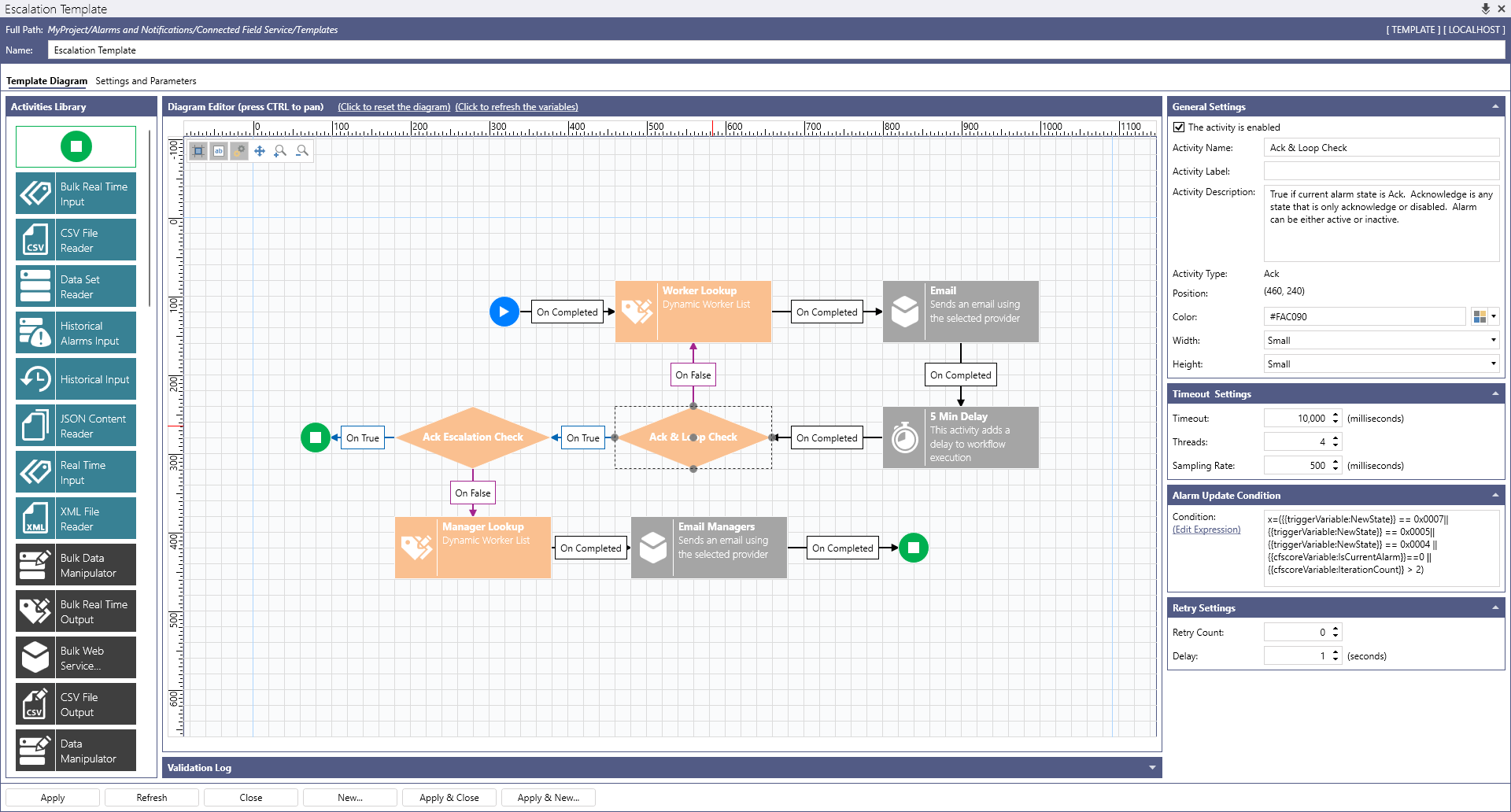
This procedure builds the pattern used by the Escalation Template in the Connected Field Service sample configuration. Open that template to see the finished diagram.
To repeat and escalate notifications until an alarm is acknowledged:
-
Open Workbench. In Project Explorer, expand your project > Alarms and Notifications > Connected Field Service > Templates, and open your template.
-
Drag Delay from the Activities Library onto the diagram after the send activity, name it Wait for Response, and set Delay up to to the time a worker is given to respond, for example
x=300000for five minutes. -
Drag Ack onto the diagram after the delay and name it Ack & Loop Check. This block is True when the alarm has been acknowledged.
-
Add the loop limit to the block's expression so that the loop also ends once enough workers have been tried. Click (Edit Expression) and extend the supplied condition with a clause, such as
|| {{cfscoreVariable:IterationCount}} > 2.-
IterationCountcounts passes through the loop. -
ListCompletionCountcounts complete passes through the worker list. Use this instead when the loop should end after everybody has been contacted a set number of times. -
Leave the supplied
{{cfscoreVariable:IsCurrentAlarm}}==0clause in place so that the loop also ends if the triggering alarm cycles into a new instance. Learn more
-
-
Link the False branch of Ack & Loop Check back to the Worker Lookup activity: right-click the block, select Add \<False> Link, and drag it onto the lookup. This is the loop.
-
Drag a second Ack block onto the diagram, connect the True branch of Ack & Loop Check to it, and name it Ack Escalation Check. Leave its expression as supplied, so it tests only whether the alarm was acknowledged.
-
Connect the True branch of Ack Escalation Check to an End activity with a Success result. This is the path taken when a worker responded.
-
Build the escalation on the False branch:
-
Drag a second Worker Lookup onto the diagram, name it Manager Lookup, and in Filter by group name, enter the supervisors group. For example,
CFS Managers. -
Drag a second send activity onto the diagram, name it Email Managers, and configure it as you configured the first. Include
{{cfscoreVariable:ListCompletionCount}}and{{cfscoreVariable:WorkerName}}in the message so that the supervisor can see how many people were tried and who was contacted last. -
Link Ack Escalation CheckFalse to Manager Lookup, Manager Lookup to Email Managers, and Email Managers to an End activity.
-
-
Confirm that the Validation Log reports no errors, click Apply, and then close the template designer.