Setting Up Runtime Parameters of an Equipment Property
When configuring an equipment property, you can define custom parameters in the Runtime Parameters section of the property configuration dialog and use them in an expression. Those parameters are included in the data point name syntax or in a specific sub-property, and you can change the parameter's default value when selecting that data point in runtime.
Any runtime parameters used by a property must be explicitly defined, excluding the Name, Parameter Name, and Parameter Description text fields. The Runtime Parameters list is checked against the parameters that are actually used, and any detected differences are reported below the parameter list. The message includes a button to fix the issue; for example, Add parameters if the property uses undefined parameter(s) or Remove parameters if the property does not use the specified parameter(s).
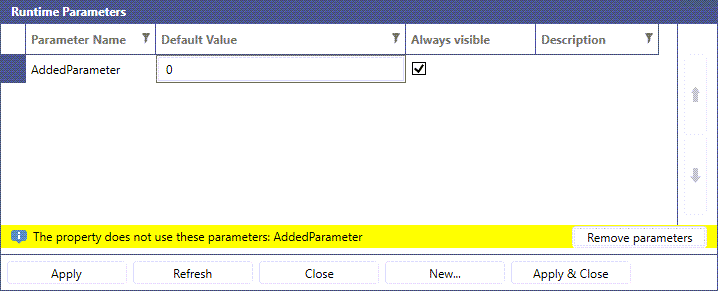
To configure a runtime parameter:
-
In Project Explorer under Assets, expand the Equipment or Equipment classes node and double-click the desired property to open its configuration.
-
In the Runtime Parameters section, select + Click here to add new item
-
In the new item row, complete the Parameter Name and Default Value, fields. Optionally, add a description.
-
Select the checkbox in the Always visible column to make the parameter part of the point name when browsing for the property, and then click Apply. The parameter is added to the configuration database, and you can select it in the Expression Editor when you configure expressions for this equipment property.
Runtime Parameter Point Name Syntax
Example:
Syntax rules:
-
Parameter names are case insensitive.
-
The order is not important.
-
White spaces and new lines are allowed.
-
Forbidden characters—any other characters than alphanumeric, underscore, dash, and space in the middle—must be double-quoted or single-quoted.
-
If quotes of the same type need to be used inside the value, they must be doubled (double quotes inside double quotes, and single quotes inside single quotes).
-
Any parameter can be omitted.
-
When browsing for the property, the point name will contain only the parameters marked as “always visible”. For other parameters, use an automatically created sub-property with the point name that contains all parameters.