Adding an Equipment Property
Equipment can have properties that are usually subscribed to real data sources, such as OPC UA, BACnet, Mitsubishi FA, or others, providing real-time data like temperature or pressure. You can add a property to an existing equipment class or an individual equipment instance on any level of the asset tree.
For any equipment created from an equipment class, add or edit properties on the related equipment class, as described in the following procedure. Otherwise, the settings will be lost when the equipment class configuration is regenerated.
To allow different values for various parameters of the equipment property on individual instances, click  to use an alias instead of a static value for each desired setting (if available) when configuring the equipment class property. Learn more
To add an equipment class property:
-
Open Workbench and in Project Explorer, expand your project > Assets, > Equipment classes, right-click the desired equipment class node, and select Add Equipment class property.
To add a property to a specific equipment instance that has not been created from an equipment class, follow the procedure below, expand Assets > Equipment, right-click the desired equipment instance, and select Add Equipment property.
-
In the new equipment property configuration dialog, enter the property's name. Optionally, enter a display name and description on the General tab.
Click
 to open Data Browser and select a language alias.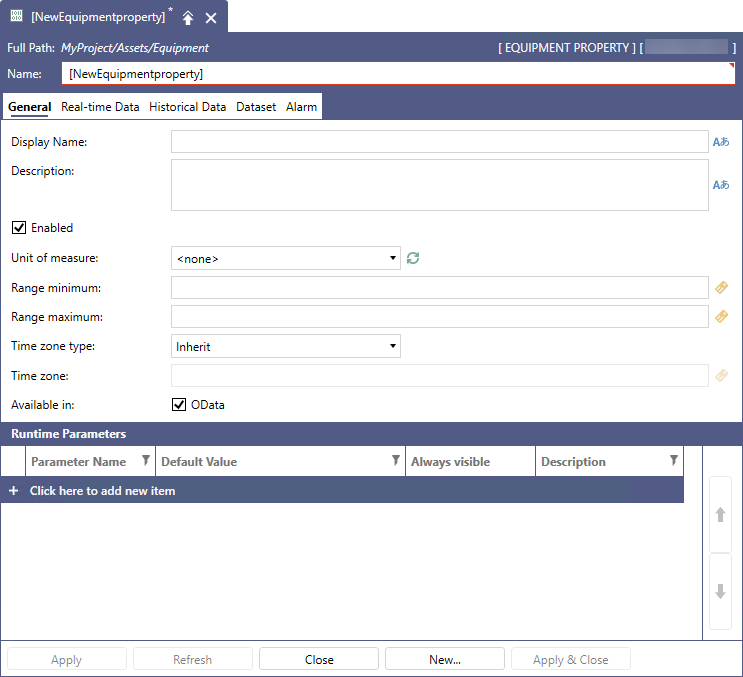
-
Make sure the Enabled checkbox is selected, and then enter or select the remaining settings for the unit of measure, range minimum and maximum, and time zone.
-
On the Real-time Data tab in Source type, select Real-time Data Source.
For more advanced options and their settings, refer to Advanced Real-time Data Source Type Settings.
-
In Real-time data source, click
 to browse all connected data sources and select the desired data point.
 -
(Optional) Select Use database cache to enable using any existing data cached in the database. Learn more
-
Complete the remaining Real-time Data tab settings.
-
Filtering by quality—Select Only good to only use good quality data or Any quality to use all data.
-
Always on scan—This option is only applicable to properties that are requested with default values for their runtime parameters.
-
Scan rate—If you have enabled Always on scan, you can enter a scan rate (in milliseconds) into the text entry field.
-
-
Click Apply to save the settings and create the equipment class property, and then update the existing instances. Learn more