Setting Up an Advanced Real-time Data Source Type
When configuring an equipment or equipment class property, you need to select the type of its data source on the Real-time Data tab.
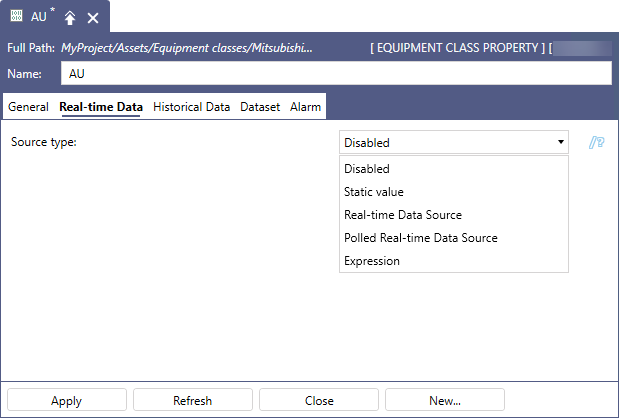
The default Source type setting is Disabled, which means that the equipment property is not connected to any real-time data. Once you select another option, the settings for the selected data source type are displayed.
The most commonly used type is Real-time Data Source. Its configuration is described in Adding an Equipment Property.
However, you can select any of the following more advanced options:
Static Value Settings
To set up a static value source type:
- In Data type, select the desired type of the static value (Native, Boolean, String, a floating point number, or a signed or unsigned integer).
-
In Value, enter an exact value depending on the selected data type, or click
 to select a data point from all connected data sources in Data Browser.When you select Native in Data type, no value is required, and the text box is not active.
 - (Optional) Select Use Database Cache to use a value cached in the database instead of real-time data. Learn more
- When finished, click Apply to save the settings and create the equipment class property.
Polled Real-time Data Source Settings
In comparison to the regular Real-time Data Source option, Polled Real-time Data Source allows you to set times/recurrences for data retrieval, using a polling group that has been created in Assets > Product configuration > System properties > Polling groups.
To set up a polled real-time data source type:
- In Real-time data source, enter the path to the desired polling group. Click to select the polling group in Data Browser.
- (Optional) Select Use Database Cache to use a value cached in the database instead of real-time data. Learn more
-
In Polling group, select the desired polling group, as shown in the example image, and then click Apply.
Select <inherit> to use the polling settings from the higher-level node of the asset tree, in which this particular equipment asset has been placed.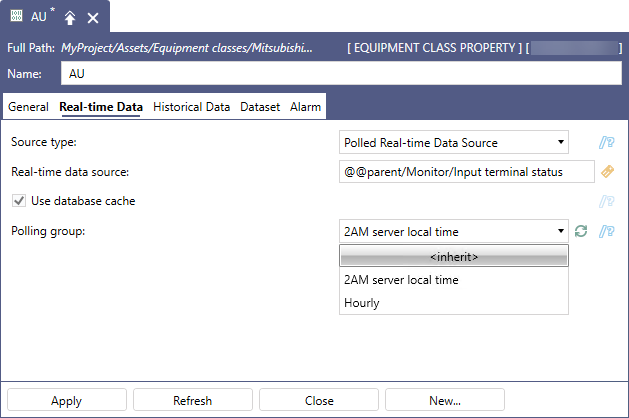
Expression Settings
To set up an expression source type:
- In Data Type, select the desired option (Native, Boolean, String, a floating point number, or a signed or unsigned integer).
-
Complete the Read expression field by doing one of the following:
- In Real-time data source, enter the path to an existing expression data source or click to select the data source in Data Browser. The Read expression field will populate automatically.
- Enter the expression directly into the text box.
- Click Configure expression to create or edit the desired expression in the Expression Editor.
You can use the following placeholder strings in your expression:
-
{{realtimepoint}}— References the data point specified by the Real-time data source setting. It can be used in both Read expressions and Write expressions.
-
{{input}}—Contains the value written into the expression tag by the runtime client. It can only be used in Write expressions.
- In Real-time data source, enter the path to an existing expression data source or click
-
(Optional) Select Write expression enabled to activate the Write expression field, and then enter the expression directly into the text box or click Configure expression to create or edit the desired expression in the Expression Editor.
-
Complete the remaining Real-time Data tab settings, and then click Apply.
- Filtering by quality—Select Only good to only use good quality data or Any quality to use all data.
- (Optional) Use Database Cache—Select the checkbox to use a value cached in the database instead of real-time data. Learn more
- Always on scan—This option is only applicable to properties that are requested with default values for their runtime parameters.
- Scan rate—If you have enabled Always on scan, you can enter a scan rate into the text entry field.