Creating a Link to Non-Asset Data
In the equipment configuration, you can use the Tunnel (limited) link type to link data from another point manager into your asset tree for easier browsing. It is designed to be used with BI Server data models, but it can be linked to other point managers, such as Data Historian.
The access via this link is limited in the following ways:
-
The linked content is not visible in the asset navigator, only in Data Browser.
-
If the link target has alarms, the Assets point manager cannot subscribe to them.
The tunnel link type is not designed to link to other asset catalogs. To link to other ac: tags, refer to Creating a Link to a Remote Asset Tree.
To create an Assets equipment tunnel link:
-
Open Workbench and in Project Explorer, expand your project > Assets, right-click Equipment, and select Add Equipment.
-
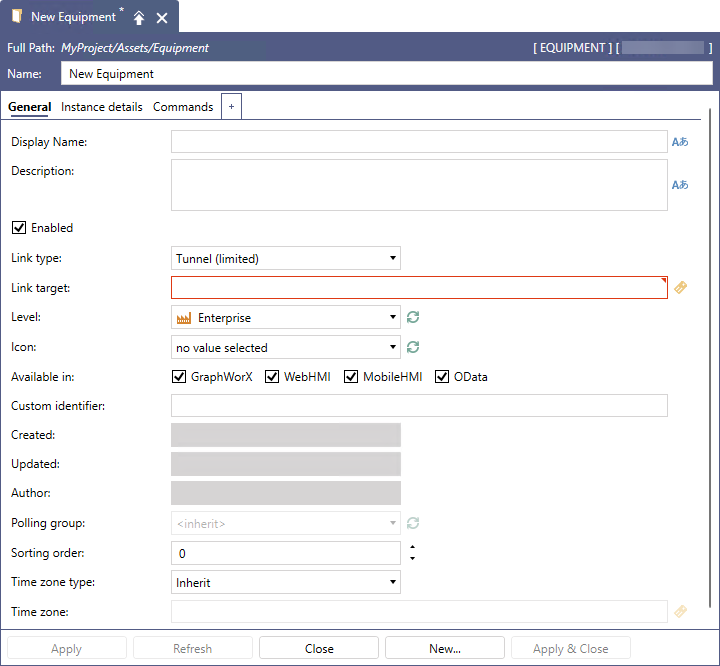
In the new equipment dialog in Name, specify the identifier for the remote data point in this node’s tree structure.
-
On the General tab in Link Type, select Tunnel (limited).
-
In Link target, click
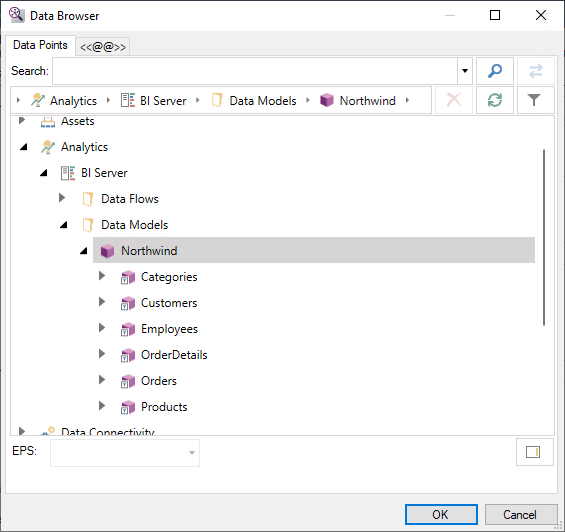
 next to the text box to open Data Browser.
 -
Select the desired data point and click OK to close the dialog.
-
Configure the remaining settings as needed, and then click Apply.