Configuring Vonage SMS and Text-to-Speech in Workbench
After setting up your Vonage account and obtaining the required information, you can create a Vonage configuration for outgoing SMS and Text-to-Speech in Workbench.
To configure Vonage SMS and Text-to-Speech in Workbench:
-
Open Workbench and in Project Explorer, expand your project > Alarms and Notifications > Alert Notifications.
-
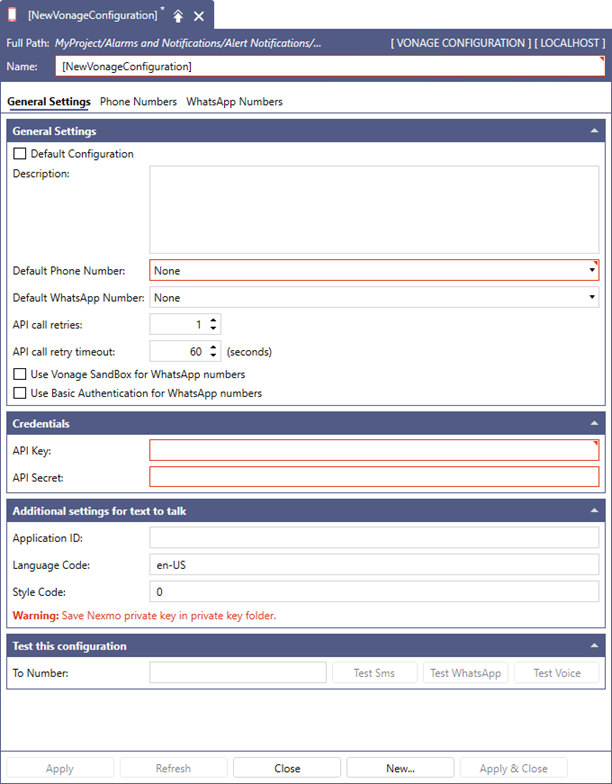
Right-click Vonage Configurations and select Add Vonage Configuration. The new Vonage configuration dialog is displayed.
-
In Name, enter a unique name of the configuration. Optionally, add more details in Description.
-
Select the Default Configuration checkbox to make this configuration default. The alert notification service (GENESIS Alert Notifications REST Point Manager) requires a default Vonage configuration to send Vonage alerts.
-
In Default Phone Number, enter the number to be used for sending SMS and Text-to-Speech notifications via Vonage. Do the following:
-
Go to the Phone Numbers tab and select Click here to add new item.
-
Name the new item in the Name column and in the Phone Number column, enter the virtual phone number that you have obtained in your Vonage account.
-
Go back to the General Settings tab and in Default Phone Number, select the newly added phone number from the drop-down list.
-
-
In API Key and API Secret in the Credentials section, enter the information copied from your Vonage account. Learn more
-
In the Additional settings for text to talk section in Application ID, enter the application ID that you copied after creating the Vonage application. Learn more
-
Click Apply to save the configuration, and then test the functionality by sending a test SMS and Text-to-Speech message.
-
Click Test SMS next to the Default Phone Number box to open the Send a test message dialog.
-
In To, enter the desired receiving phone number, and then click Send Message. You should receive the SMS to the selected number as expected.
-
Click Test Voice and send a test Text-to-Speech in the same way.
-
What's Next?