Configuring ACS for Outgoing SMS and Email
To send alert notification SMS or email with Azure Communication Services, you must configure the ACS credentials in Workbench. After completing the prerequisites and obtaining the required information (the ACS connection string, the default phone number, and the Default From email adddress), you can create an ACS configuration for Alert Notifications and configure it for sending either SMS or email, or set up both to get full functionality.
To configure ACS with outgoing SMS and email:
-
Open Workbench and in Project Explorer, expand your project > Alarms and Notifications > Alert Notifications.
-
Right-click ACS Configurations and select Add ACS Configuration. A new ACS configuration dialog opens on the General Settings tab.
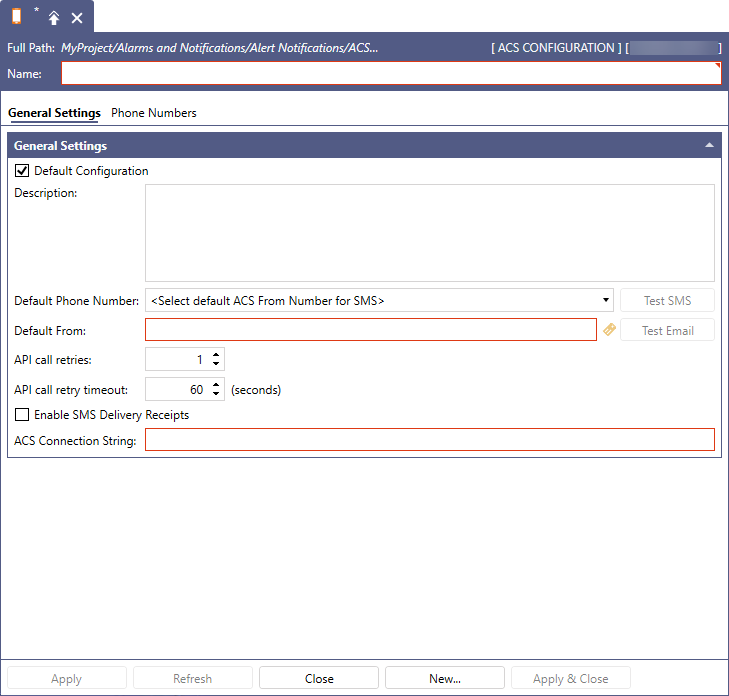
- In Name, enter a unique identifier of the configuration. Optionally, add more details in Description.
- Select the Default Configuration checkbox to make this configuration default. The Alert Notifications service requires a default ACS configuration to send Azure Communication alerts.
- In ACS Connection String, enter the connection string obtained from Azure.
- In Default Phone Number, enter the ACS phone number to be used for sending SMS. Do the following:
- On the Phone Numbers tab, select Click here to add new item to add a new row.
- In the Name and Phone Numbercolumns, enter the display name and the phone number obtained from Azure.
- Go back to the General Settings tab and in Default Phone Number, select the newly added phone number.
- In Default From, enter the email ID obtained from Azure, and then click Apply to complete the configuration.
-
Test the SMS and email functionality.
To send a test SMS:
Click the Test SMS button to open the message settings, complete the To and Message fields with the recipient's number and the desired text of the message, and then click Send Message. You should receive the SMS to the To number as expected.
To send a test email:
Click the Test Email button, enter the recipient's email address in To, fill in the Subject and Message fields, and then click Send Message. You should receive the email to the To address as expected.
If the message does not arrive in the inbox, check your spam folder.
What's Next?